









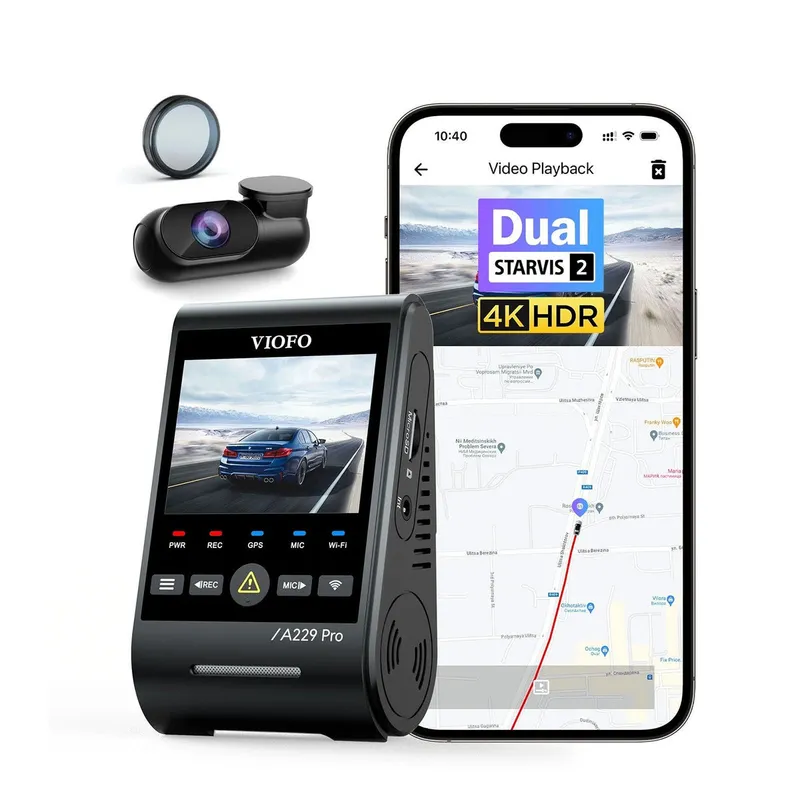
 Official manufacturer image
Our picks
Top picks
Official manufacturer image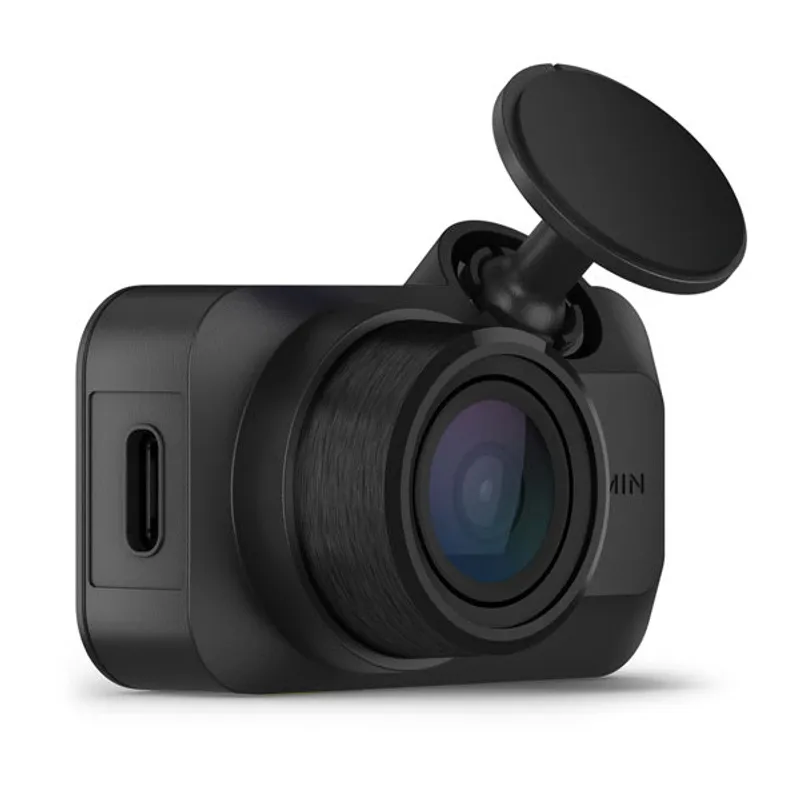 Official manufacturer image
Garmin Dash Cam Mini 3
Check price on Amazon.ca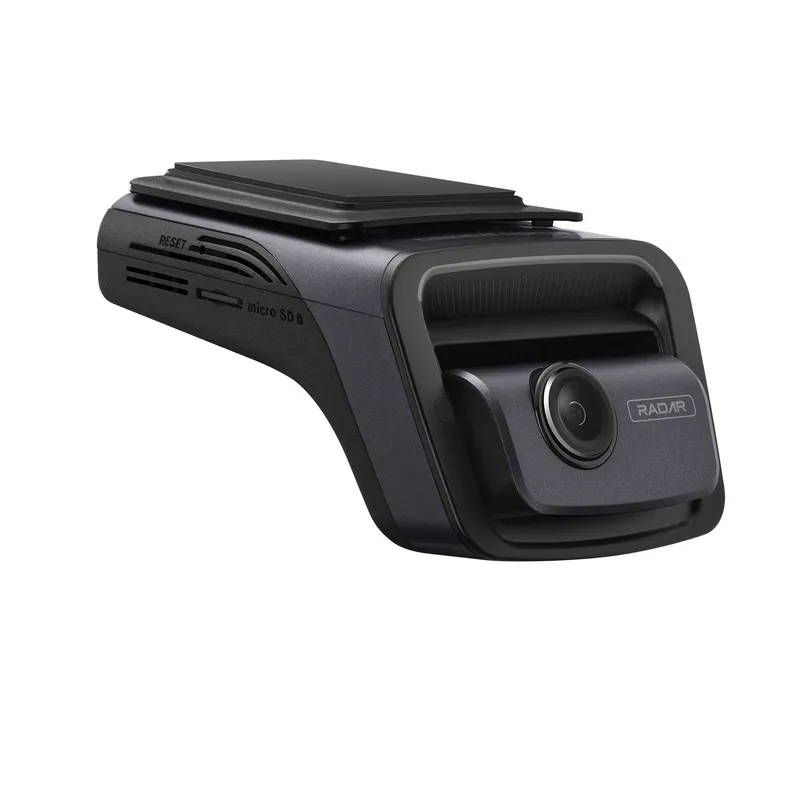 Official manufacturer image
Thinkware U3000
Check price on Amazon.caBy vehicle
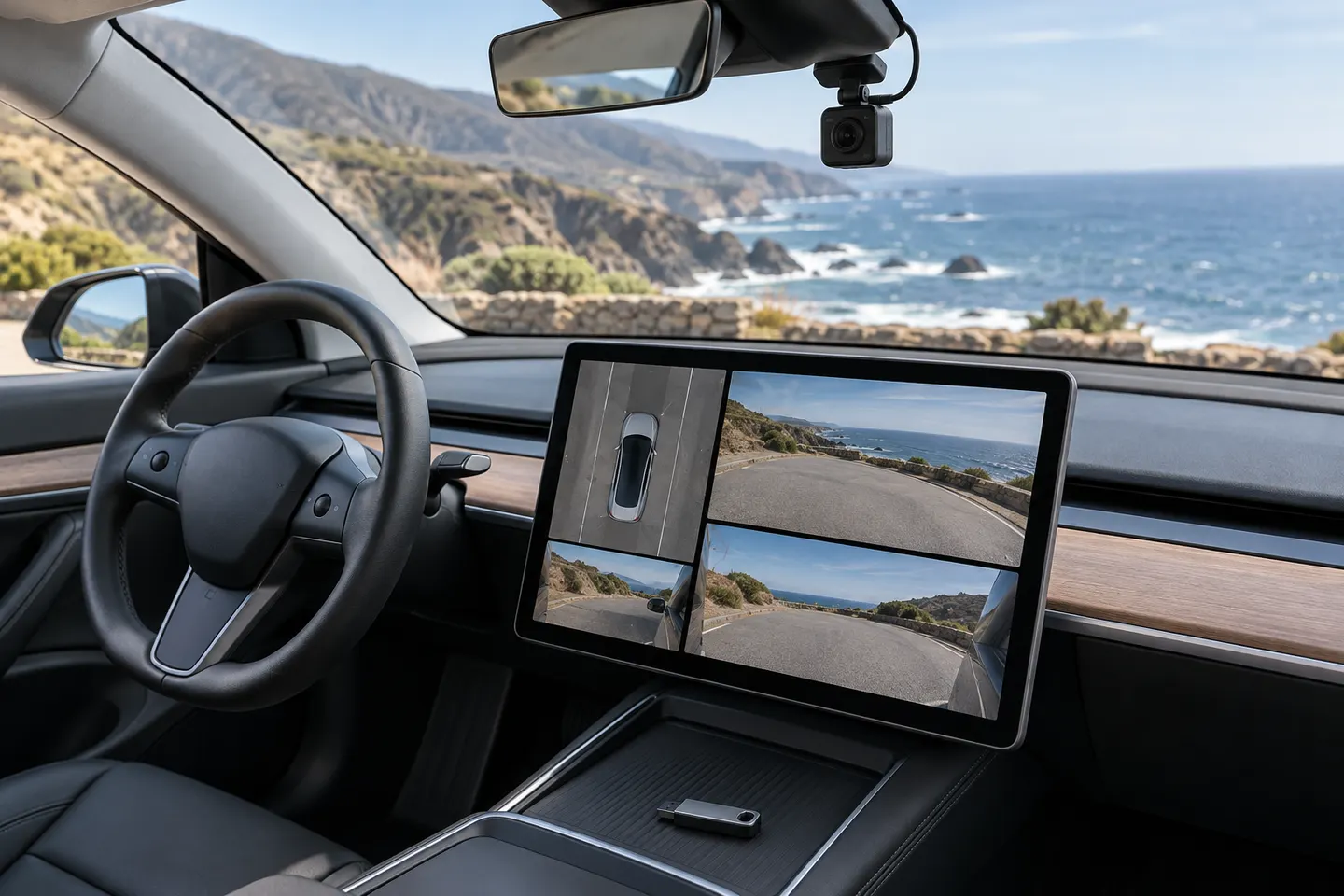 Tesla
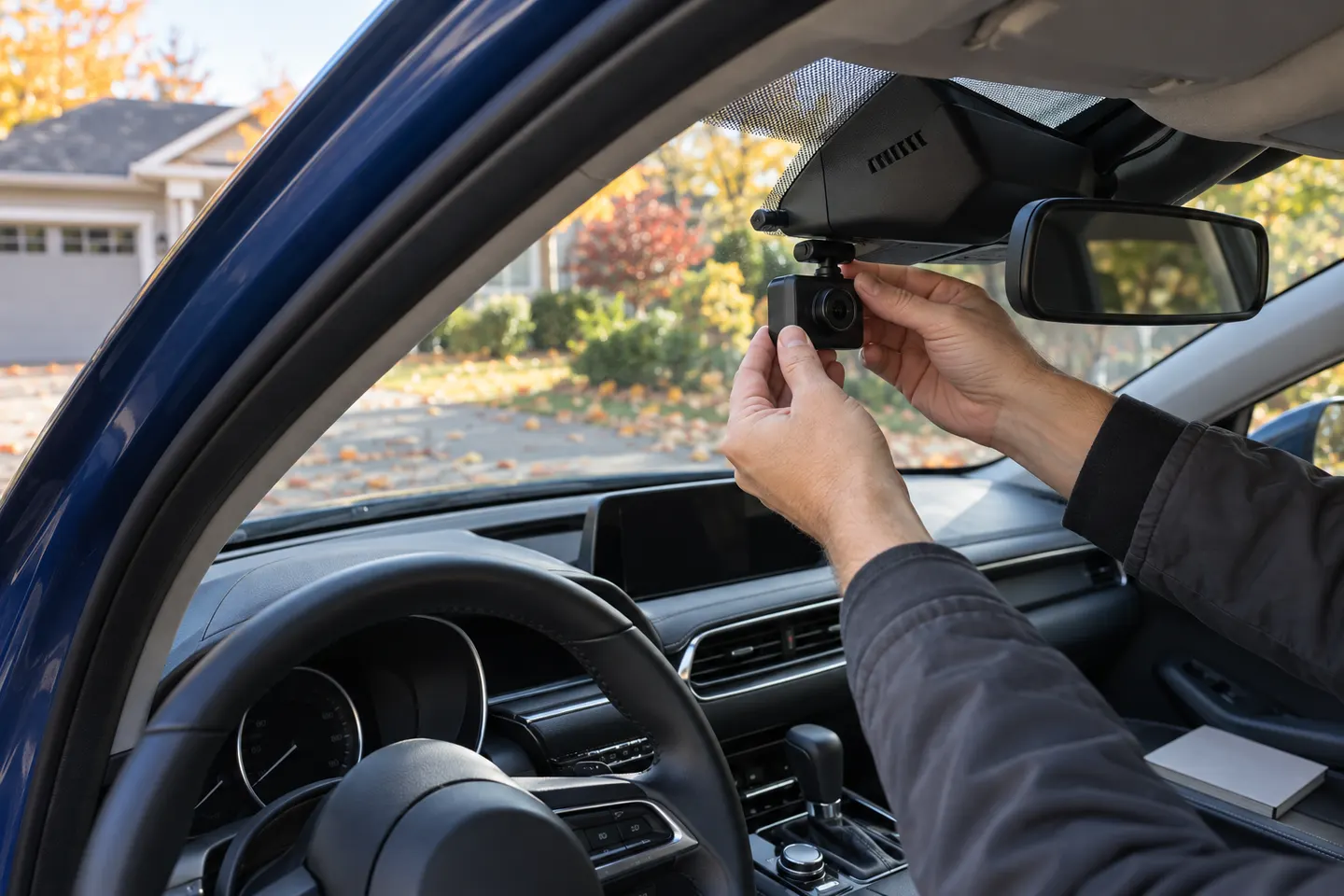 Mazda 3
Show all (5)
By feature
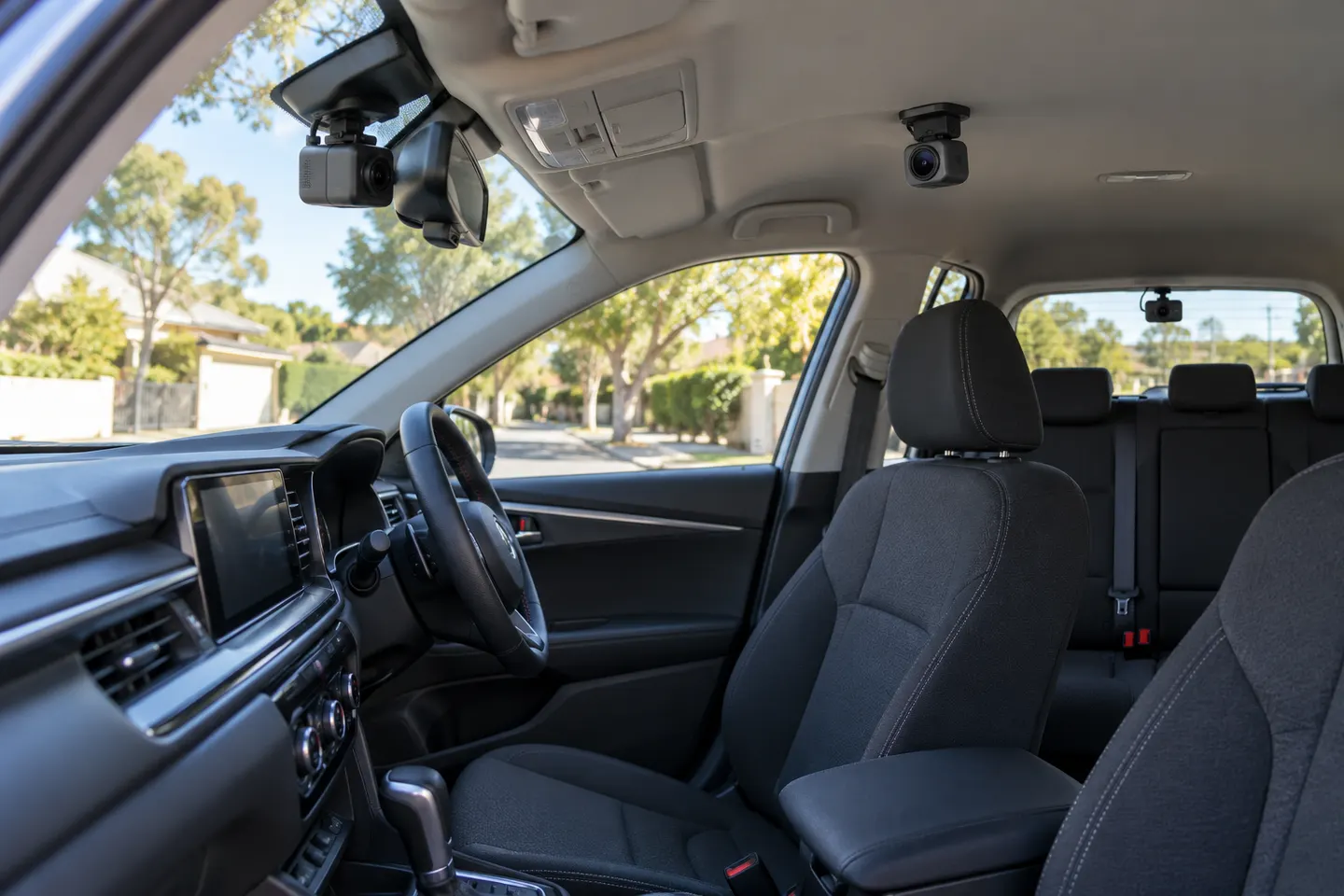 3 channel
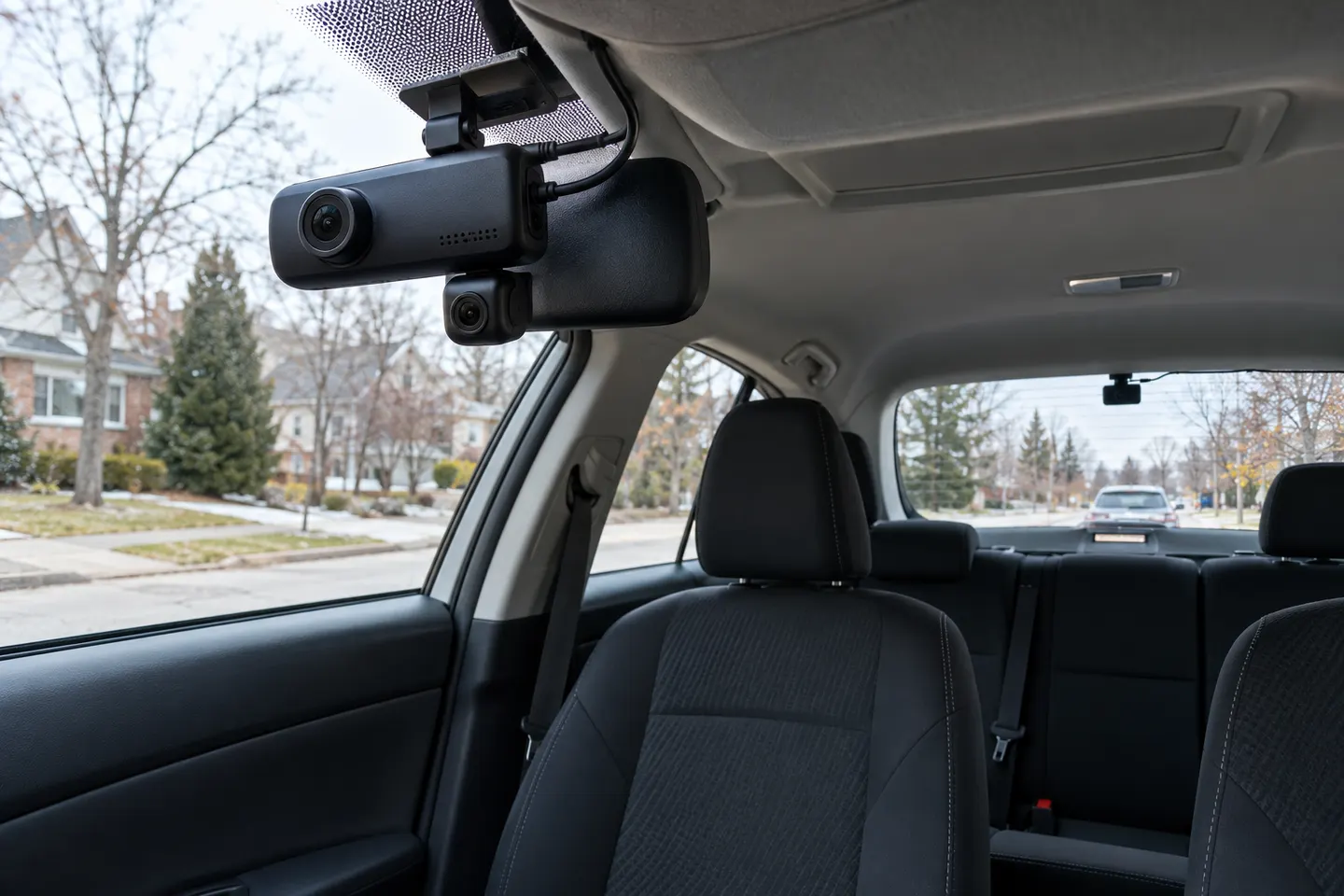 3 channel 4k
More topics
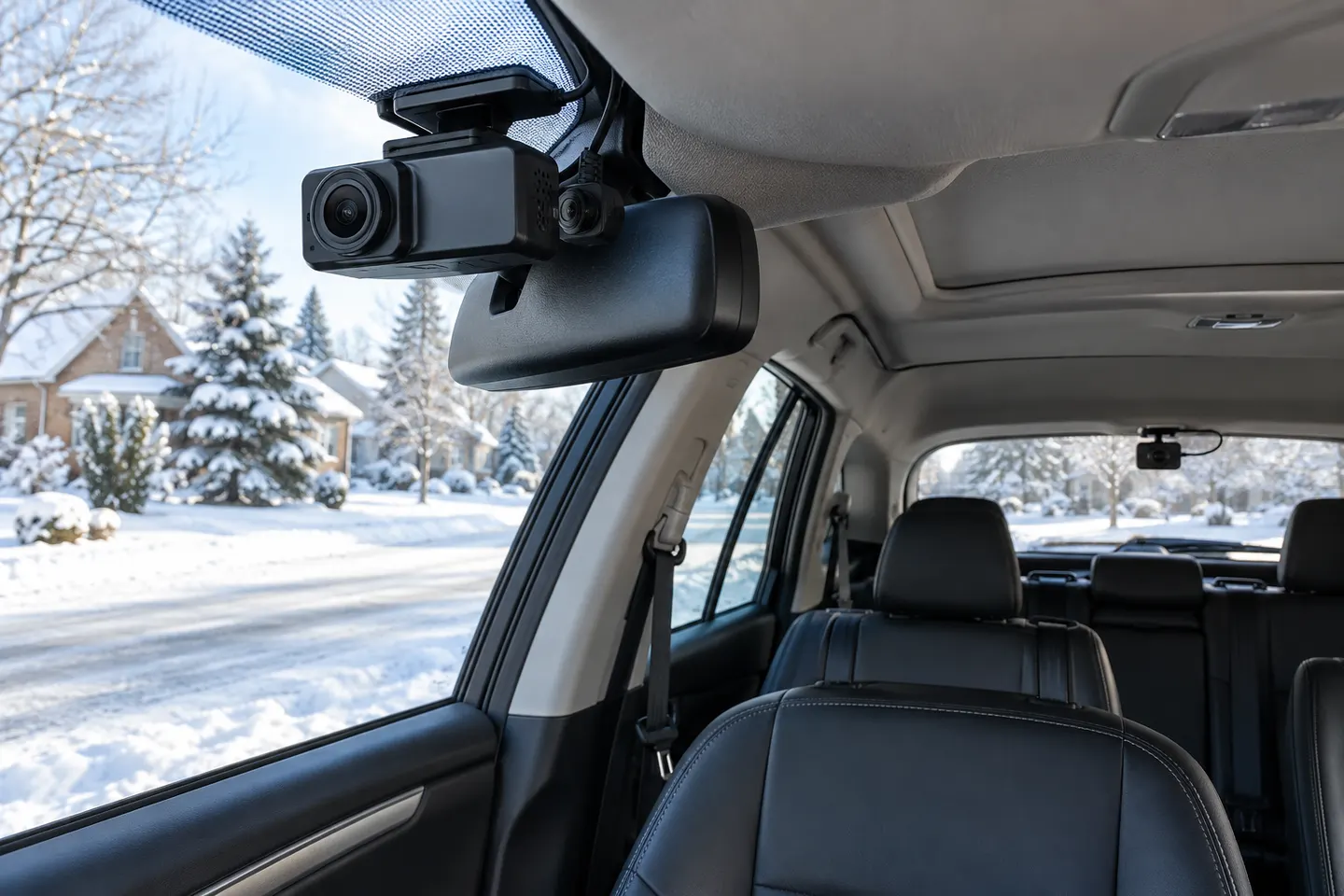 3-Way Dash Cams for Front, Cabin and Rear Coverage
Common questions
Questions before you buy
How do you turn off Dashcam on a Tesla Model 3?
Open Controls, then Safety, and set Dashcam to Off. Tesla notes that the exact menus and behaviour can vary by software version and vehicle configuration.
What does the red dot on the Tesla dashcam icon mean?
It indicates that Dashcam is recording. Touching the icon saves footage, while pressing and holding pauses recording on documented Model 3 software.
Where is the Tesla Model 3 dashcam USB location?
Current Model 3 documentation identifies a USB-A port inside the glovebox for Dashcam and Sentry Mode storage. Some earlier vehicles may use a front centre-console data port.
Why is the Tesla dashcam icon unavailable?
Check that a compatible drive is inserted, formatted and recognized, then confirm Dashcam is enabled under Controls and Safety. A busy icon means the system may be loading, saving or overwriting footage.
How do I save a Tesla dashcam clip?
While driving, touch the Dashcam icon or use another enabled save trigger such as On Honk. Saved clips can be viewed when parked or on a computer.