Gearjury may earn a commission from qualifying retailer links. This does not affect our editorial guidance.
Guide
How to Use a TP-Link WiFi Extender at Home
Set up the extender near the router, pair it using the supported app, browser or WPS method, then move it to a position that still receives a usable signal.
GGearjury editorial team · Updated 15 October 2026· 5 min
01
How do you use a TP-Link WiFi extender for the first time?
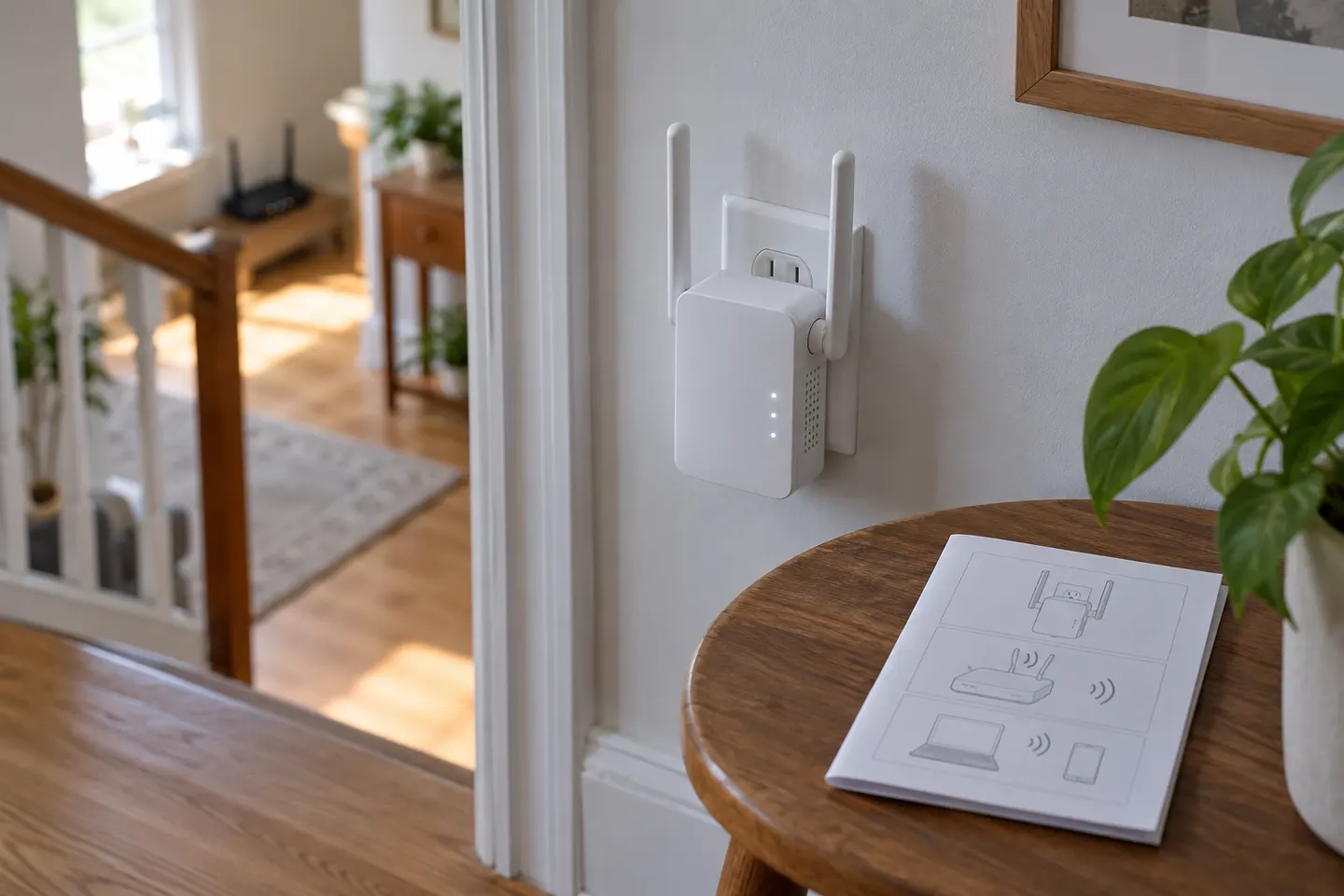
Plug the extender in near the router and wait for it to start. Use the TP-Link Tether app, a web browser or WPS only if your model supports that method; the official setup guide for the exact hardware version has the correct sequence.
02
Pair it with the router
In the app or browser setup, select your home network and enter its WiFi password. With WPS, press the router and extender buttons as directed by the manual. Confirm that the extender reports a successful connection before relocating it.
03
Find a useful position
Place the unit between the router and the area with weak coverage, where it can still receive a good router signal. Avoid cupboards, large obstructions and locations beside interference sources; use the signal indicator or app guidance where available.
04
Choose extender or access point mode
A model with an Ethernet port may support access point mode, which uses a wired connection to provide WiFi. Do not assume the port has this function: check the model’s supported modes and connect the cable as specified.
05
Can an old router or another provider’s equipment work?
Some routers can be configured as access points or repeaters, but support and menus differ by model. A Huawei router needs the relevant operating mode; a Sky Q box’s networking function is model- and service-specific. Check those manufacturers’ instructions instead of treating either device as a universal booster.
06
Check coverage and troubleshoot
Test the rooms and devices that matter after installation. If performance is poor, move the extender closer to the router, confirm the selected band and password, and update firmware using the official support page for your hardware version.
Common questions
Questions before you buy
How do you use a Huawei router as a WiFi extender?
Only if that Huawei model supports repeater, bridge or access point operation. Consult its manual for the mode and setup steps; router menus are not universal.
Can I use an old WiFi router as an extender?
Possibly, if it supports repeater or access point mode and remains compatible with your main router. A wired access point connection is often easier to diagnose than an unsupported wireless repeater arrangement.
Can we use a WiFi router as an extender?
Some routers offer a repeater or wireless bridge mode, while others do not. Check the exact router’s documentation before attempting a reset or changing its network settings.
How do I use a Sky Q box as a WiFi booster?
Sky Q networking features depend on the box, service and current configuration. Follow Sky’s support instructions for your equipment; it is not a general-purpose range extender with setup steps that apply to every home.
How do I use a WiFi booster for my home?
Pair it close to the router, then relocate it towards the weak-coverage area while retaining a solid router connection. Test the result and adjust placement if the problem remains.
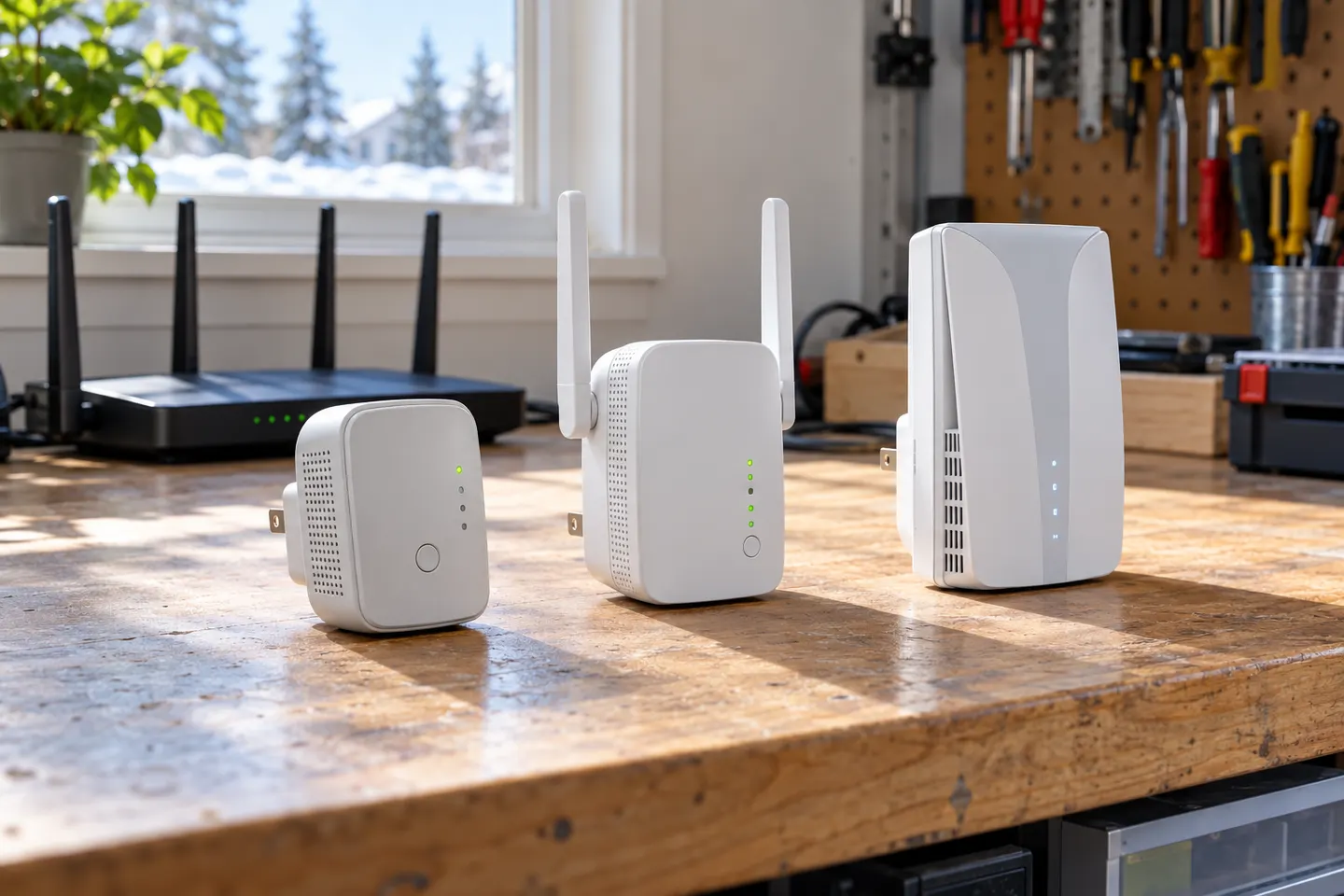
For a general indoor pick, start with TP-Link RE705X: it has WiFi 6, a Gigabit Ethernet port and access point mode. RE550, RE315 and a powerline kit suit different budgets and layouts; outdoor use needs purpose-built hardware.
A WiFi extender can carry an existing router signal into a weak-coverage area. Choose a plug-in repeater for a simple dead zone, or consider powerline when walls make a wireless link unreliable.
Choose a wireless range extender when it can receive a healthy signal; consider powerline when the route through the home is the main obstacle. TP-Link’s model range includes both approaches.
Your privacy
We use cookies and similar technologies. Necessary ones keep the site working. With your permission we also use statistics cookies (Google Analytics and Microsoft Clarity) to understand which guides help readers. You can accept all, reject all or choose. You can change your choice at any time from "Cookie settings" at the bottom of every page. Cookie policy