Gearjury may earn a commission when you buy through retailer links.
Guide
How to Use a TP-Link WiFi Extender: Setup and Placement
For a TP-Link AC1200 RE315, use the setup route in the manual for your hardware version: WPS, Tether app or web interface. Place it where the router signal is still usable.
GGearjury editorial team · Updated 15 October 2026· 5 min
01
How to use a TP-Link AC1200 WiFi range extender
Identify the model and hardware version printed on the label, then open the matching TP-Link support page and manual. TP-Link lists RE315 as an AC1200 mesh WiFi range extender and publishes setup resources; menu names can vary by revision.
02
Set up with WPS
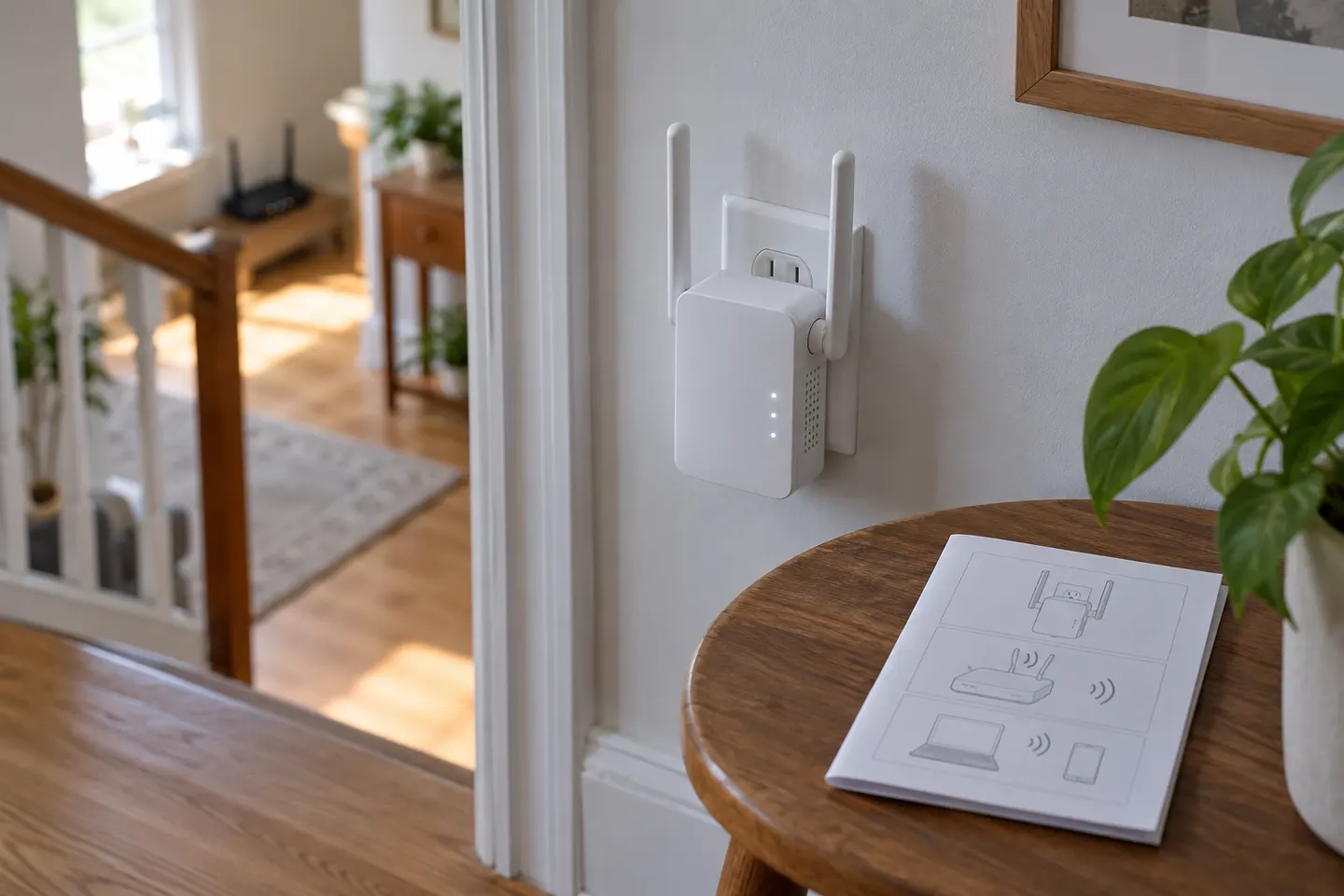
Plug the extender near the router for initial pairing. Press the router's WPS control, then follow the extender manual's timing and indicator instructions. Once paired, move the device to a position where it still receives a useful router signal.
03
Use the TP-Link Tether app
Install the official Tether app on a compatible phone and select the range-extender setup flow. Connect to the extender when prompted, choose your home network and follow the app. TP-Link notes that app availability and device support can depend on model and firmware.
04
Configure through a web browser
Connect a phone or computer to the extender's setup network and open the address specified in the model's guide. Sign in using the instructions supplied with that hardware version, select the host network and save the configuration.
05
Where to place the extender
Move it between the router and the weak-coverage area, not at the far edge where the original signal has already failed. Use the model's signal indicators or app guidance, and keep it away from obstructions that interfere with reception.
06
Check the connection and troubleshoot
Reconnect your device to the extended network and check the signal where you need it. If setup fails, verify the WiFi password, restart both devices, confirm the firmware and manual match the hardware version, then repeat the manufacturer's steps.
Common questions
Questions before you buy
How do I use a TP-Link AC1200 WiFi range extender?
Follow the manual for the exact model and revision. TP-Link publishes RE315 setup instructions for WPS, Tether app and browser methods; after pairing, position it where the router signal remains sound.
Can I set up a TP-Link extender without WPS?
Yes. TP-Link documents setup through the Tether app or a web browser for supported models. Check the exact model support page for the applicable method.
Should my TP-Link extender use the same WiFi name?
Some setup flows allow the extended network to use the host network name, while others may distinguish it. Follow the configuration options shown for your hardware and consider how your devices switch networks.
Why is my TP-Link extender connected but not working?
Check that the host router has internet access, the extender joined the correct band and network, and the password is right. Move it closer to the router if its backhaul signal is poor, then consult the model-specific troubleshooting guide.
A Wi-Fi extender can help reach a weak-signal room when positioned within range of your router. Compare plug-in repeaters, mesh-compatible models, outdoor units and powerline kits by how they connect.
The right Wi-Fi extender depends on the router signal at its location, your home layout and whether you need Ethernet, outdoor placement or powerline networking.
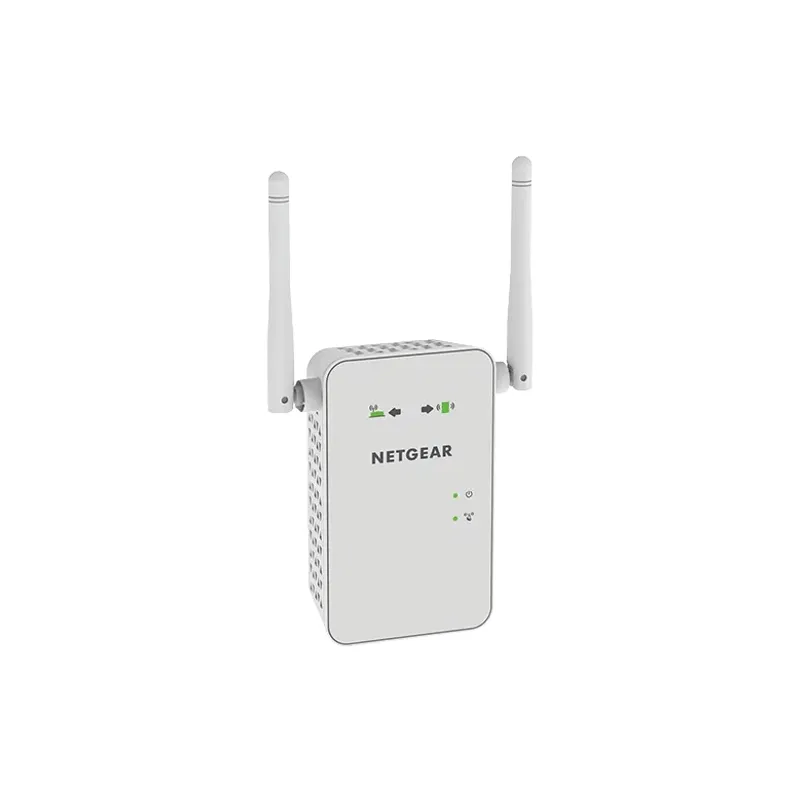
Start with the network standard and location of the dead spot. NETGEAR?s EX6120 is a dual-band AC model, while EAX15 adds WiFi 6; check exact router and firmware compatibility before buying.
Your privacy
We use cookies and similar technologies. Necessary ones keep the site working. With your permission we also use statistics cookies (Google Analytics and Microsoft Clarity) to understand which guides help readers. You can accept all, reject all or choose. You can change your choice at any time from "Cookie settings" at the bottom of every page. Cookie policy