Before pairing your EE WiFi booster
Check that the extender is intended for your EE hub and that both devices are switched on. For the first connection, place them in the same room; this avoids trying to pair through floors or thick walls.

 Best picksBest WiFi Extenders in the UK: Compare Five Practical Options
 Best picksBest Meat Thermometers in the UK for 2026
 Best picksThe Best Dashcams in the UK for 2026
 Best picksBest Air Purifiers in the UK for Different Rooms and Needs
 Best picksBest Radar Detectors in the UK: Models Compared for 2026
 Best picksBest Headlamp Torches in the UK: Five Choices for 2026
 Best picksBest Portable Air Coolers: Five Models to Compare for 2026
 Best picksBest Winter Gloves in the UK: Five Activity-Based Choices for 2026
Gearjury may earn a commission from qualifying retailer links.
Guide
Pair the extender beside your EE hub first, using WPS or an Ethernet cable. Once connected, move it towards the weak-signal area while keeping it within reach of the hub’s signal.
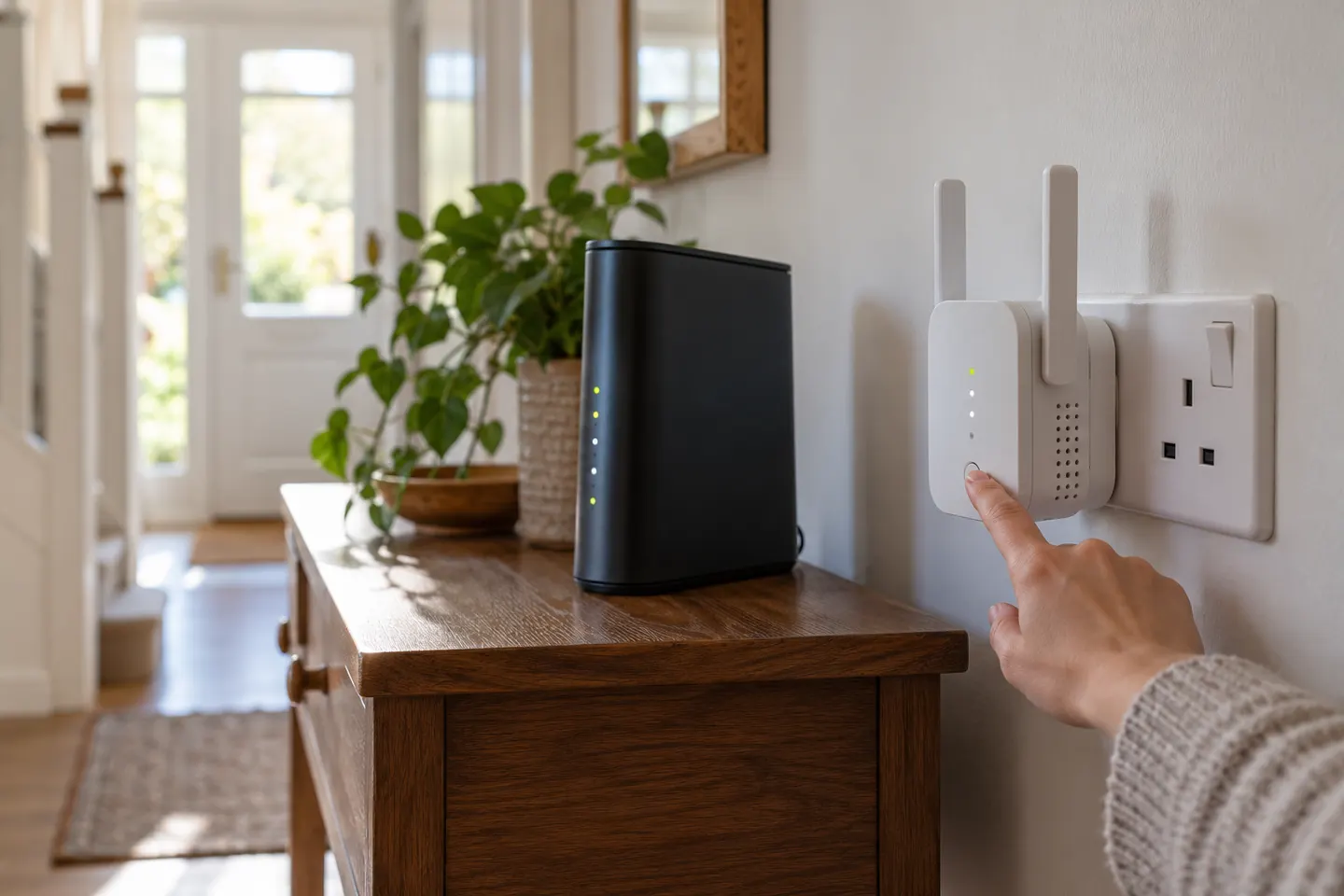
Check that the extender is intended for your EE hub and that both devices are switched on. For the first connection, place them in the same room; this avoids trying to pair through floors or thick walls.
Plug the extender into a socket near the hub. Press WPS on the hub, then press WPS on the extender within the period stated in EE’s instructions. Wait for its connection light to settle before unplugging it. Button names and light colours can vary by model, so use the guide for your unit.
Connect an Ethernet cable between a LAN port on the EE hub and the extender’s Ethernet port. Allow the extender to establish its link and check its status indicator. Some EE models use a wired link for setup before you relocate them; follow the model-specific instructions before disconnecting the cable.
After pairing, place the unit partway between the hub and the room with poor reception. Avoid hiding it behind furniture or placing it beside large appliances. If the extender reports a weak link, move it closer to the hub.
Repeat pairing with both devices close together, check that WPS is enabled where required, and restart the hub and extender. If the light continues to indicate a fault, consult EE’s troubleshooting guide for that model or use the EE app to manage compatible extenders.
Check your current EE broadband account and contact EE or review its official broadband help pages for eligibility and the equipment currently offered. Availability can depend on your service and setup; do not assume every third-party booster will pair with an EE hub.
Common questions
Check with EE through your account or its official broadband support pages to see what extender options are available for your service. Confirm compatibility with your exact hub before choosing equipment.
Run an Ethernet cable from a LAN port on the hub to the extender, then wait for the connection indicator described in the model’s guide. Some models may require a particular setup sequence, so follow EE’s instructions for that device.
That depends on the extender’s mode and instructions. A wired connection can provide the link to the hub, while some setup processes let you unplug it after pairing; check the guide for your model.
Start with a position between the hub and the area with weak WiFi, where the extender can still receive a stable signal. Adjust it if its status light or app reports a poor connection.
Keep exploring

A WiFi extender can carry your router signal further, but placement and backhaul matter. Choose a plug-in repeater for a nearby dead zone, powerline WiFi for difficult layouts, or an outdoor-rated unit for a garden.
TP-Link RE315 is a practical starting point for a standard indoor dead zone. Consider a Wi-Fi 6 device for newer kit, outdoor-rated hardware for a garden, or powerline where a wireless hop struggles.

Sky has different booster products for different broadband generations. Sky Max customers may use a Max Pod; check your account and hub-specific help before seeking a third-party extender.
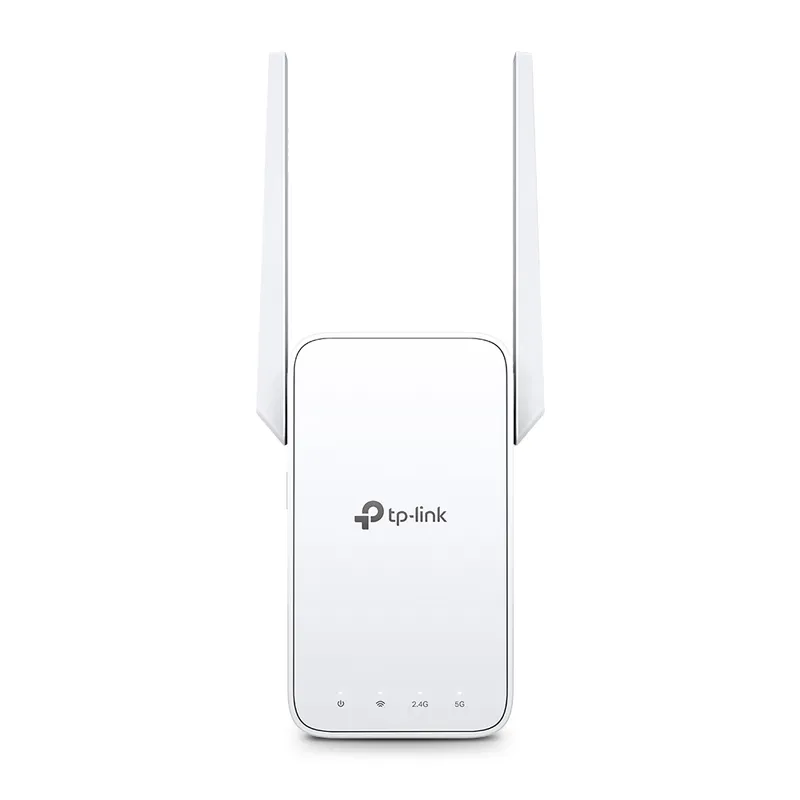
TP-Link sells plug-in repeaters and powerline kits. Check EasyMesh support, Ethernet needs and the exact UK hardware revision before buying.