Gearjury may earn a commission from qualifying retailer links.
Guide
How to Connect a Sky WiFi Booster to Your Hub
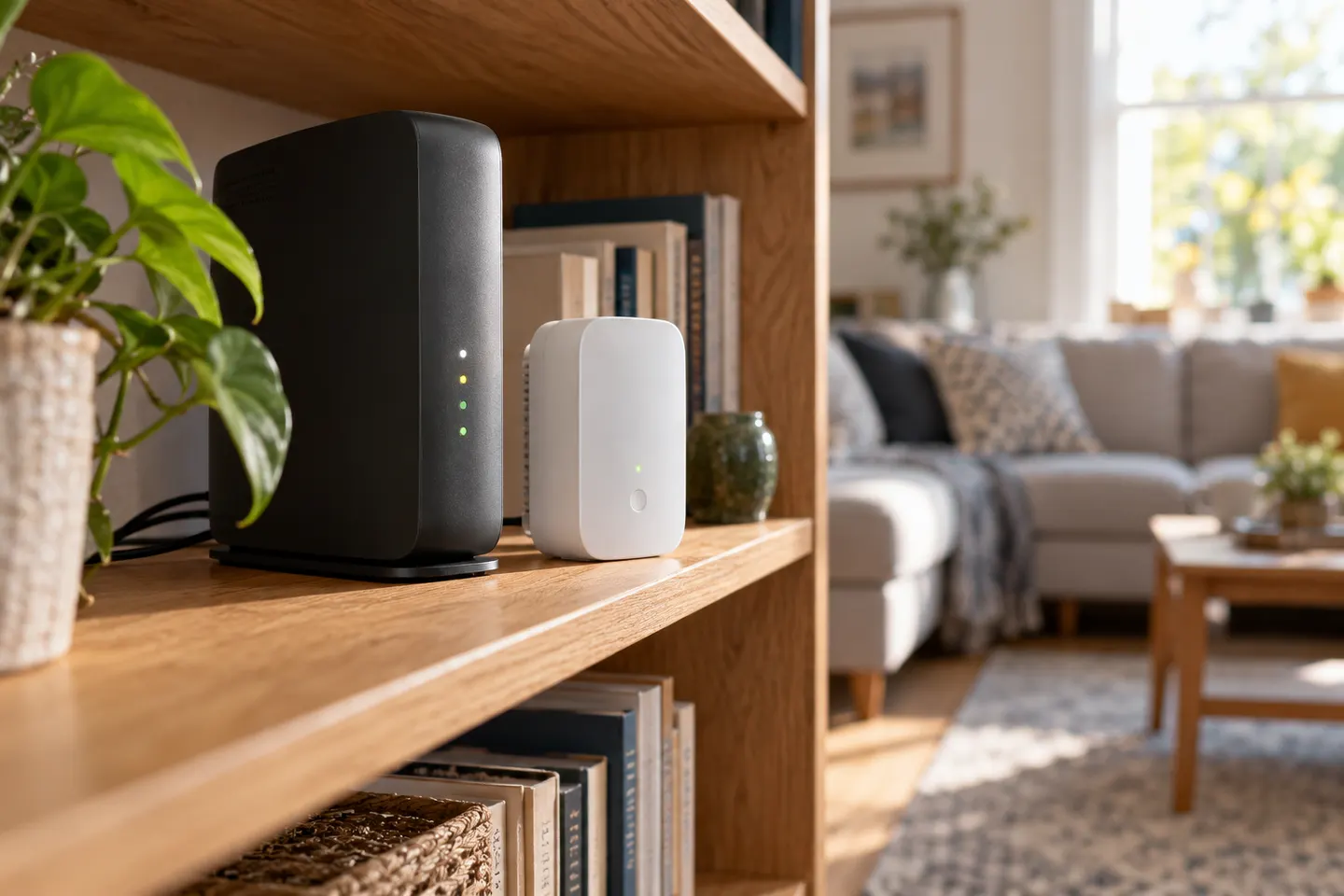
Pair the booster close to your Sky hub, following the instructions for its model and status lights. Then move it to a position where it can still receive a reliable signal from the hub.
GGearjury editorial team · Updated 18 October 2026· 4 min
01
Identify your Sky booster model
Sky has supplied different booster models over time, and their buttons and lights are not identical. Find the model name or setup leaflet and use its specific instructions; do not rely on a light pattern from another generation.
02
Prepare the hub and booster
Place the booster near the Sky hub for initial pairing and connect it to power. Make sure the hub is online and allow the booster to start up fully before beginning the pairing process.
03
Pair the booster with the hub
Follow the model’s pairing procedure, which may use WPS buttons or a sequence shown in the setup guide. Start the pairing action on the hub and booster as instructed, then wait for the indicator to show the state described by Sky.
04
Move it to improve coverage
Once the connection is established, place the booster between the hub and the room that needs better reception. A spot too far from the hub may simply repeat a weak signal; try a nearer socket if the connection status is poor.
05
Check the connection and devices
Use a phone or laptop near the target room to confirm that it can join the network and reach the internet. A booster extends coverage; it does not increase the broadband speed supplied to the home, and walls or interference can still affect performance.
06
Troubleshoot a Sky booster that will not connect
Restart the hub and booster, bring them together and repeat the documented pairing sequence. Check the model’s leaflet for the meaning of its light; if pairing still fails, contact Sky support to check compatibility and account-specific setup.
Common questions
Questions before you buy
How do I connect a Sky WiFi booster to my hub?
Use the pairing method in the setup guide for your exact booster model, typically involving a sequence on the hub and booster. Pair them close together and wait for the model’s confirmed connection indicator before moving the unit.
How do I connect a Sky booster to WiFi?
Pair it to the Sky hub using the procedure provided with the booster. Once paired, relocate it to a position with a stable signal between the hub and the area where coverage is needed.
Can I connect a Sky WiFi Booster with an Ethernet cable?
Do not assume every Sky booster supports wired setup or backhaul. Check the instructions for the exact model; if Ethernet is supported, the guide will identify the correct port and configuration.
Why is my Sky booster light flashing?
The meaning depends on the booster generation and the stage of setup. Consult that model’s leaflet for the indicator definition, then retry pairing close to the hub if the light signals an incomplete connection.
A WiFi extender can carry your router signal further, but placement and backhaul matter. Choose a plug-in repeater for a nearby dead zone, powerline WiFi for difficult layouts, or an outdoor-rated unit for a garden.
Sky has different booster products for different broadband generations. Sky Max customers may use a Max Pod; check your account and hub-specific help before seeking a third-party extender.
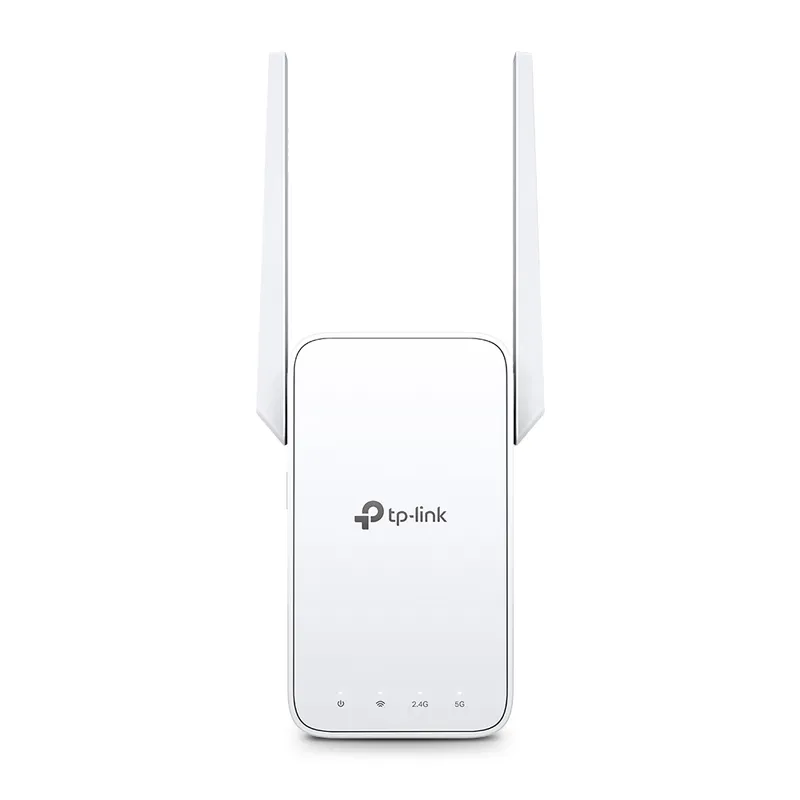
TP-Link RE315 is a practical starting point for a standard indoor dead zone. Consider a Wi-Fi 6 device for newer kit, outdoor-rated hardware for a garden, or powerline where a wireless hop struggles.
TP-Link sells plug-in repeaters and powerline kits. Check EasyMesh support, Ethernet needs and the exact UK hardware revision before buying.
Your privacy
We use cookies and similar technologies. Necessary ones keep the site working. With your permission we also use statistics cookies (Google Analytics and Microsoft Clarity) to understand which guides help readers. You can accept all, reject all or choose. You can change your choice at any time from "Cookie settings" at the bottom of every page. Cookie policy