Identify the D-Link model and operating mode
Check the label and selector switch, if present. Some compact D-Link devices offer more than one operating mode, so choose Range Extender or Repeater only when that is the mode supported by your model.

 Best picksBest Dash Cam in Australia: Five Models Compared
 Best picksBest Wi-Fi Extenders in Australia for Different Homes
 Best picksThe Best Meat Thermometer for Every Kind of Cook
 Best picksBest Headlamp Torches for Different Uses in 2026
 Best picksBest Portable Air Coolers to Consider in Australia (2026)
 Best picksBest Winter Gloves for Everyday Wear and Outdoor Use
 Best picksBest Cordless String Trimmers for Australian Gardens (2026)
 Best picksBest air purifier for bedroom in Australia: five models compared
Gearjury may earn a commission from qualifying retailer links.
Guide
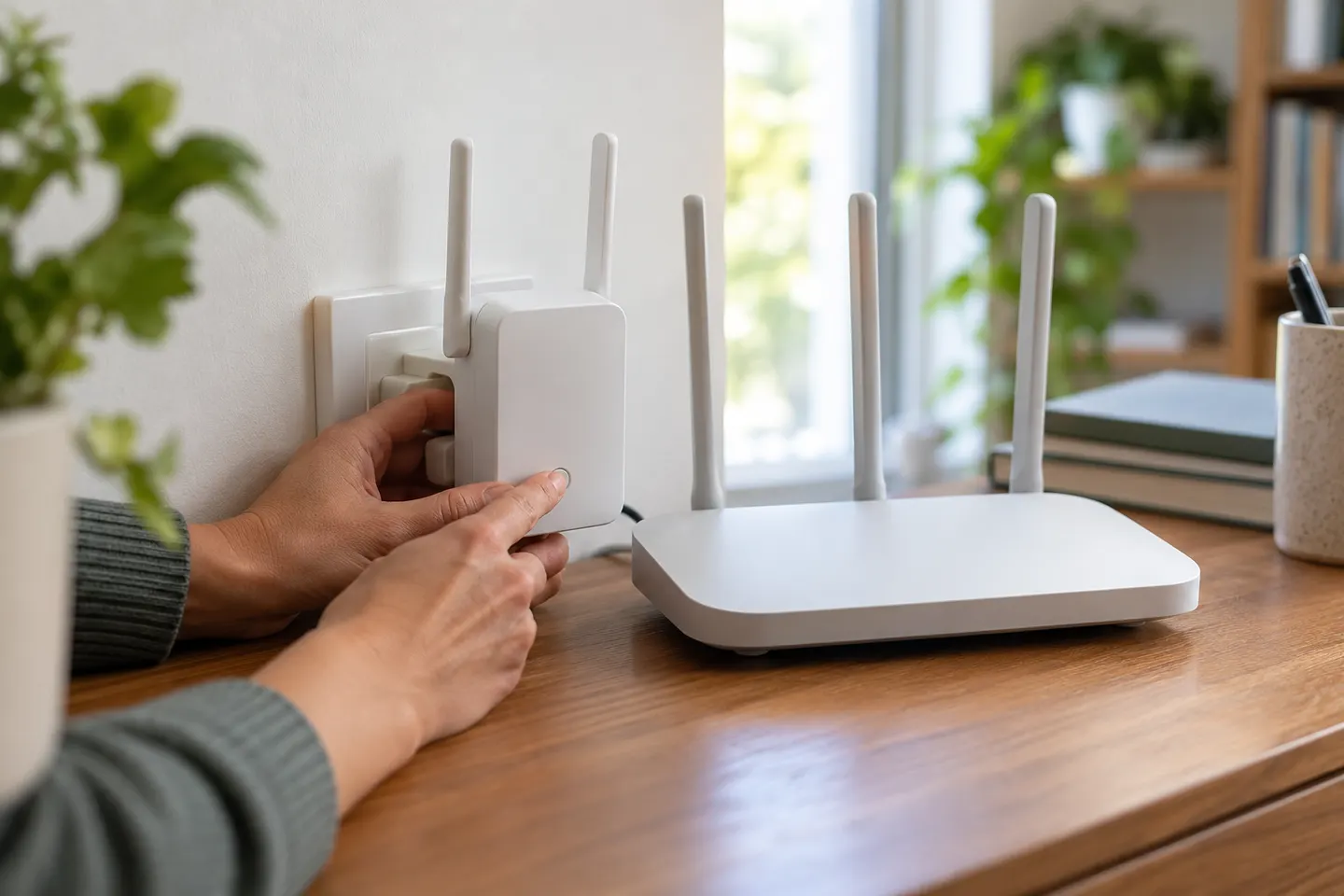
D-Link setup varies by model. For a supported range extender, follow its quick-start guide or web wizard and confirm the router link before choosing a distant location.
Check the label and selector switch, if present. Some compact D-Link devices offer more than one operating mode, so choose Range Extender or Repeater only when that is the mode supported by your model.
Plug the device into a nearby outlet and connect a phone or computer to its setup network if the guide requests it. Open the setup address printed in the manual or use the prescribed one-touch setup.
In the setup wizard, choose the router's network name and enter its current wireless password. Check the selected network carefully if your router broadcasts separate bands or guest WiFi.
Let the D-Link unit complete its configuration and check the indicator described in its manual. If the setup page reports an error, recheck the password and confirm the device is in the intended mode.
After a stable link is shown, unplug the extender and place it between the router and the area needing coverage. If performance drops, move it closer to the router rather than placing it in the dead zone.
AC1750 appears on multiple products and is not a complete model identifier. Use the model code from the label to find the correct setup document; do not assume every AC1750 device uses the same interface.
Common questions
Use the exact model's setup wizard: connect to its temporary setup network if required, select the router's WiFi name, enter the password and wait for the documented status light.
First read the model code on the label because AC1750 is a WiFi class shared by different devices. Then use the matching D-Link manual for its setup address and button sequence.
Make sure your device is connected to the extender's setup network or the network required by its manual. Check the address and reset procedure for that exact model.
Some models support WPS, while others use a browser wizard or app. Confirm the feature and timing in the device's manual before pressing router buttons.
Keep exploring

A Wi-Fi extender can help reach a weak-signal room when positioned within range of your router. Compare plug-in repeaters, mesh-compatible models, outdoor units and powerline kits by how they connect.
The right Wi-Fi extender depends on the router signal at its location, your home layout and whether you need Ethernet, outdoor placement or powerline networking.

RE705X and RE715X are Wi-Fi 6 options; RE315 is an AC1200 alternative. Choose by router compatibility and the connection you need.
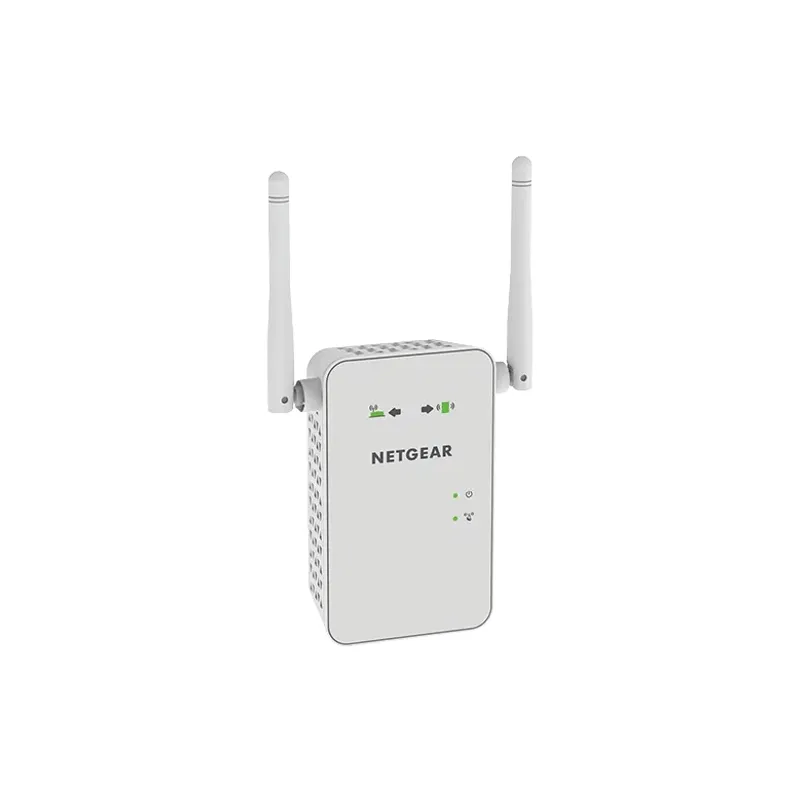
Start with the network standard and location of the dead spot. NETGEAR?s EX6120 is a dual-band AC model, while EAX15 adds WiFi 6; check exact router and firmware compatibility before buying.