Check the extender's setup method
Find the model number on its label and open the matching TP-Link guide. Some models support WPS, while others are configured through a browser page or the Tether app; button names and addresses vary.

 Best picksBest Dash Cam in Australia: Five Models Compared
 Best picksBest Wi-Fi Extenders in Australia for Different Homes
 Best picksThe Best Meat Thermometer for Every Kind of Cook
 Best picksBest Headlamp Torches for Different Uses in 2026
 Best picksBest Portable Air Coolers to Consider in Australia (2026)
 Best picksBest Winter Gloves for Everyday Wear and Outdoor Use
 Best picksBest Cordless String Trimmers for Australian Gardens (2026)
 Best picksBest air purifier for bedroom in Australia: five models compared
Gearjury may earn a commission from qualifying retailer links.
Guide
Try WPS when both devices support it; otherwise configure the extender through its web setup or app. Keep the extender near the router until pairing succeeds.
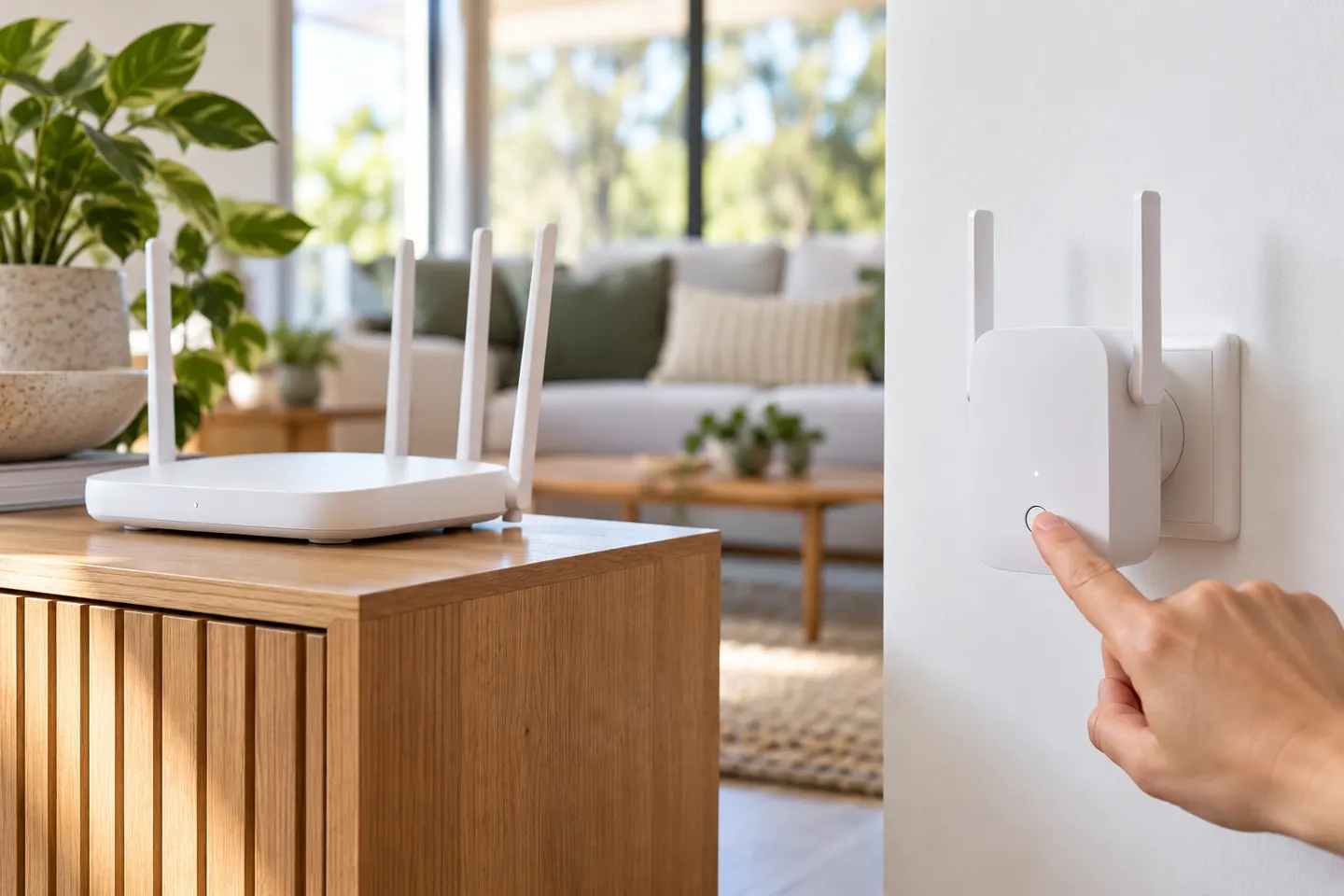
Find the model number on its label and open the matching TP-Link guide. Some models support WPS, while others are configured through a browser page or the Tether app; button names and addresses vary.
Plug the extender in near the router. Press the router's WPS button, then press the extender's WPS or RE button within the interval in its guide. Wait for the connection indicator to settle before moving the unit.
Connect your phone or computer to the extender's temporary network, open the setup address printed in the manual, and select your home WiFi network. Enter its current password exactly, then save the configuration.
Optus-supplied boosters are not all TP-Link models. Read the device label and use Optus instructions for that hardware; TP-Link button sequences may not apply even when the products look similar.
Once the status light confirms a link, place the extender between the router and the weak-coverage area. Choose a location that still receives a stable router signal, then reconnect your devices if the extended network has a different name.
Confirm the router broadcasts a compatible WiFi band, re-enter the correct password, and restart setup from close range. If WPS is disabled or times out, use the model's browser or app method instead.
Common questions
Connect to its temporary WiFi network and complete setup in the browser interface or TP-Link app specified for your model. Select the router network and enter its password.
Only if the unit is a TP-Link model and its manual specifies that method. Identify the hardware first and follow the provider or manufacturer guide for that exact device.
Start beside the router so setup has a dependable connection. Relocate it between the router and the coverage gap after the connection indicator confirms pairing.
Check that you selected the correct home network and typed its current password, including capitals and symbols. A saved password from an older router setup will not work.
Keep exploring

RE705X and RE715X are Wi-Fi 6 options; RE315 is an AC1200 alternative. Choose by router compatibility and the connection you need.
The right Wi-Fi extender depends on the router signal at its location, your home layout and whether you need Ethernet, outdoor placement or powerline networking.

A Wi-Fi extender can help reach a weak-signal room when positioned within range of your router. Compare plug-in repeaters, mesh-compatible models, outdoor units and powerline kits by how they connect.
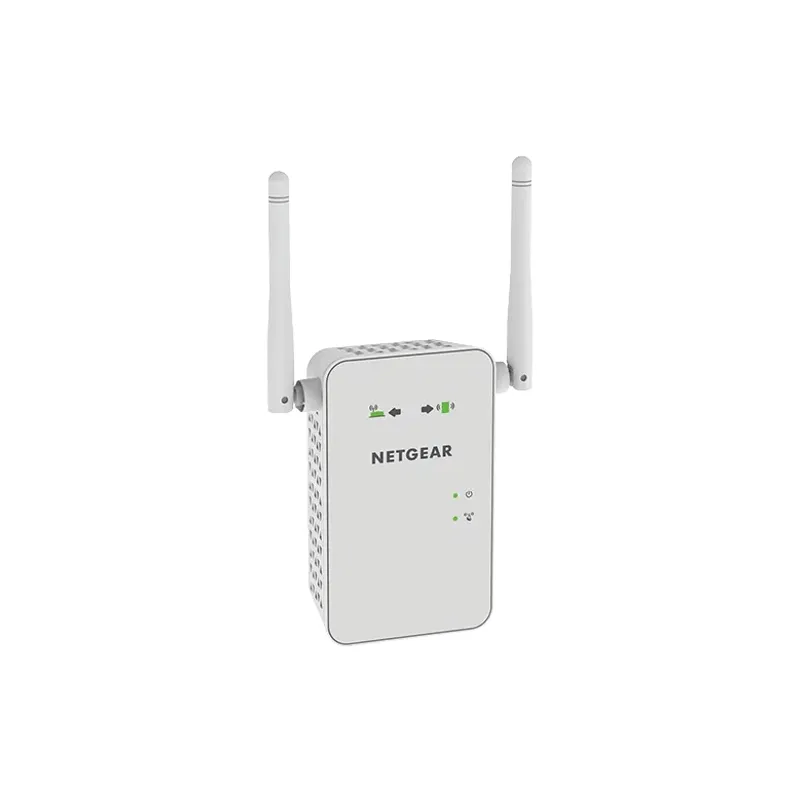
Start with the network standard and location of the dead spot. NETGEAR?s EX6120 is a dual-band AC model, while EAX15 adds WiFi 6; check exact router and firmware compatibility before buying.