Gearjury may earn a commission from qualifying retailer links.
Guide
How to Connect a Wi-Fi Extender to a Router
Pair the extender using the method in its manual, connect it to the correct home network and move it only after setup succeeds. The best position is usually between the router and the weak area.
GGearjury editorial team · Updated 18 October 2026· 5 min
01
Check the router and extender instructions
Find the exact model numbers and read both quick-start guides. Confirm that the router is online, the extender supports its Wi-Fi bands and security settings, and note whether setup uses WPS, an app or a browser.
02
Pair near the router first
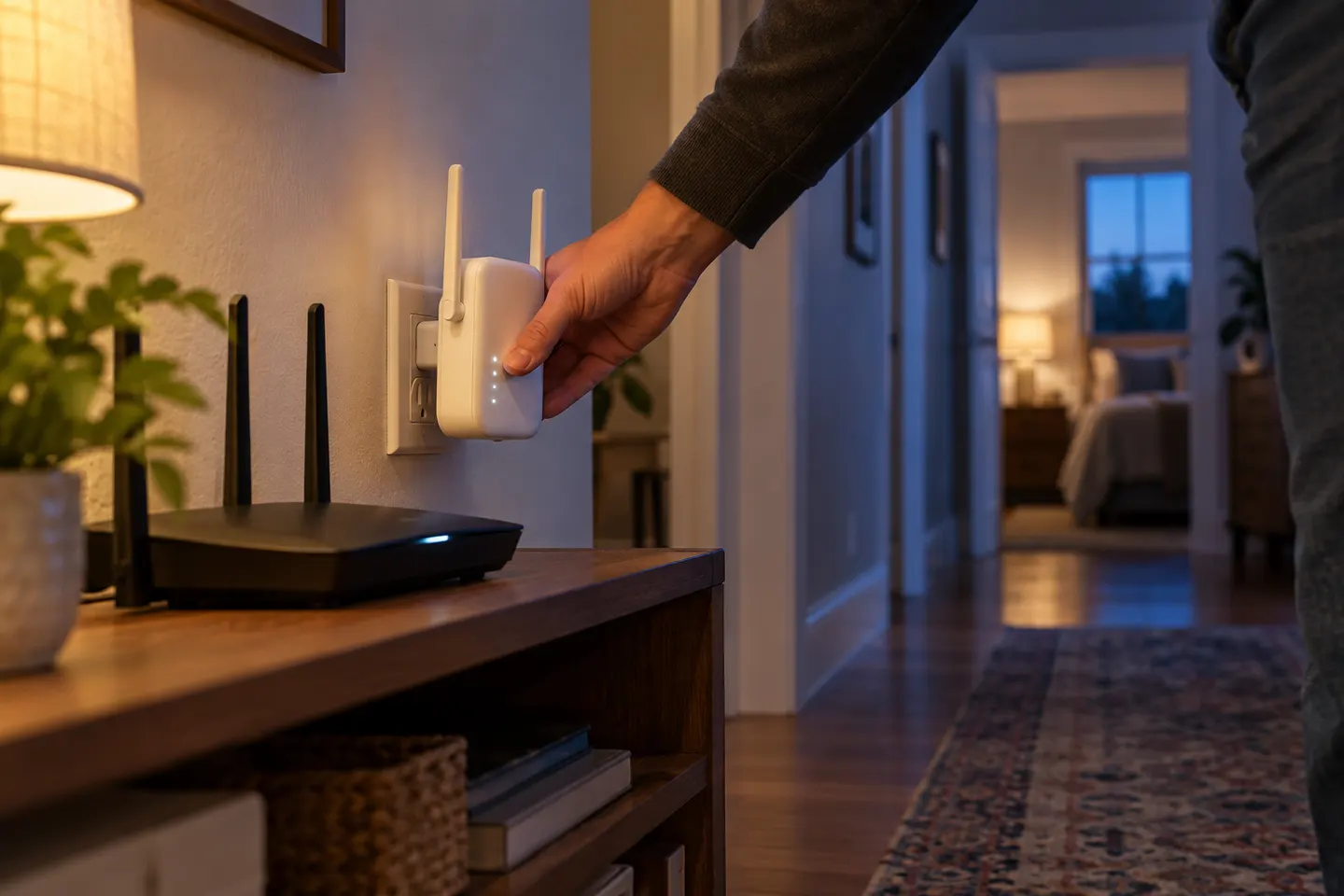
For initial setup, plug the extender into a power point near the router. Follow the manufacturer’s WPS sequence or app instructions, select the correct home network and enter its current password. Wait for the connection indicator described in the manual.
03
Use the extender’s setup app or browser
If WPS is unavailable or pairing fails, connect a phone or computer to the extender’s temporary setup network and open the address or app named in its guide. Choose the router network, complete the prompts and apply the settings. Do not guess a setup address; different models use different ones.
04
Choose a position between the router and weak room
Once the extender has joined the network, move it partway towards the area with poor reception. Keep it where the router signal is still dependable; a node placed inside a complete dead zone may not receive enough data to repeat. Use the signal light or app if supplied.
05
Connect devices and check the result
Reconnect a phone, laptop or wired client to the extended network. Walk through the target room and check that pages and calls remain stable. If the extender offers a separate network name, confirm which one your device has joined; compatible mesh systems may use one name.
06
Fix common pairing failures
Recheck the Wi-Fi password, router band, distance and any access-control setting that blocks new devices. Restart only as the manuals recommend, update firmware from the manufacturer’s support page, and use a factory reset only when needed to repeat setup.
Common questions
Questions before you buy
Should I connect a Wi-Fi extender with WPS or an app?
Use the method specified in the model’s manual. WPS can be quick when both devices support it, while an app or browser setup provides more detail and is needed on some models.
Where should I plug in a Wi-Fi extender after setup?
Move it between the router and the weak area, where it can still receive a useful router signal. Avoid placing it at the far edge of the dead zone.
Why will my extender not connect to the router?
Check the password, supported bands, security settings and pairing steps for the exact model. Move it closer for setup and confirm the router is online.
Do I connect to the extender’s network name or my router’s?
It depends on the setup. Some extenders create a separate network name; compatible mesh arrangements may share one name. Check the connected network and the product guide.
A Wi-Fi extender can help reach a weak-signal room when positioned within range of your router. Compare plug-in repeaters, mesh-compatible models, outdoor units and powerline kits by how they connect.
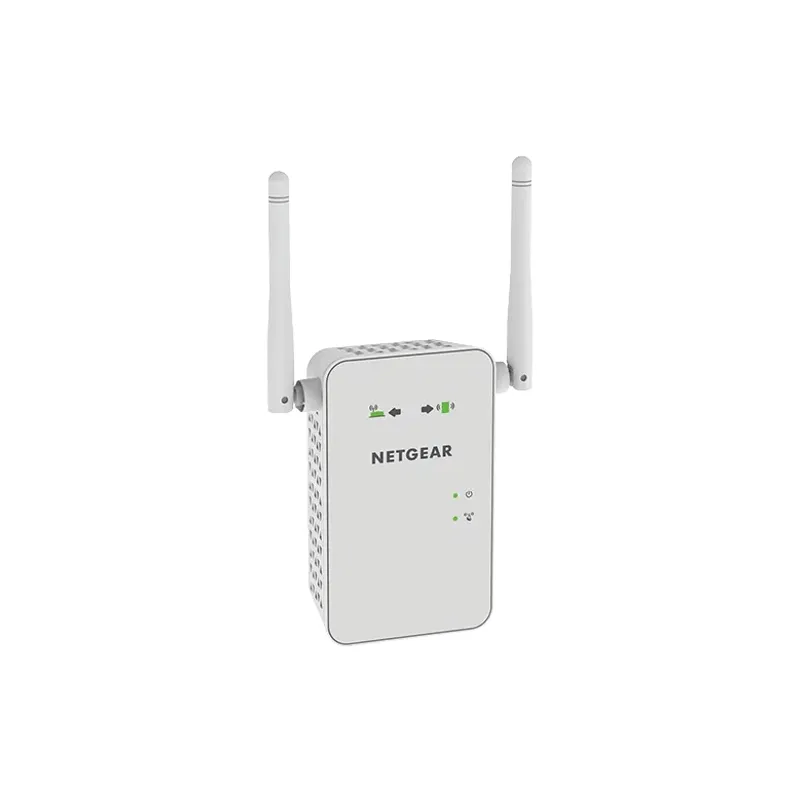
Start with the network standard and location of the dead spot. NETGEAR?s EX6120 is a dual-band AC model, while EAX15 adds WiFi 6; check exact router and firmware compatibility before buying.
The right Wi-Fi extender depends on the router signal at its location, your home layout and whether you need Ethernet, outdoor placement or powerline networking.
Your privacy
We use cookies and similar technologies. Necessary ones keep the site working. With your permission we also use statistics cookies (Google Analytics and Microsoft Clarity) to understand which guides help readers. You can accept all, reject all or choose. You can change your choice at any time from "Cookie settings" at the bottom of every page. Cookie policy