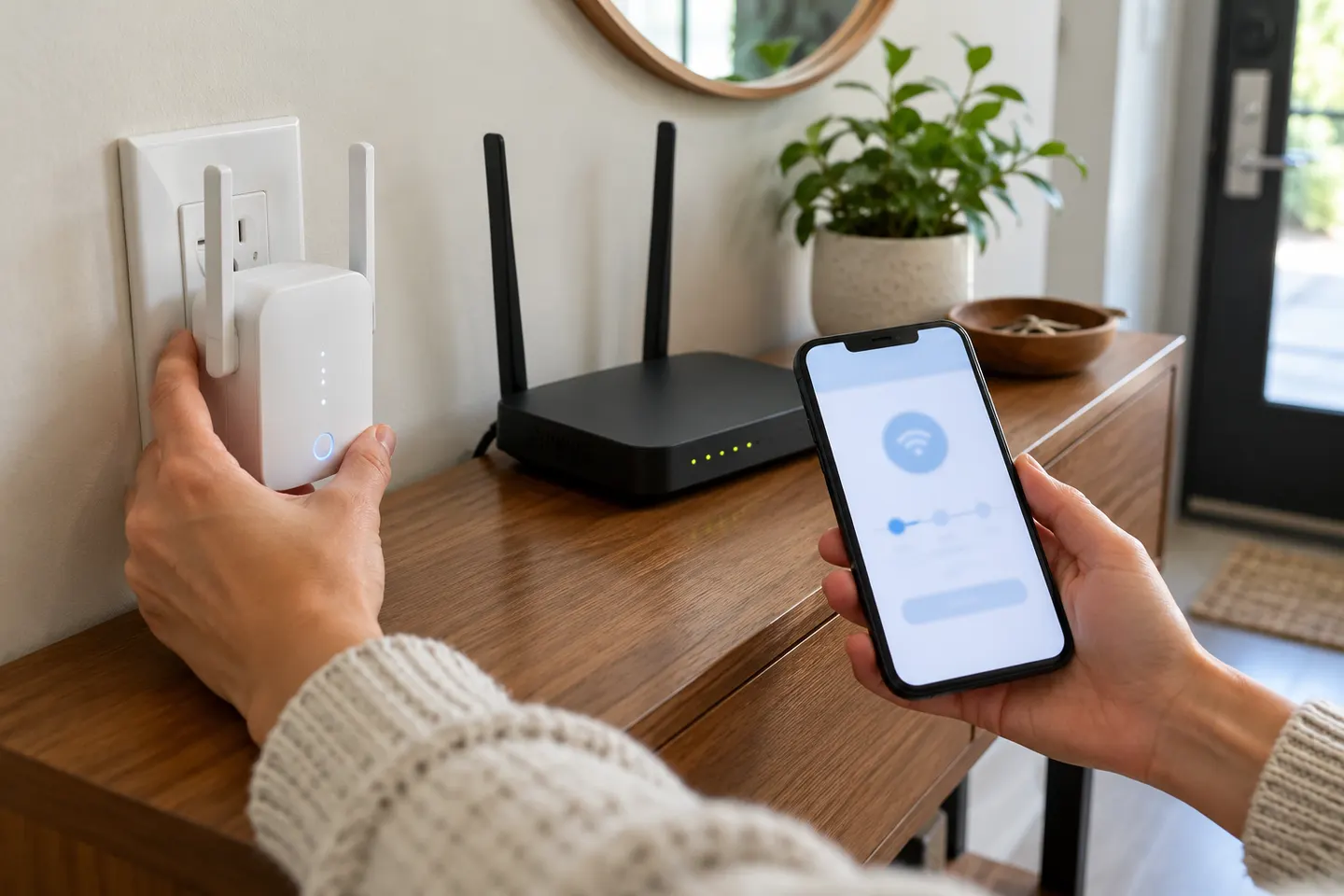
How to Set Up a TP-Link WiFi Range Extender
Start beside the router, pair the extender using Tether, a browser or WPS, then move it to a spot that still receives a good router signal. The exact screens and lights vary by model and hardware version.

 Best picksBest WiFi Extenders for Different Homes in Ireland
 Best picksThe Best Dashcams for Cars in 2026
 Best picksBest Headlamp Torches for Hiking, Work and Everyday Use
 Best picksBest Meat Thermometers for Cooking, Roasting and BBQ
 Best picksBest cordless strimmers for Irish gardens: compared
 Best picksBest Winter Gloves for Cold, Wet Days in Ireland (2026)
 Best picksBest Portable Air Coolers for Irish Homes in 2026
 Best picksBest air purifier for bedroom in Ireland: five models compared
Start here
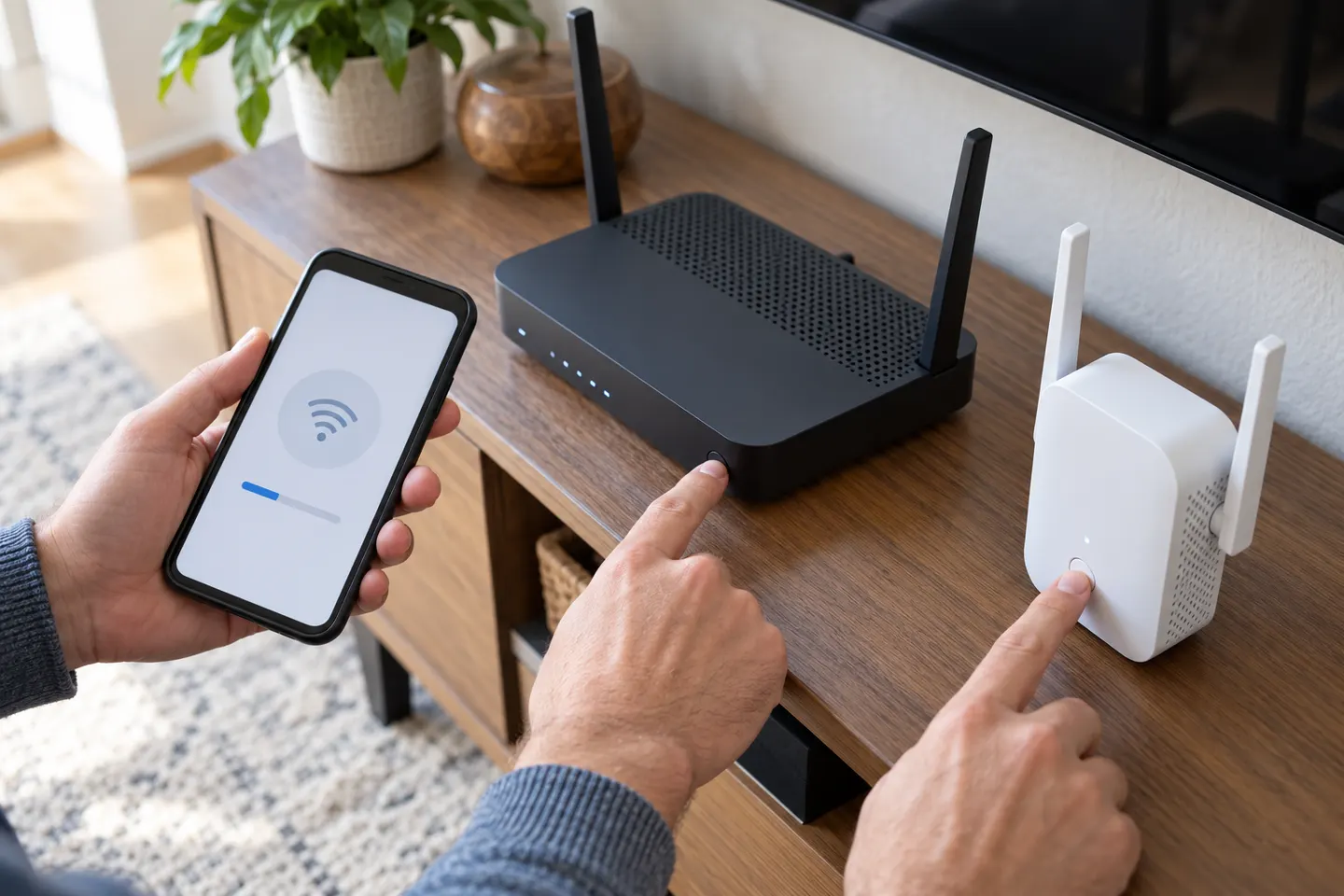
Start beside the router, pair the extender using Tether, a browser or WPS, then move it to a spot that still receives a good router signal. The exact screens and lights vary by model and hardware version.

The RE705X is the WiFi 6 pick with a Gigabit port; RE550 offers WiFi 5 and three external antennas. For a compact dual-band option, compare RE315.
Our picks
Official manufacturer image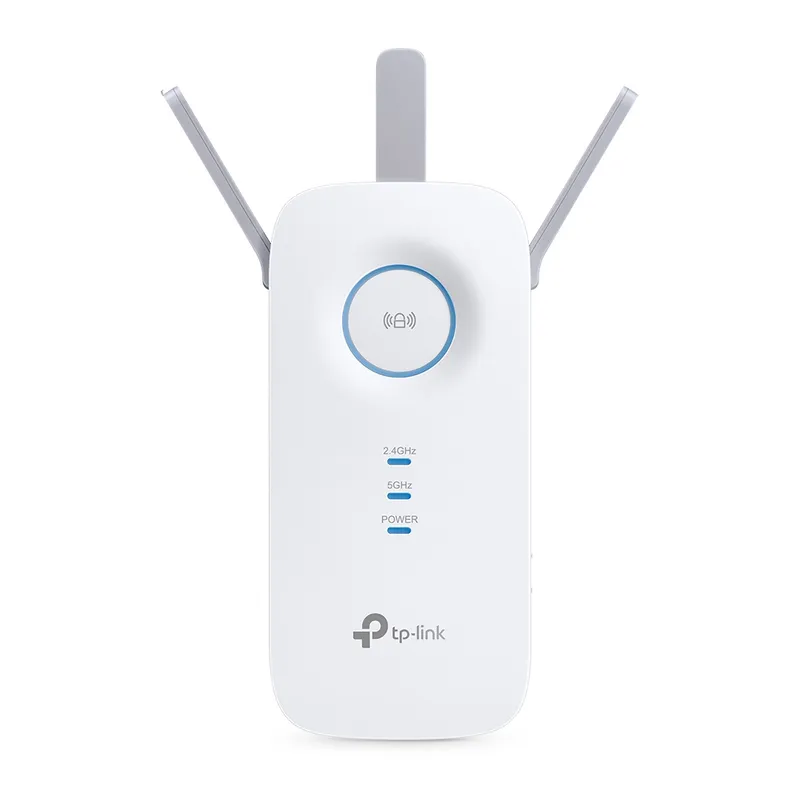 Official manufacturer image
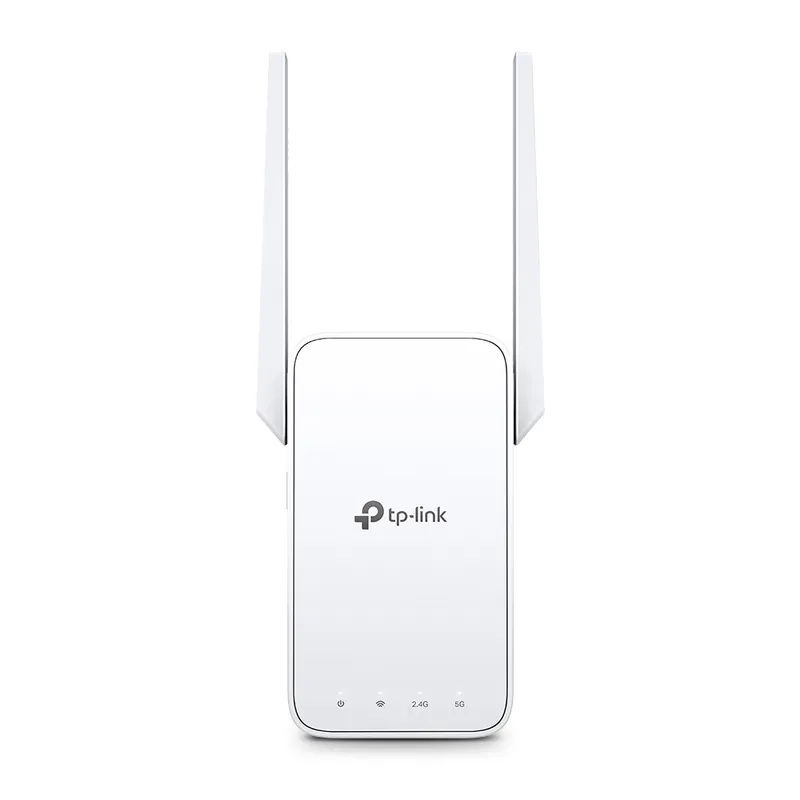 Official manufacturer image
Common questions
Use the extender’s app, browser setup or WPS procedure if available. Pair it near the router, verify the connection indicator and then move it to a suitable midway position.
Check the router password, selected network and distance during setup. If pairing still fails, follow the model’s reset and firmware guidance; button combinations vary between devices.
Some extenders support access point mode over Ethernet. Select that mode only if the manual lists it, and connect the cable to the specified port.
For models that support WPS pairing, the manufacturer’s instructions usually specify a sequence involving both router and extender buttons. Timing and button labels vary, so use the manual for your hardware version.
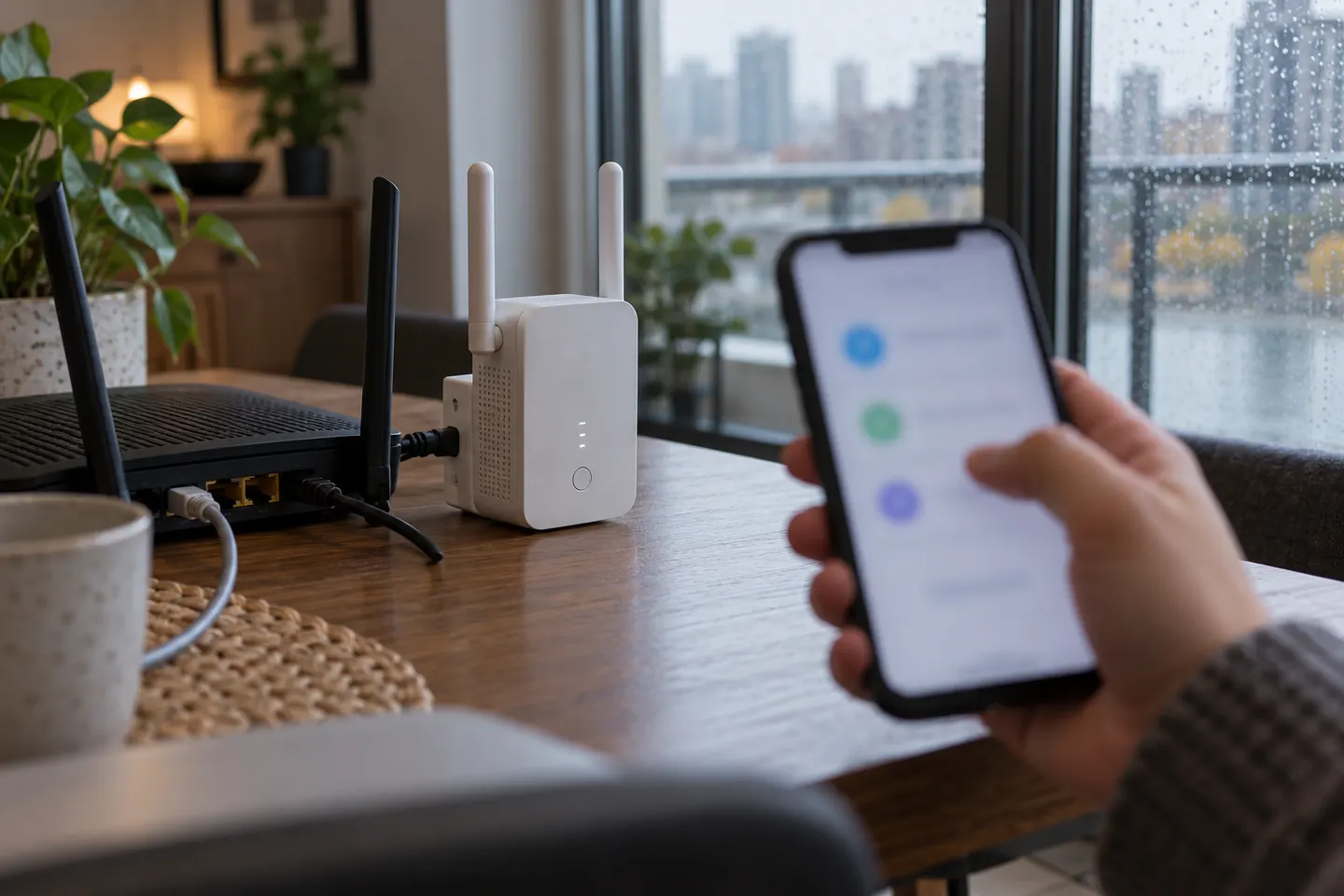 How to Connect a TP Link WiFi Extender to Your…
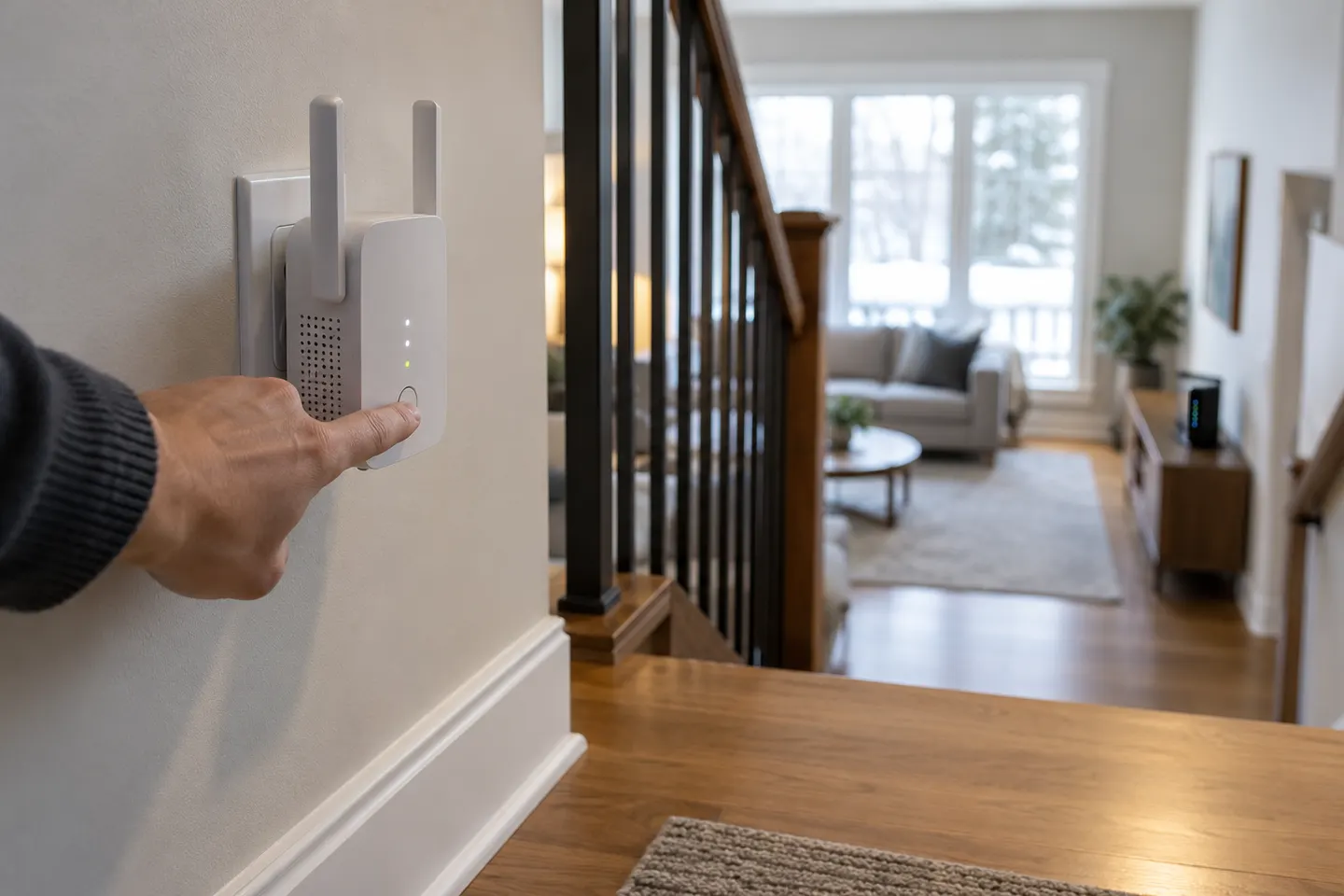 How to Configure a TP-Link Wi-Fi Extender at Home
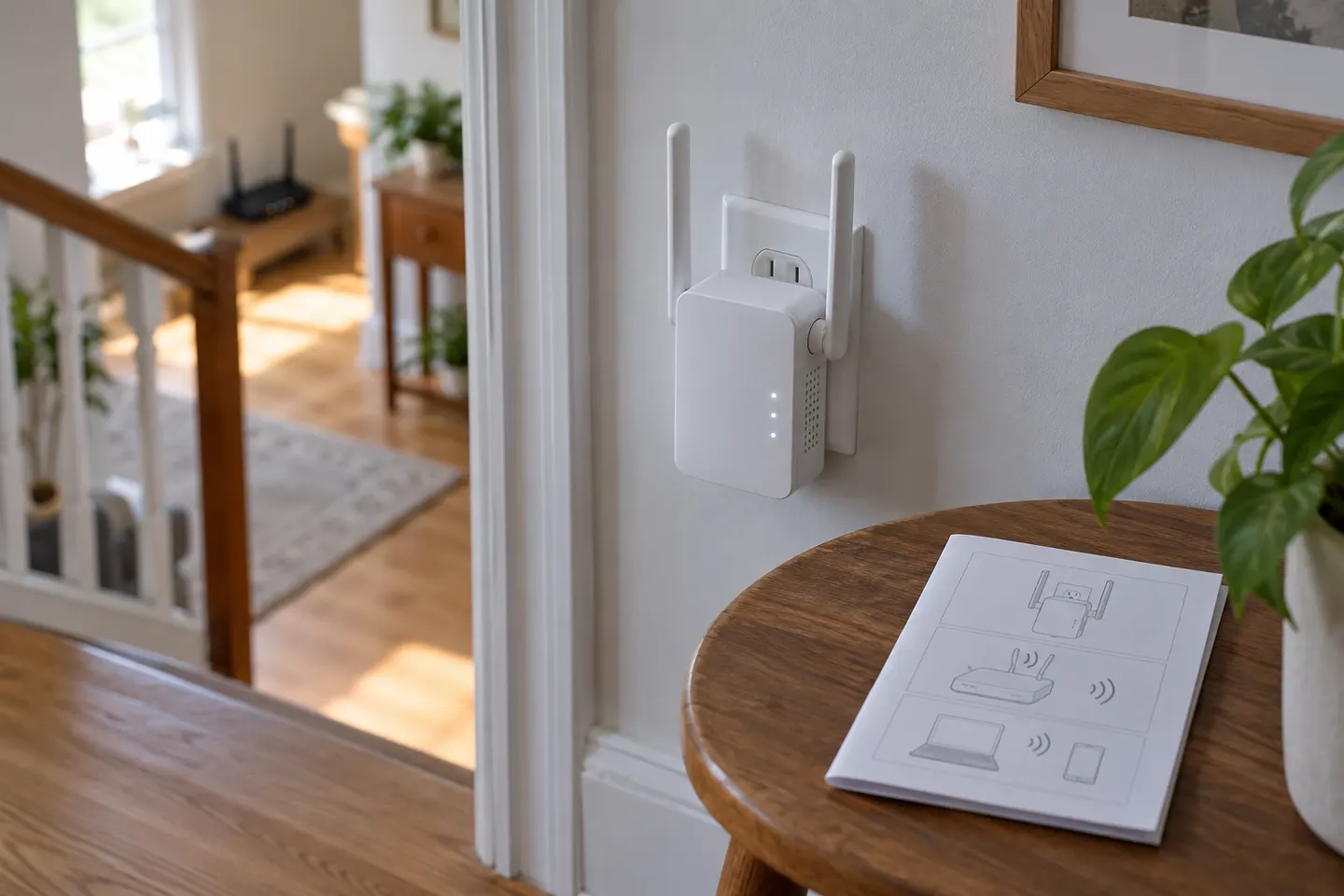 How to Use a TP-Link WiFi Extender at Home
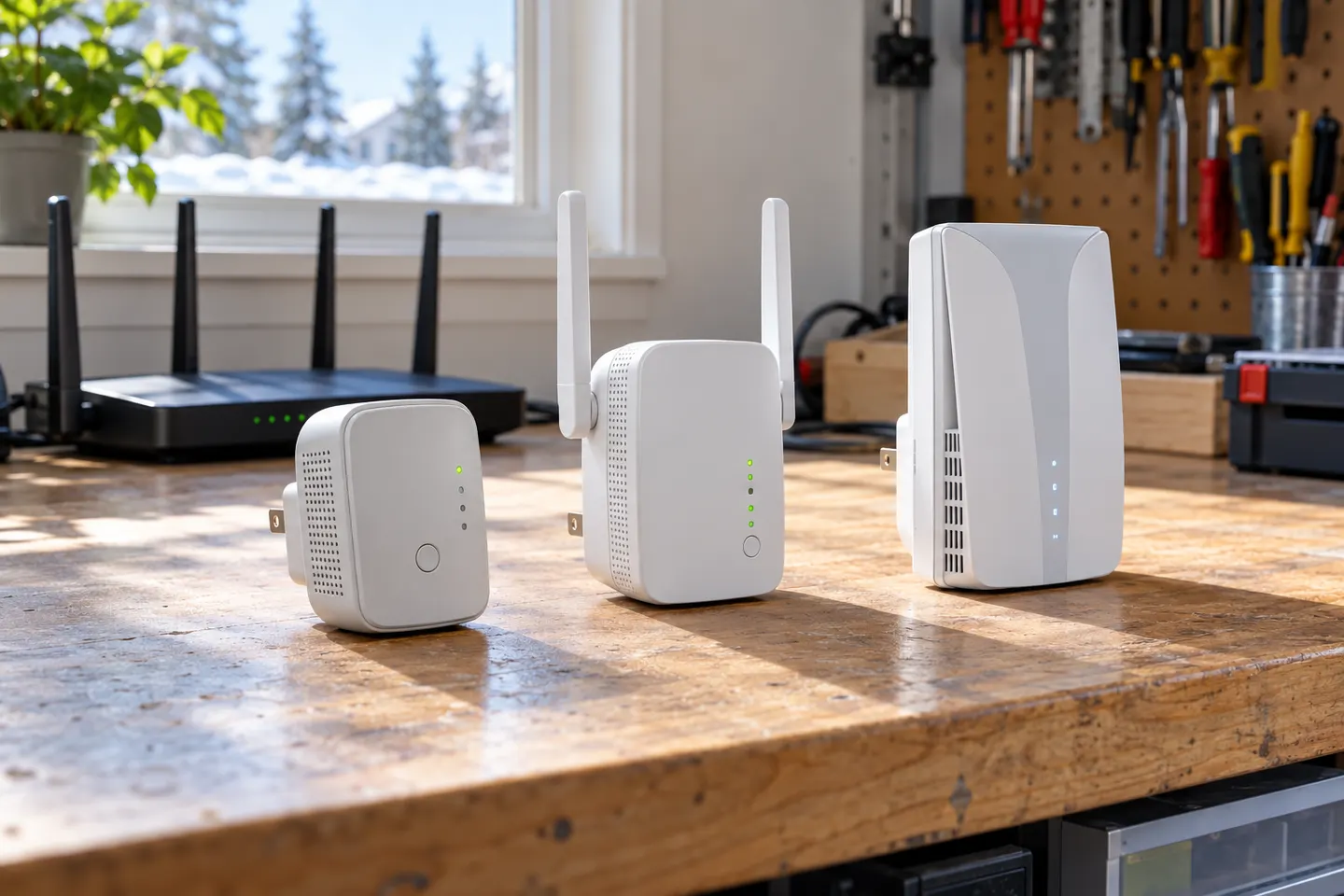 TP-Link WiFi Extenders