Independent buying guidance · UK editionHow we work
Gearjury
All categories
All categories
Best picksBest Meat Thermometers in the UK for 2026
Best picksBest WiFi Extenders in the UK: Compare Five Practical Options
Best picksThe Best Dashcams in the UK for 2026
Best picksBest Air Purifiers in the UK for Different Rooms and Needs
United KingdomEnglish

Category hub

How to Link a WiFi Extender to Your WiFi Router

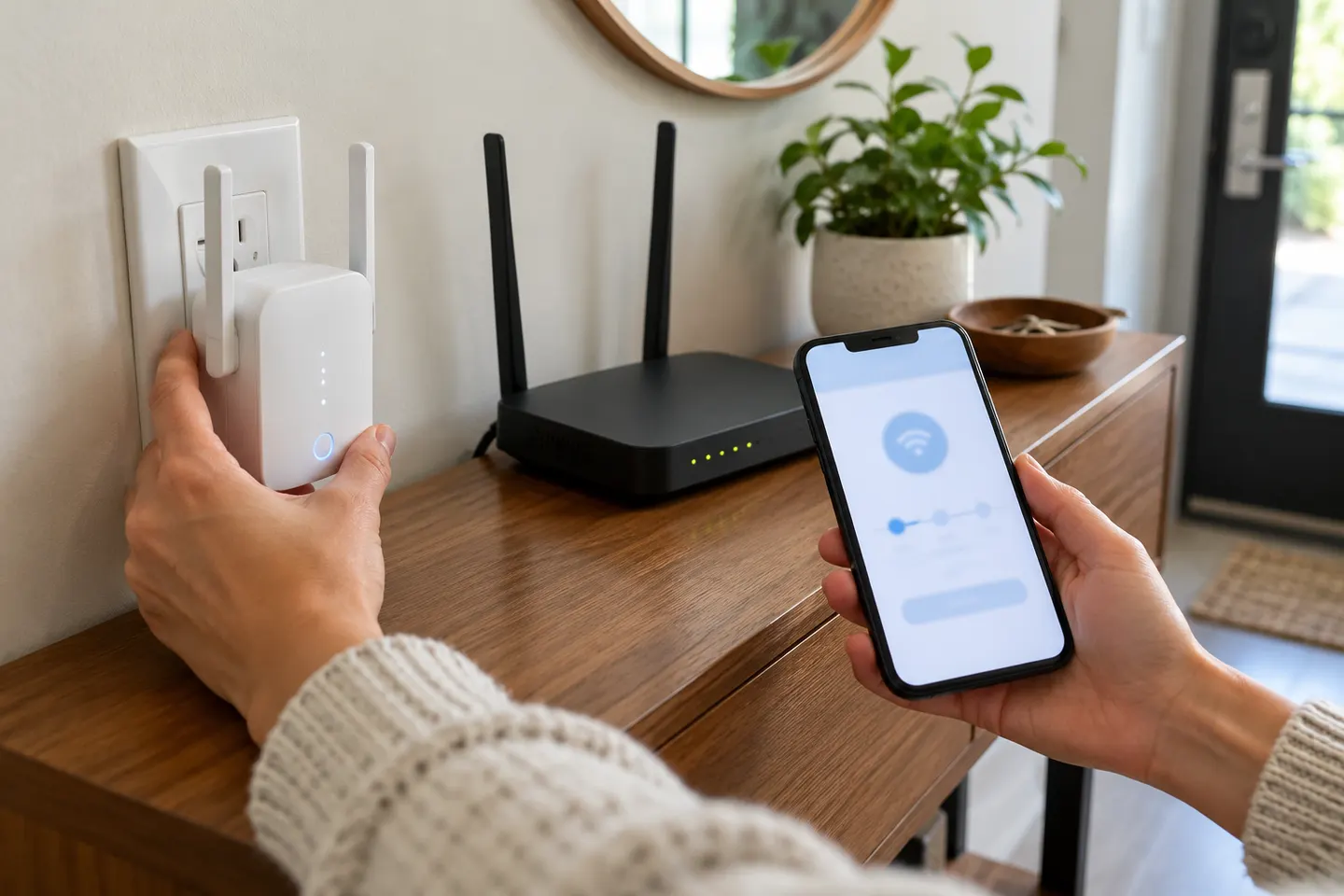
Pair with the router's network, then move the extender only after setup succeeds. Use the method documented for your model.

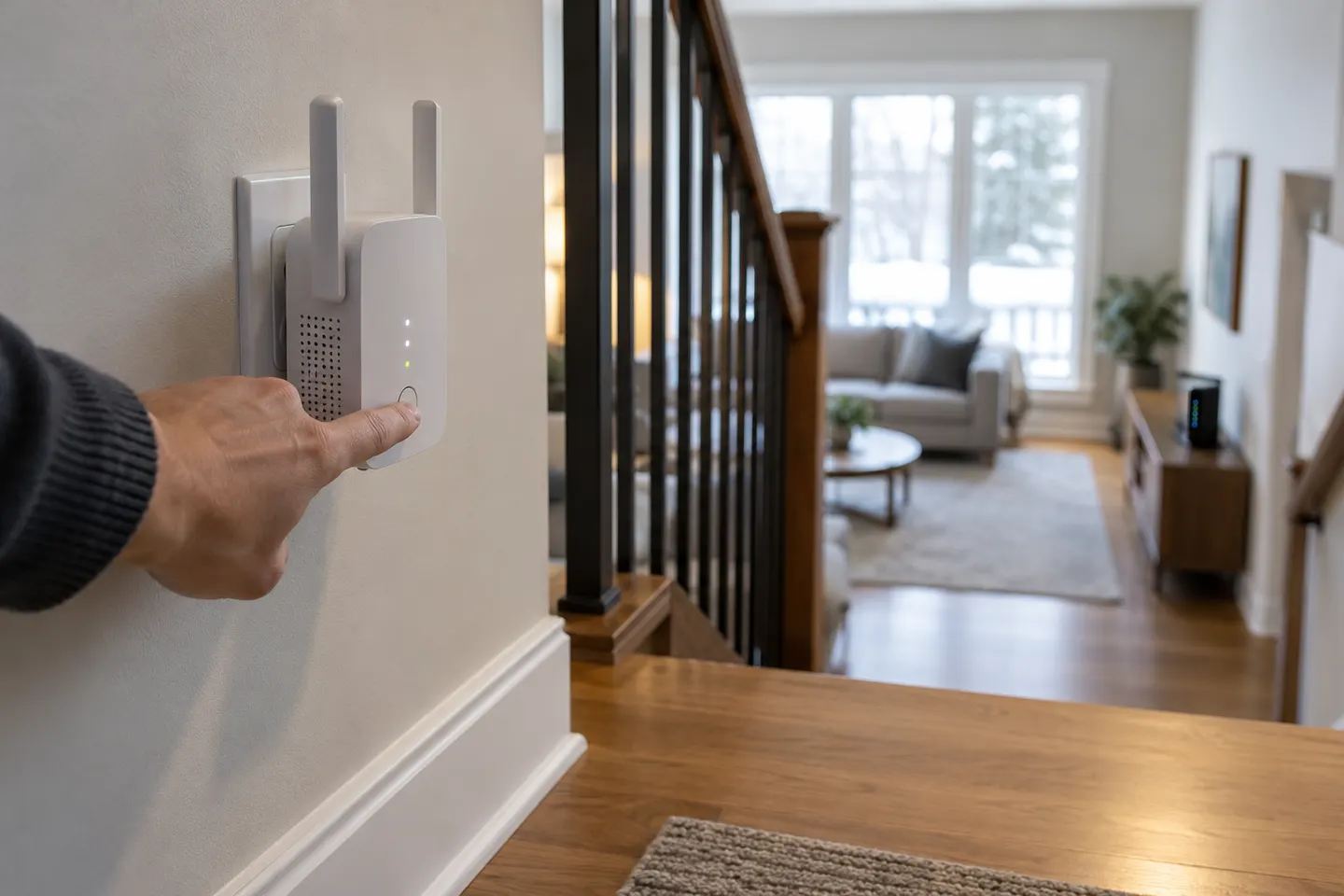
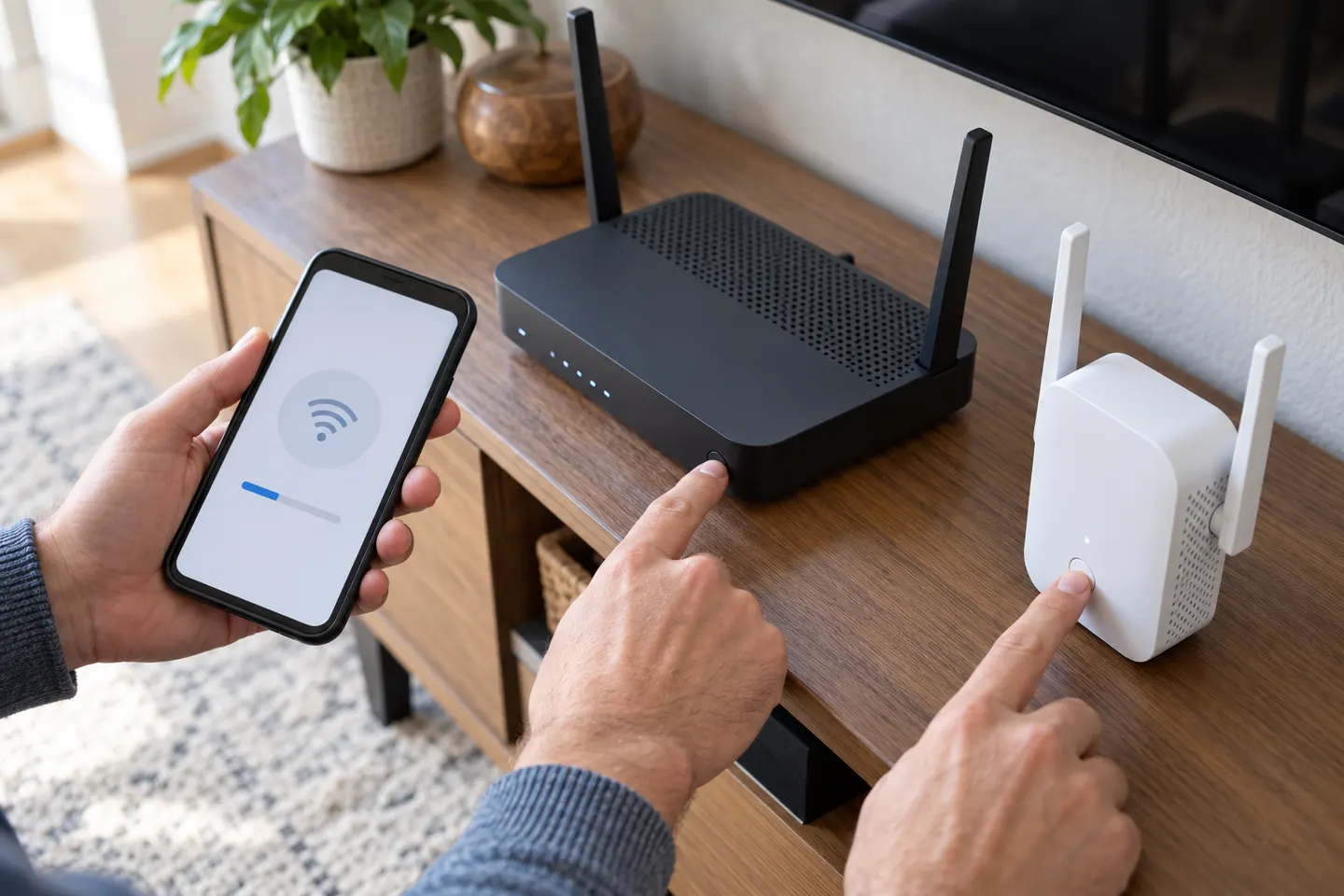
To link a WiFi extender, connect it to your router's wireless network with WPS or the maker's app/browser setup. Pair it close enough to receive a dependable signal; attempting setup at the edge of a dead zone can fail.

How to Link a WiFi Extender to Your WiFi Router

Start here

The essentials

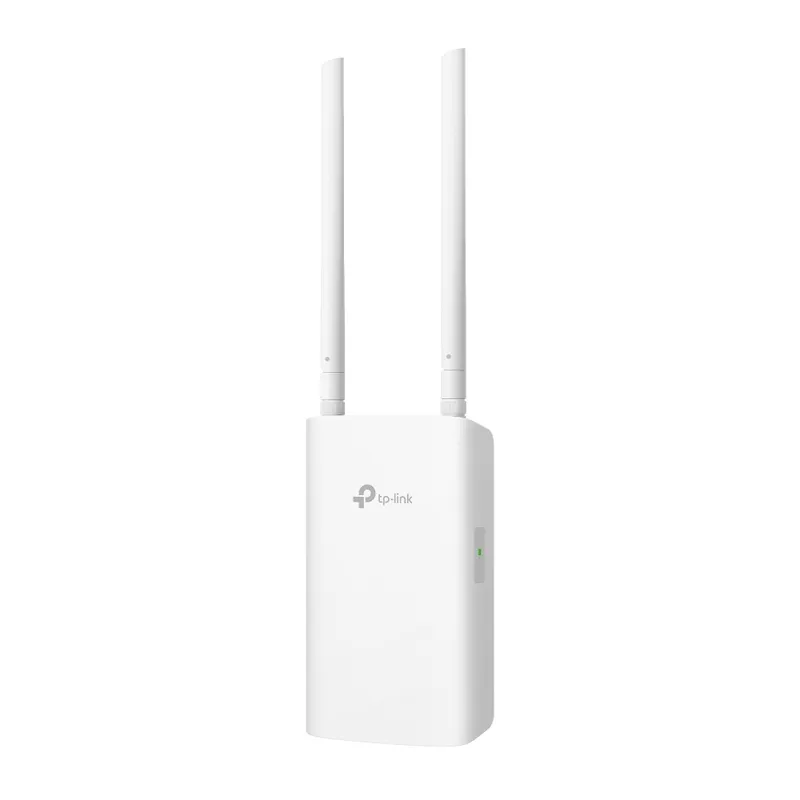
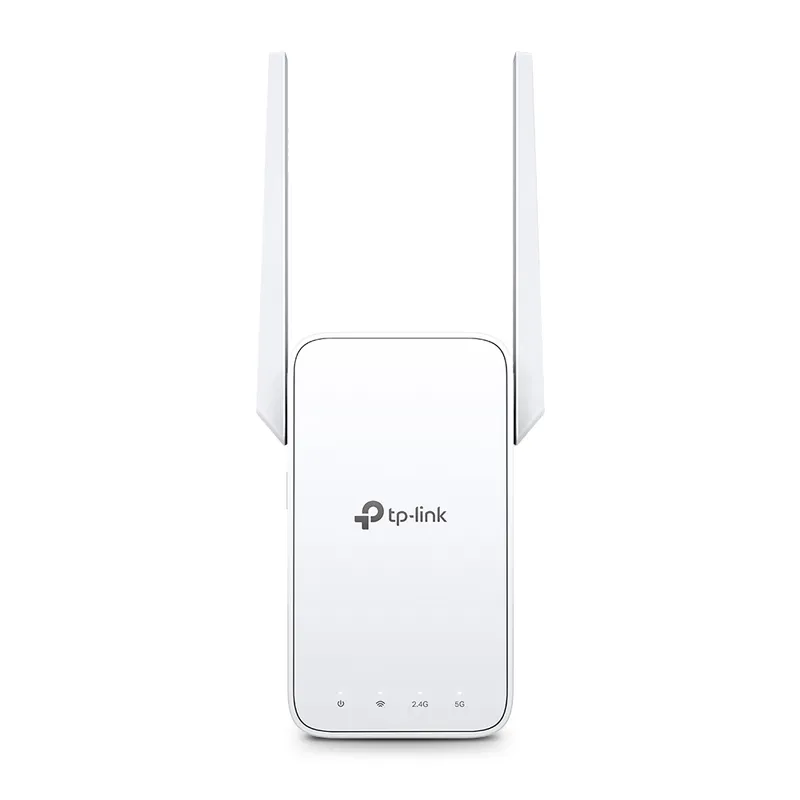
How to Set Up a TP-Link WiFi Extender

How to Set Up a TP-Link WiFi Extender

Start near the router, pair the extender using WPS or the Tether app where supported, then move it to a spot that still receives a good router signal. The exact buttons and screens depend on the model and hardware version.
Brands

1

How-to guides

6
Show all (6)

More topics

2

Common questions

Questions before you buy

How do I link a WiFi extender to my router?

Use WPS if both devices support it, or run the extender's app or browser wizard and enter the router password. Follow the model manual.

How do I connect my phone to a WiFi booster?

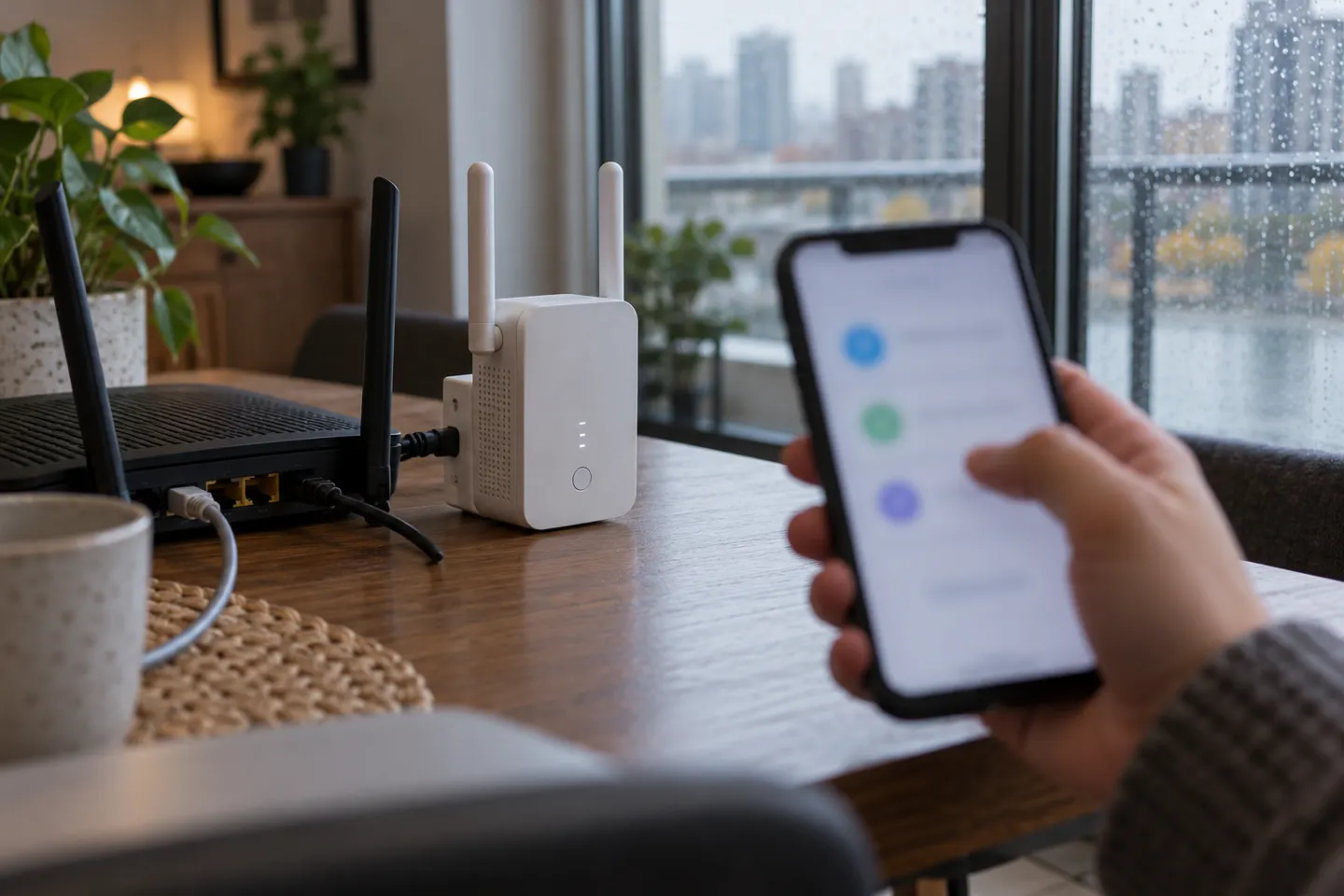
Open WiFi settings, choose the extender network and enter its password. The name may match the router or include a suffix.

Why will my extender not link to the router?

Check the password, supported bands and setup mode. Pair near the router and check status lights or the setup page for an error.

Can I link an extender without WPS?

Yes. Many models provide an app or web wizard. Join its temporary network and follow the prompts to select the home WiFi.