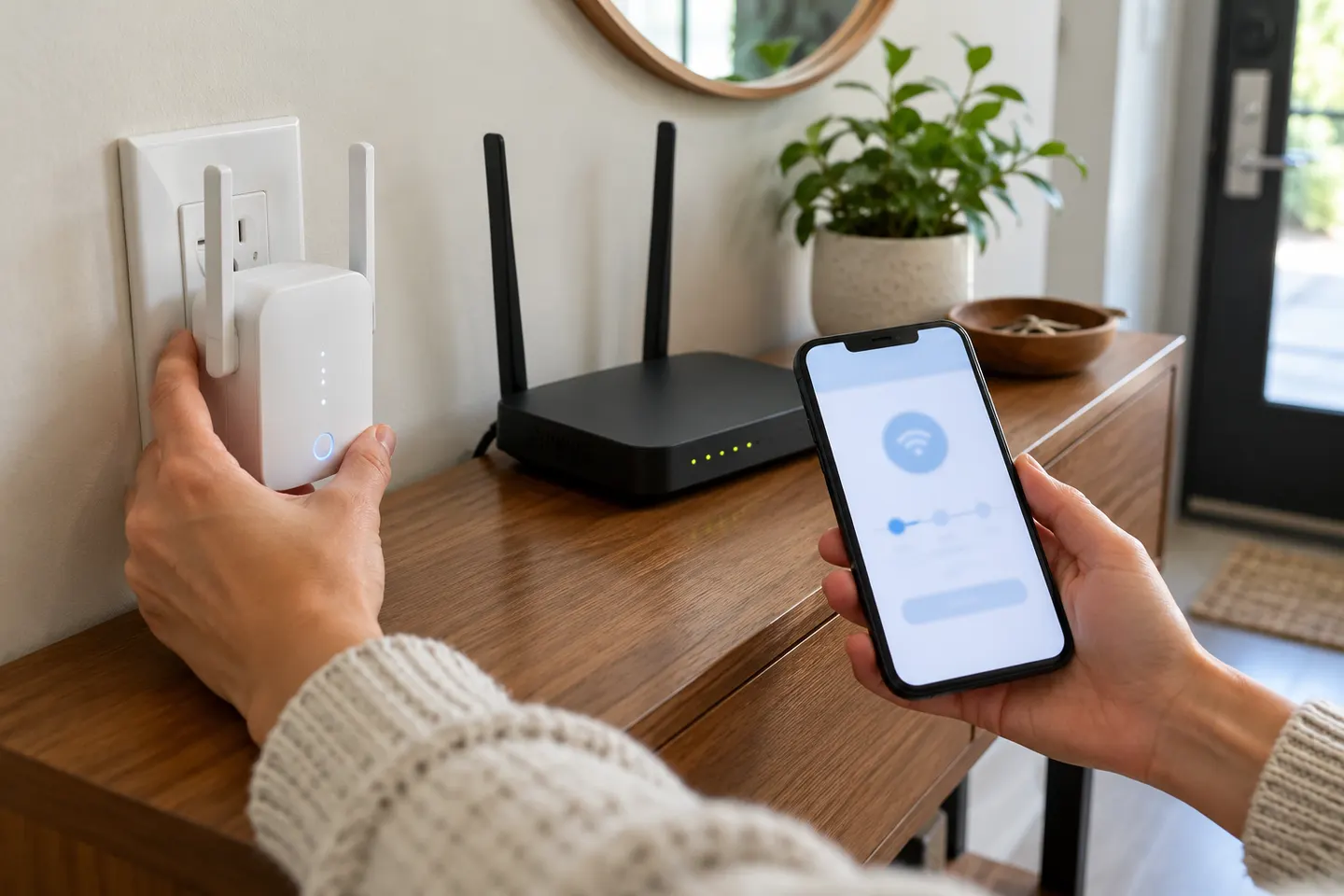
How to Set Up a TP-Link WiFi Extender with Your Router
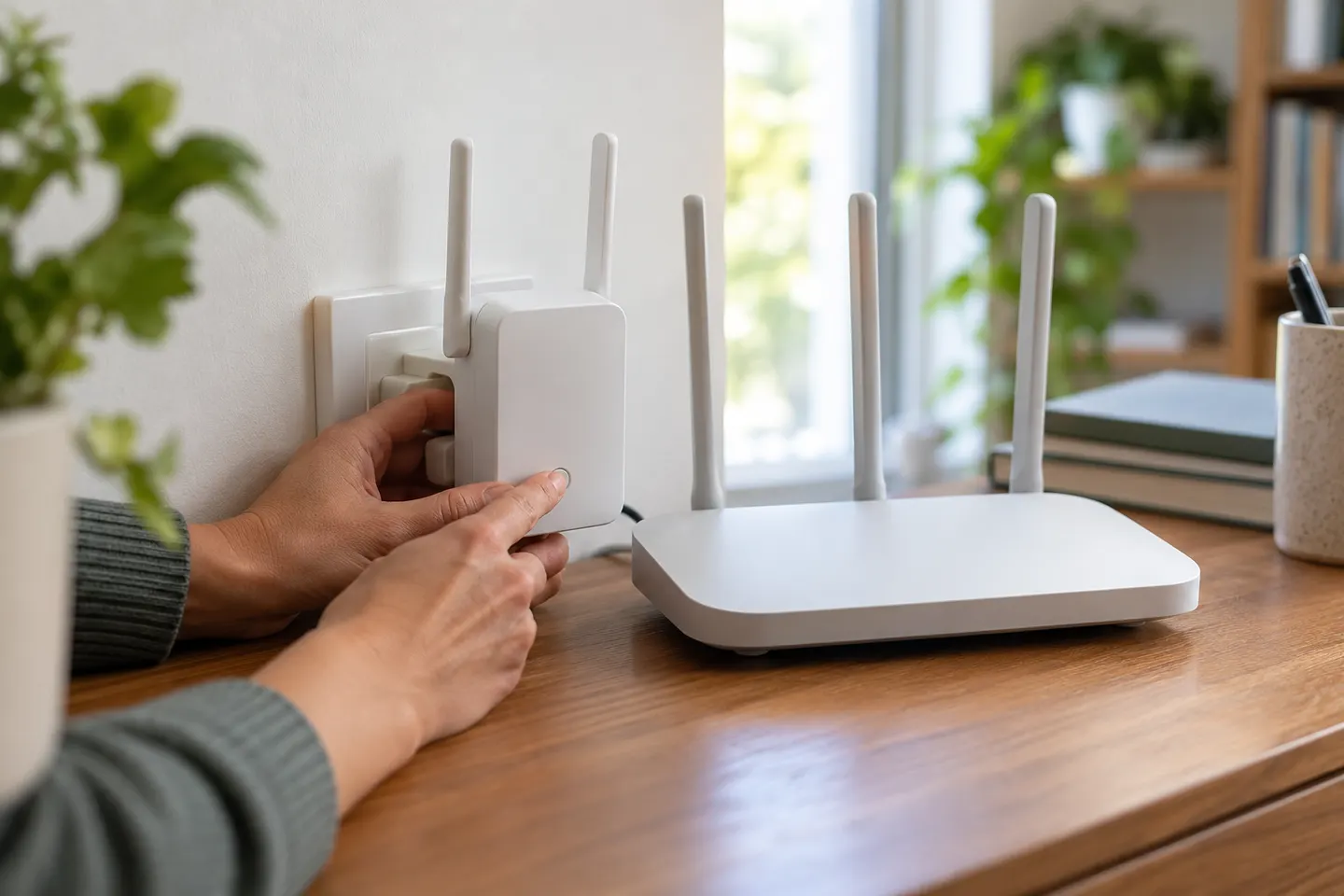
Start beside your router, pair the extender with WPS or the Tether app, then move it to a halfway point where it still receives a strong signal.

 Best picksBest Dash Cam in Australia: Five Models Compared
 Best picksBest Wi-Fi Extenders in Australia for Different Homes
 Best picksThe Best Meat Thermometer for Every Kind of Cook
 Best picksBest Headlamp Torches for Different Uses in 2026
 Best picksBest Portable Air Coolers to Consider in Australia (2026)
 Best picksBest Winter Gloves for Everyday Wear and Outdoor Use
 Best picksBest Cordless String Trimmers for Australian Gardens (2026)
 Best picksBest air purifier for bedroom in Australia: five models compared
Start here
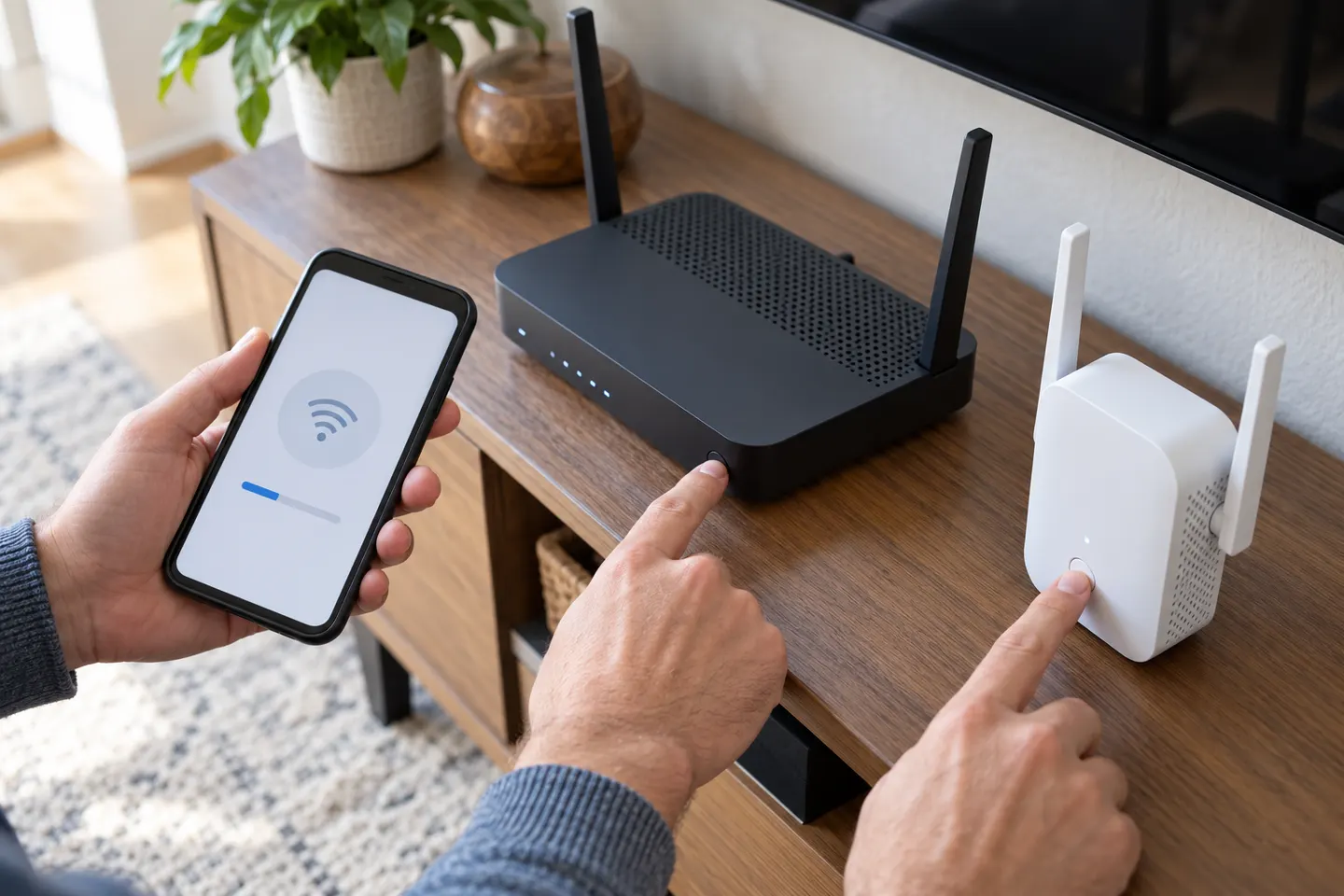
Start beside your router, pair the extender with WPS or the Tether app, then move it to a halfway point where it still receives a strong signal.

RE705X and RE715X are Wi-Fi 6 options; RE315 is an AC1200 alternative. Choose by router compatibility and the connection you need.
Our picks
Official manufacturer image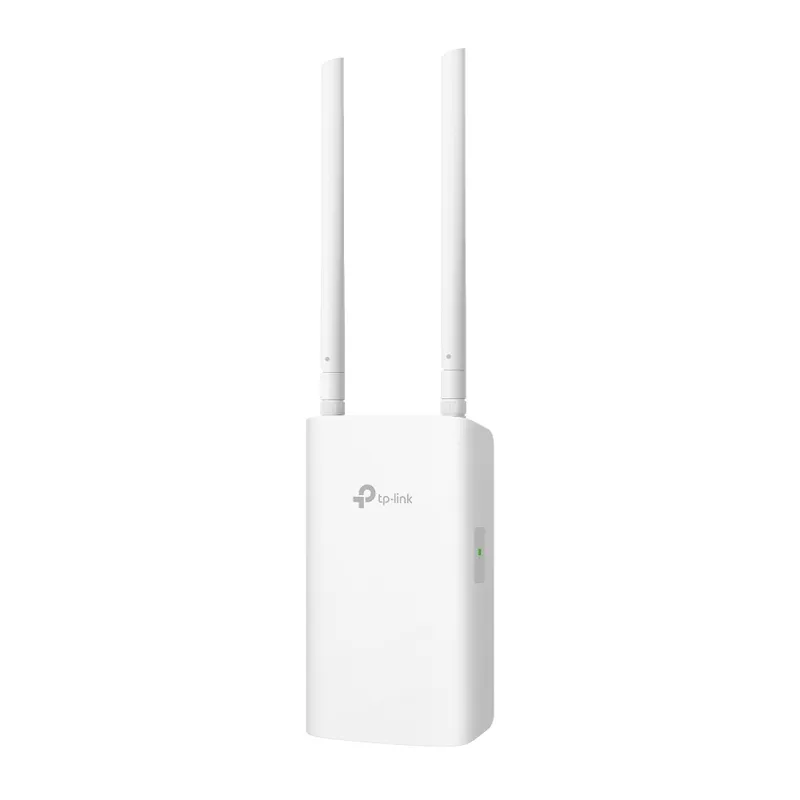 Official manufacturer image
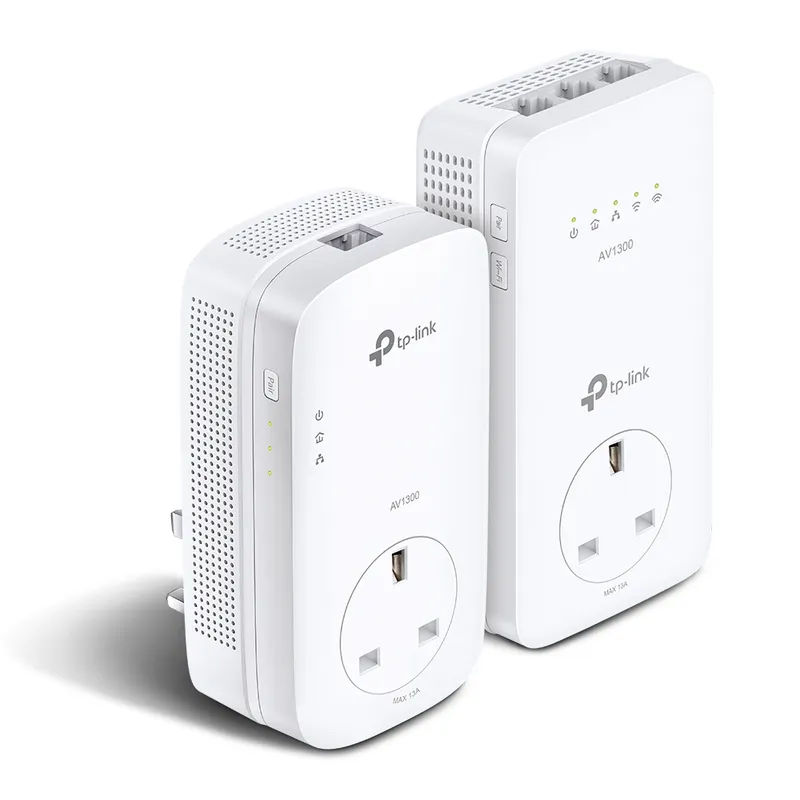 Official manufacturer imageHow to Set Up a TP-Link WiFi Extender with Your…
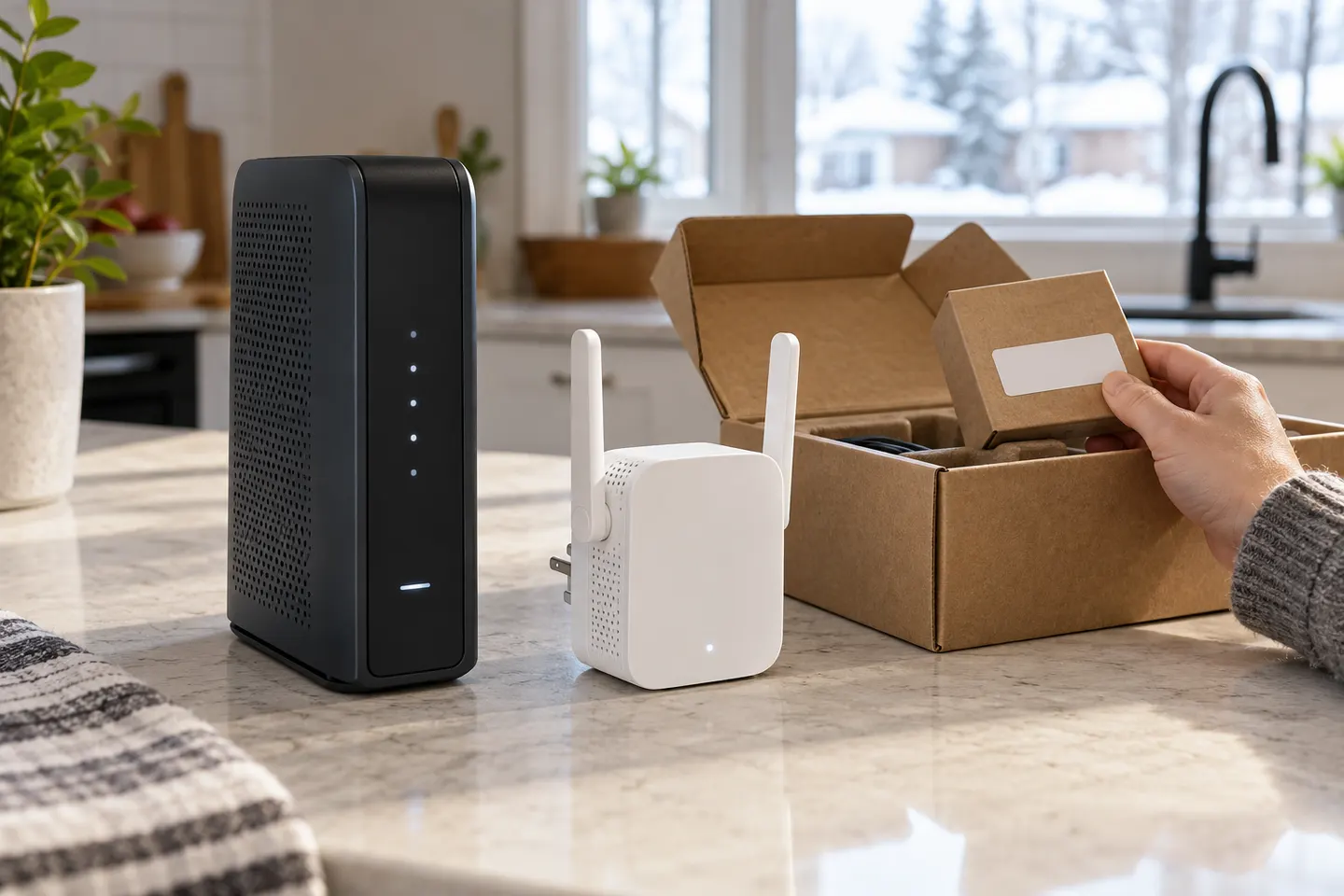 How to Set Up a TP-Link WiFi Extender Step by Step
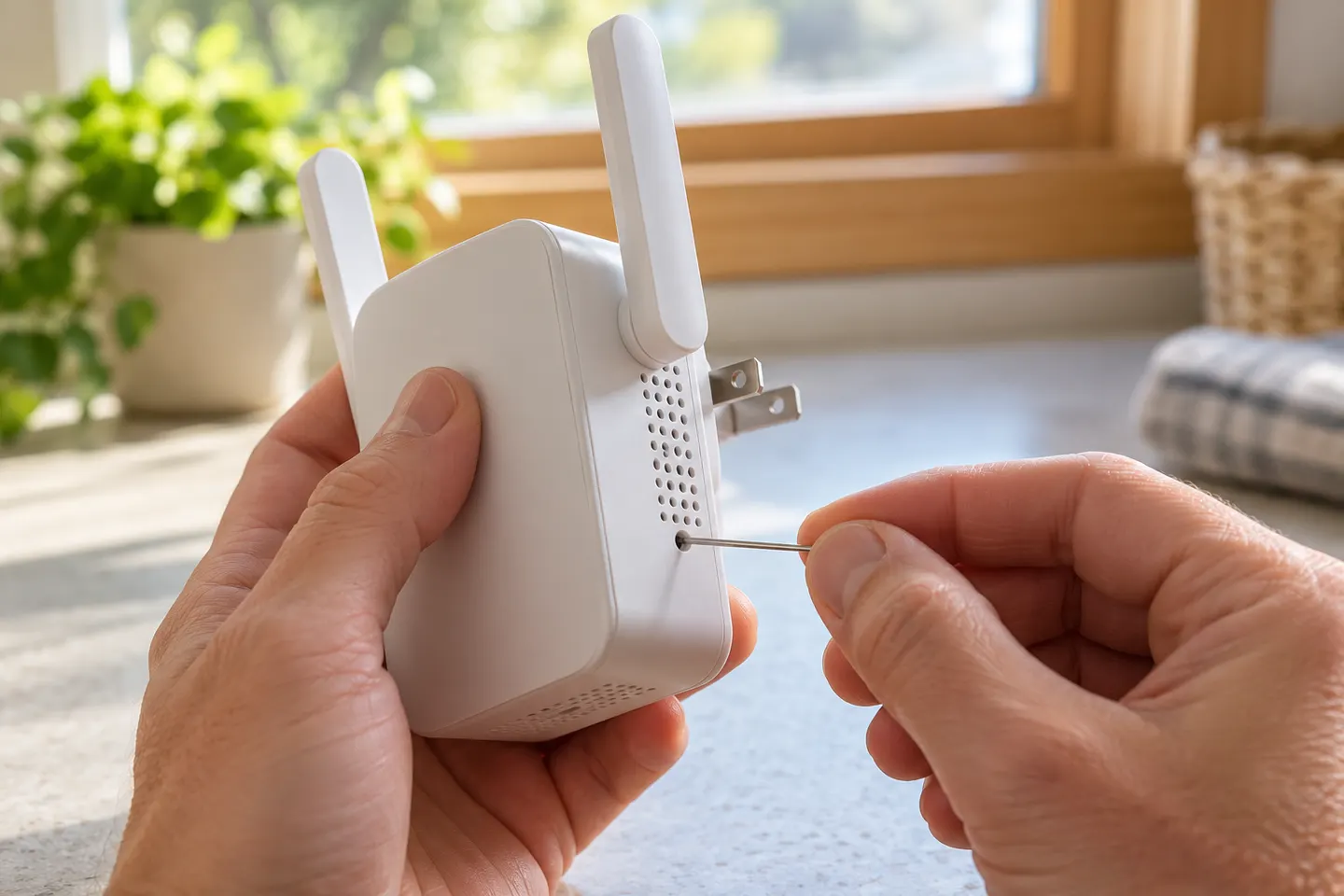 How to Reset a TP-Link WiFi Extender and Reconnect…
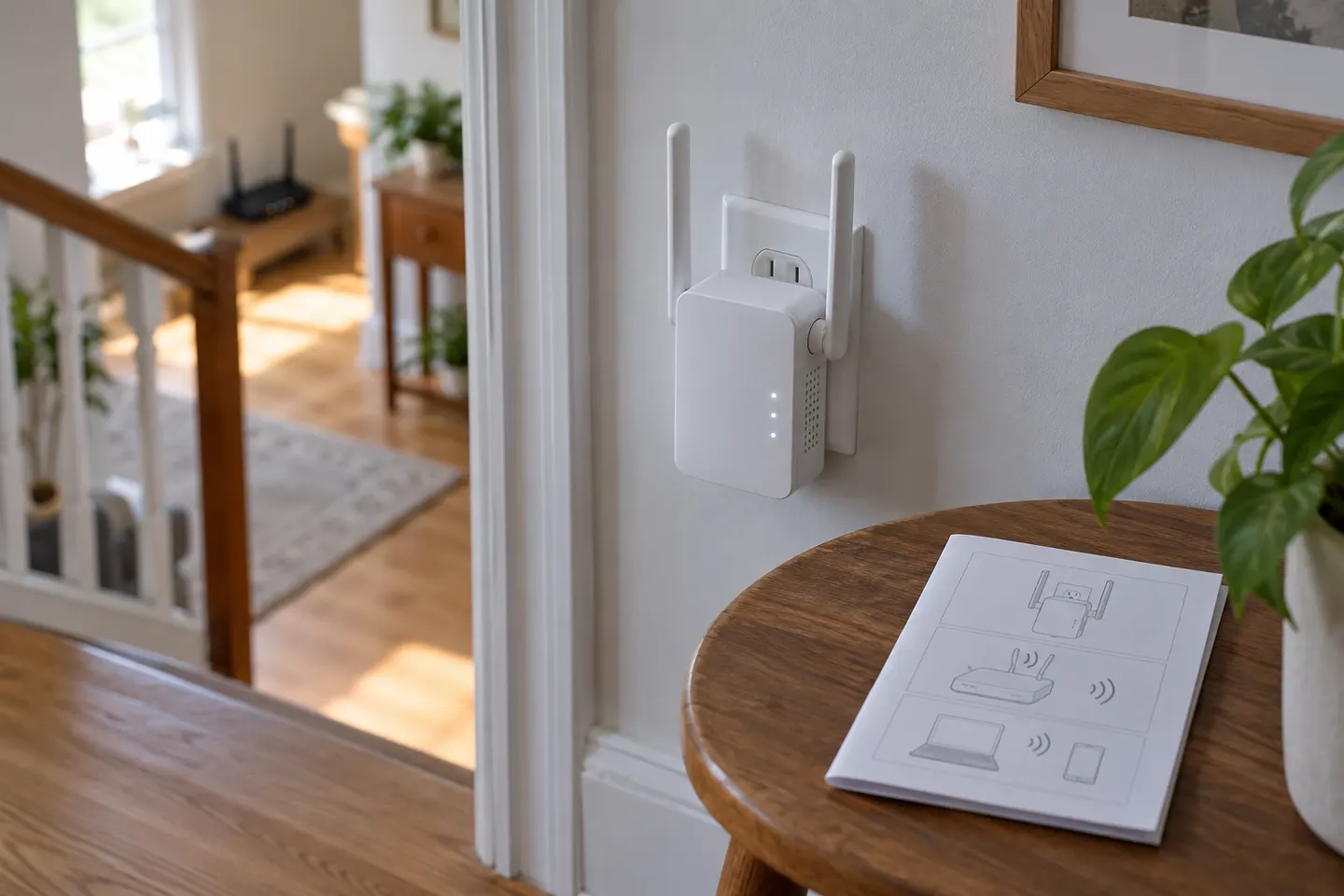 How to Use a TP-Link WiFi Extender
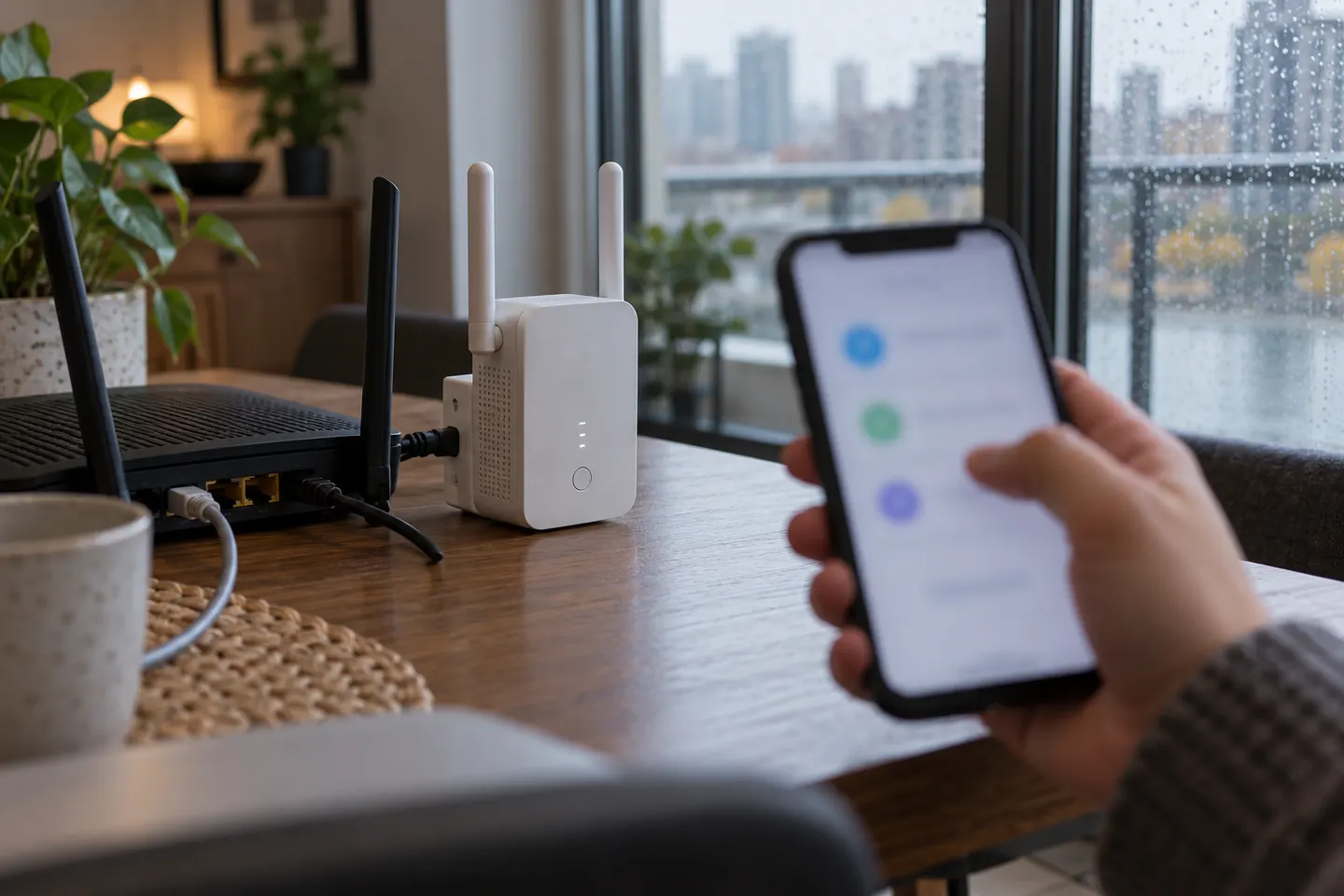 How to Connect a TP-Link WiFi Extender to Your…
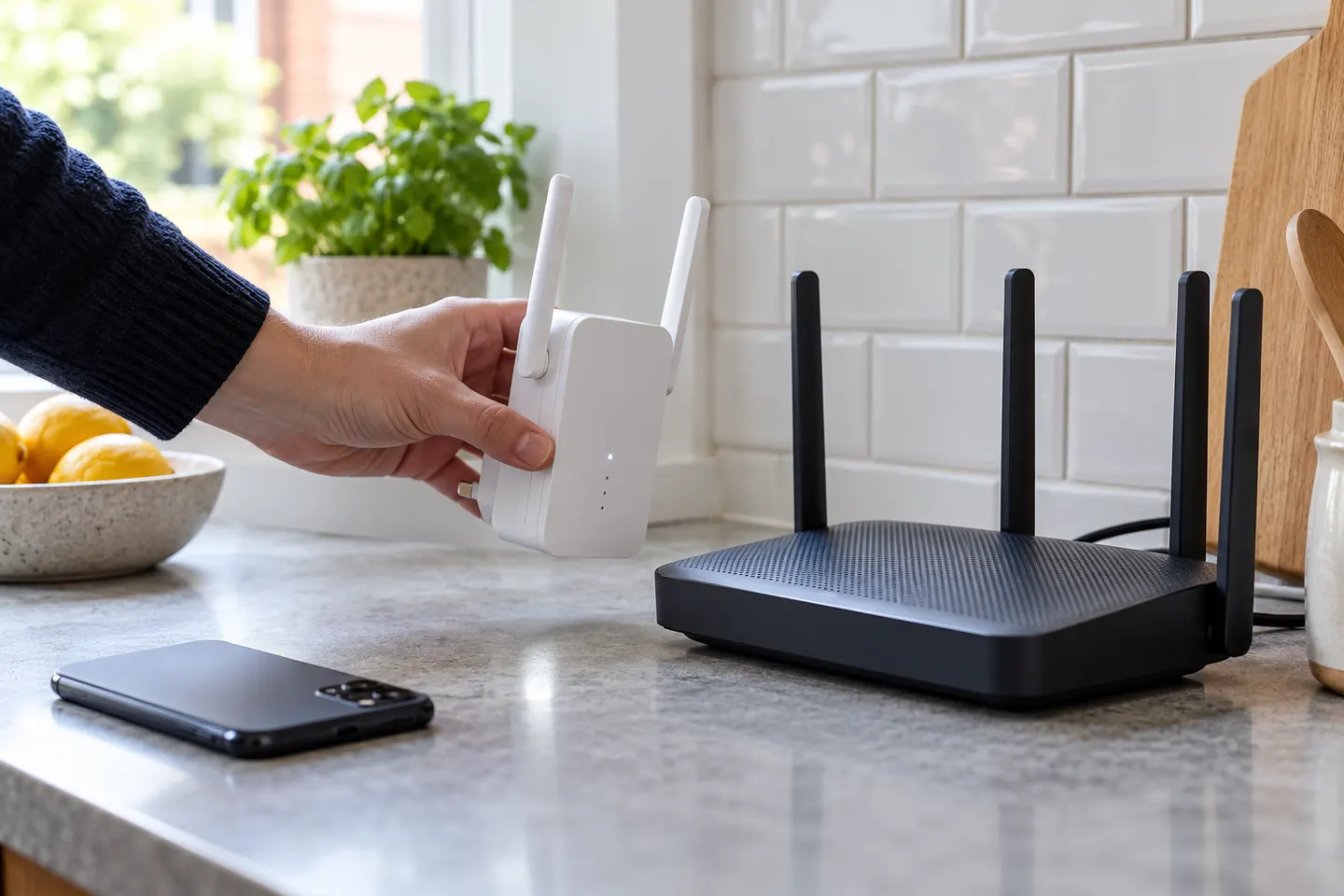
 How to Connect D'Link WiFi Extender to Your Router
 How to Connect TP-Link Extender to New WiFi After…
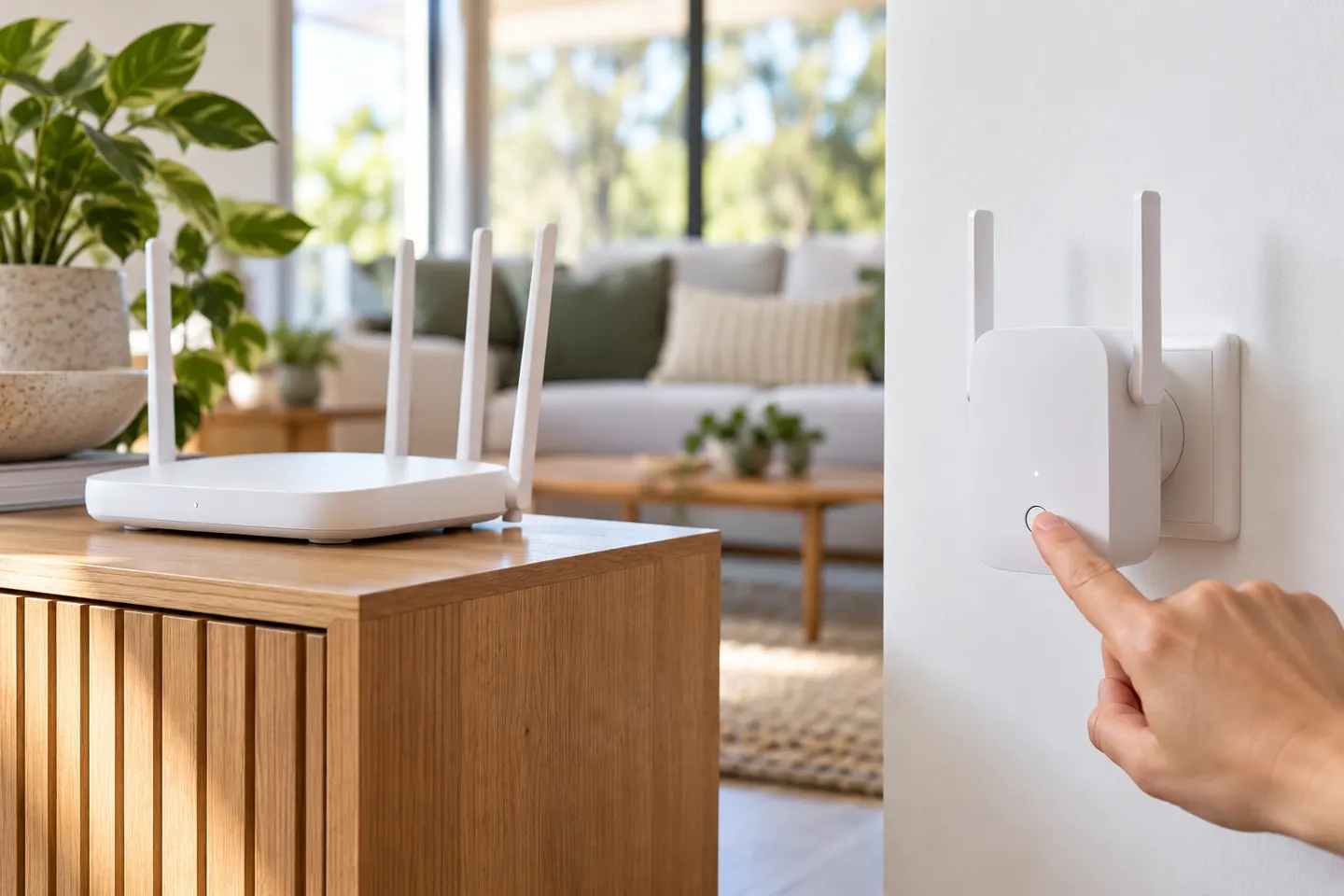 How to Pair TP-Link WiFi Extender Models with Your…
Common questions
Use the supported app or browser setup. Join the setup network, select your router network and enter its WiFi password.
Check the password, band compatibility and security settings. Pair close to the router and follow the exact hardware-version guide.
Some devices let you choose a separate name; compatible mesh arrangements may share one. Check the model settings.
A normal move generally preserves settings. A changed router or WiFi password may require configuration again.
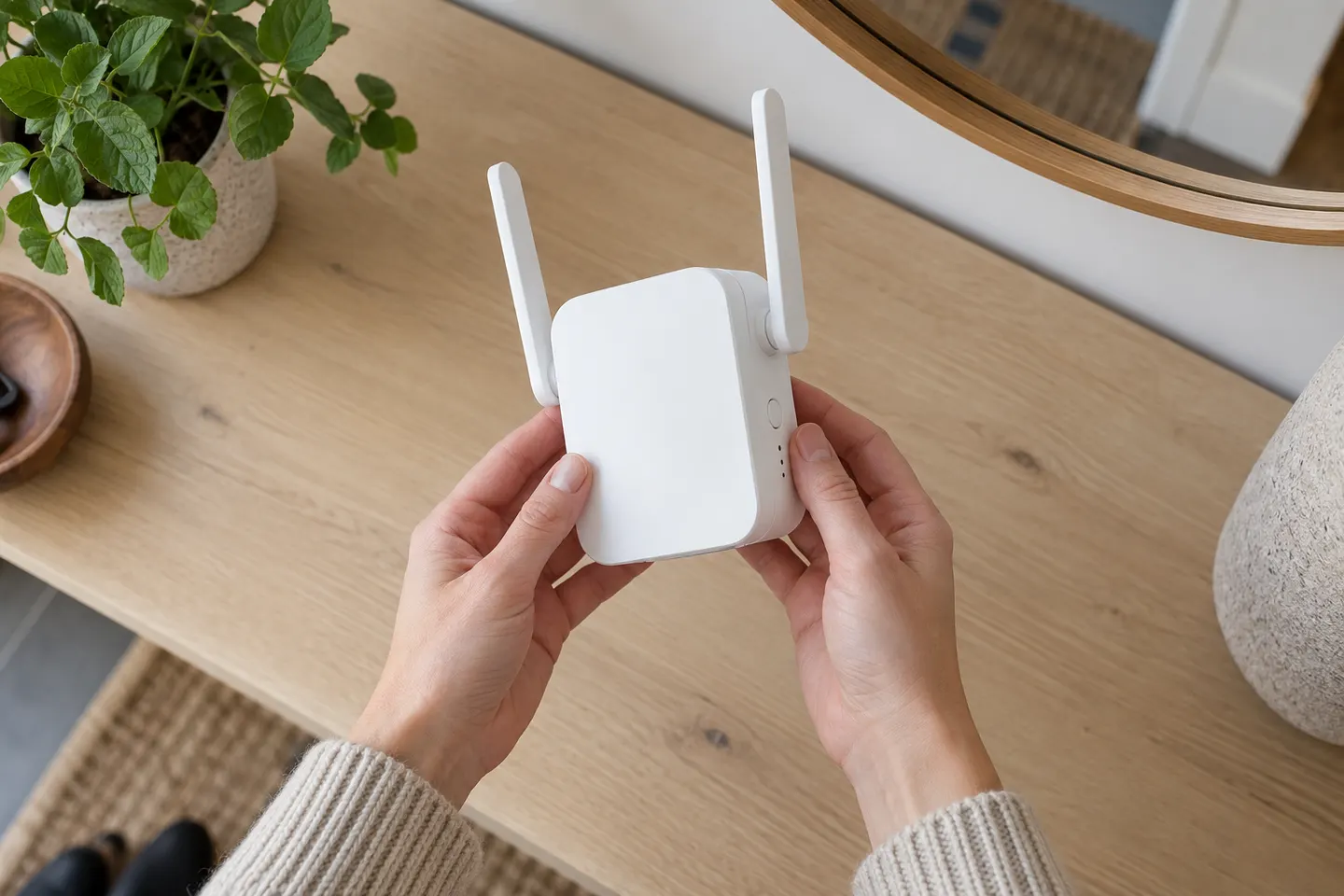 D link setup
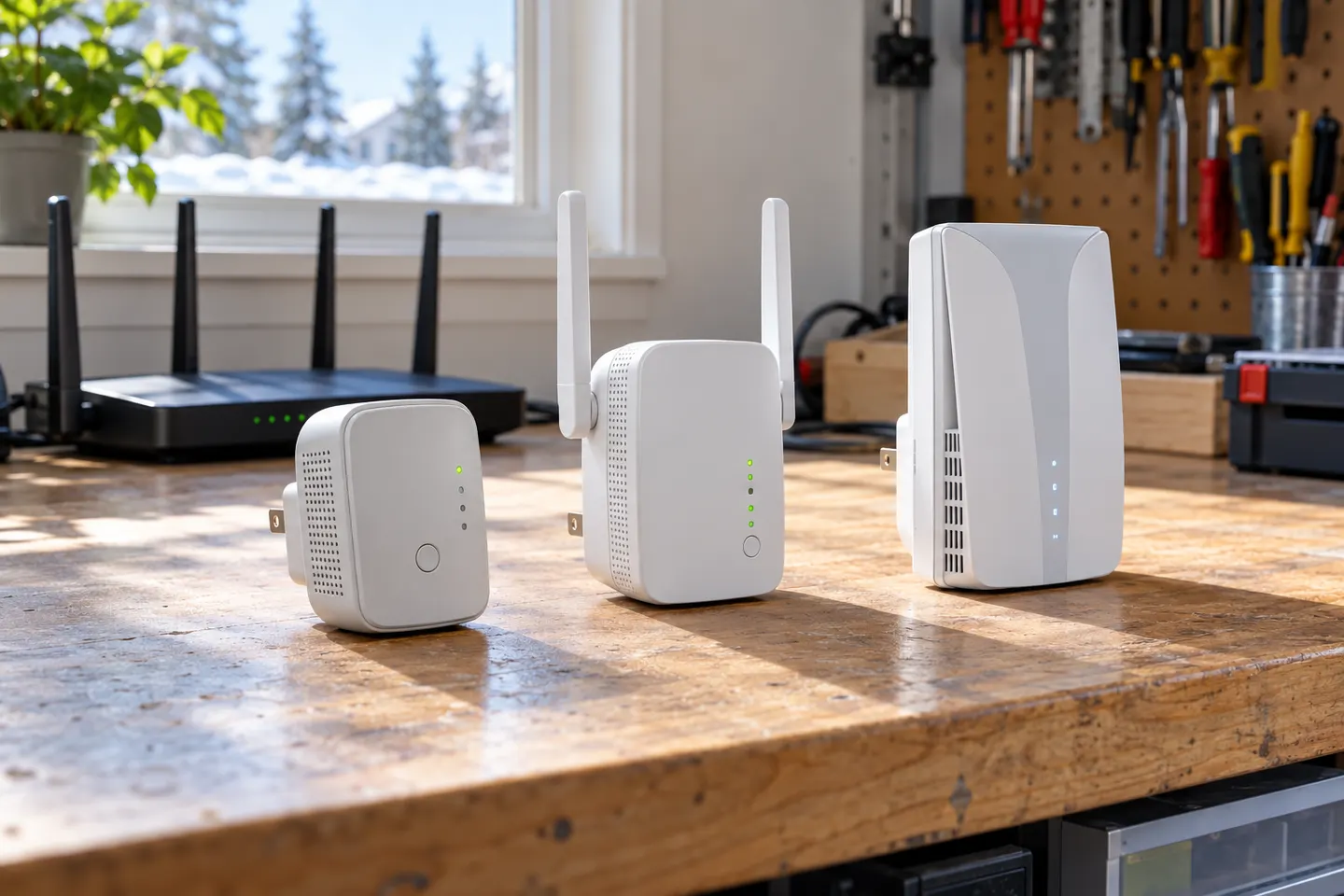 TP-Link Wi-Fi Extenders
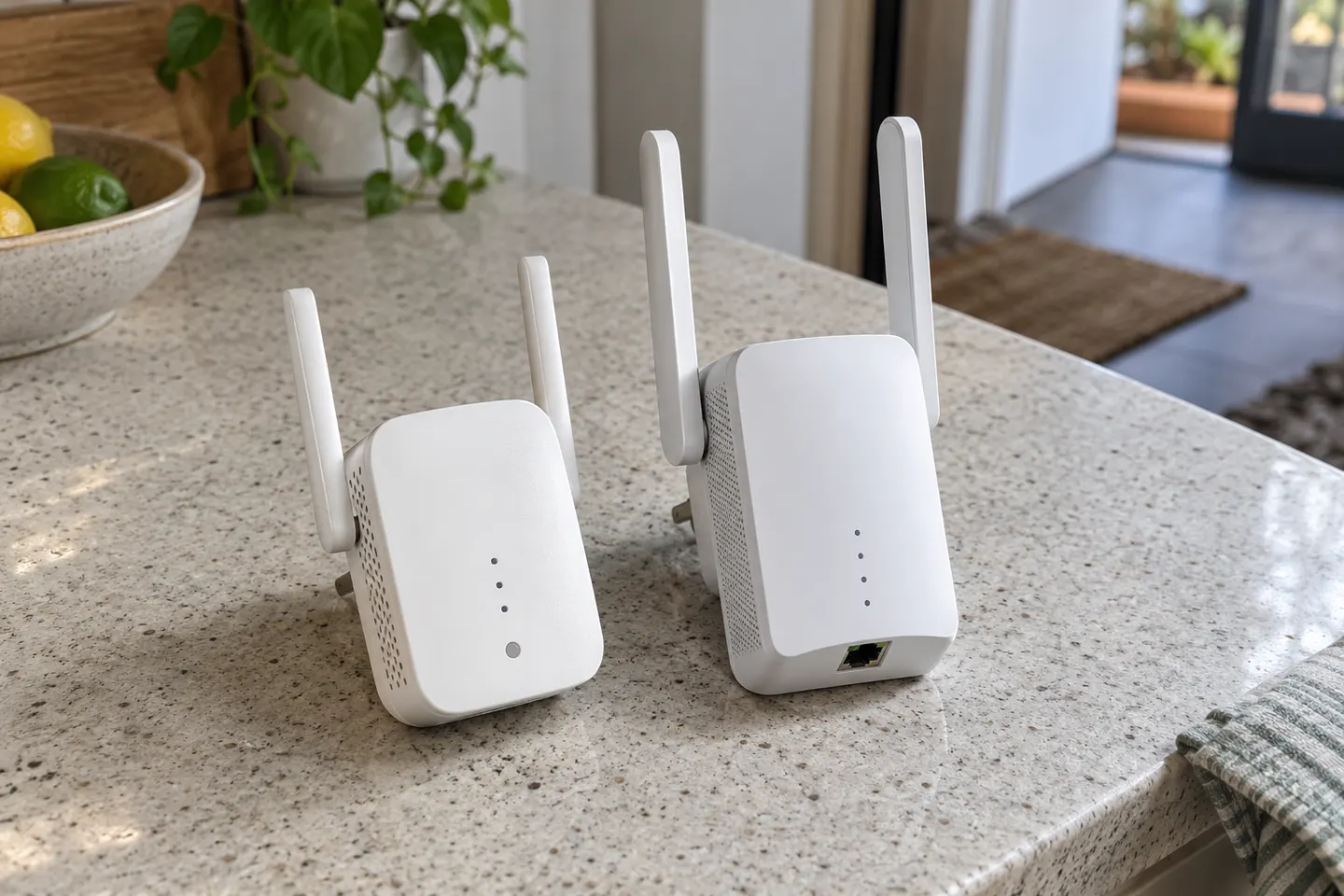 D-Link WiFi Extenders for Extending Home Coverage
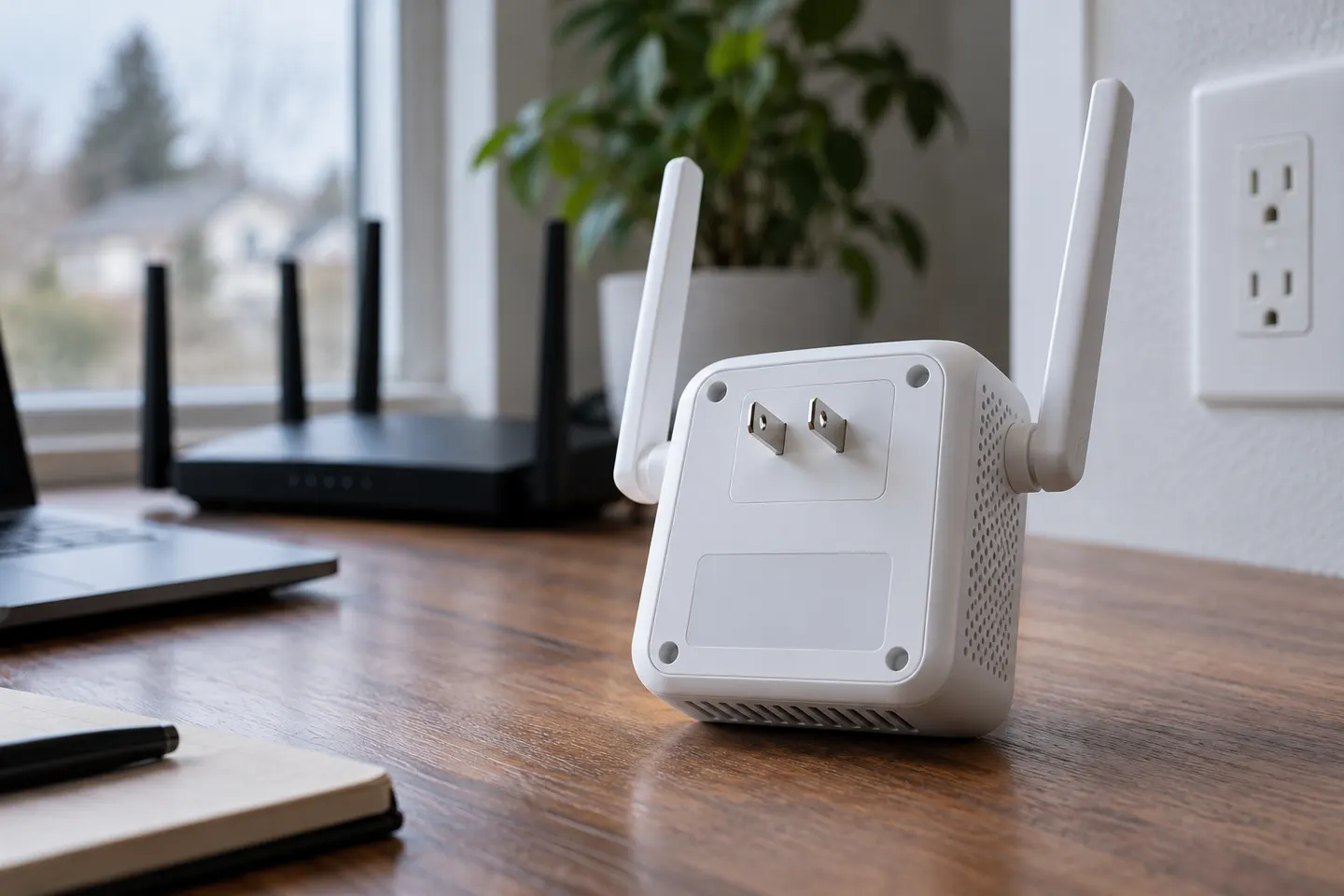 D-Link AC1200 WiFi Range Extender
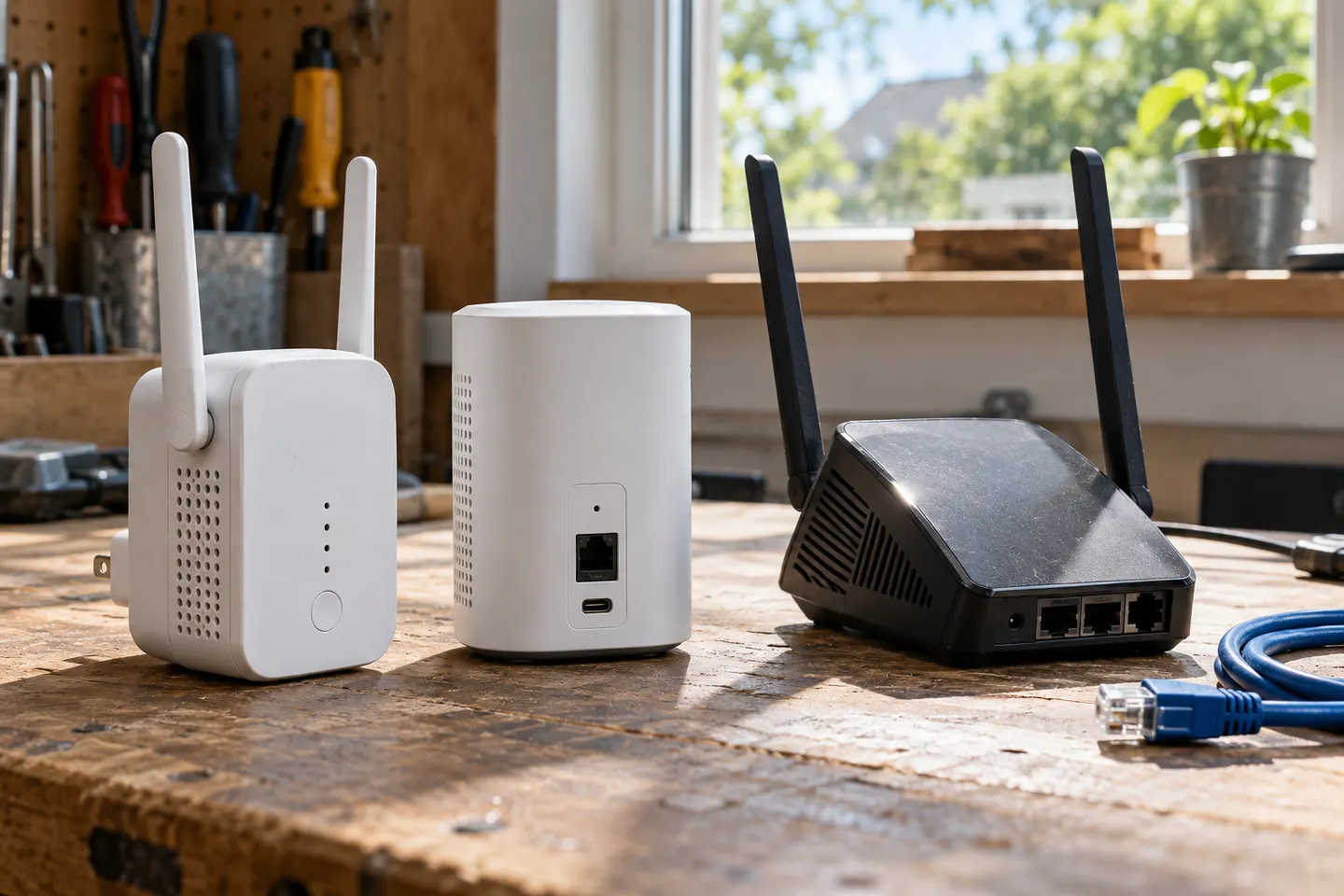 Pix-Link Wi-Fi Extenders