Check whether the extender can be reconfigured
Look up the exact model's manual or app instructions. Many extenders let you replace saved router details without a factory reset; the button sequence and menus differ by manufacturer.

 Best picksBest WiFi Extenders in the UK: Compare Five Practical Options
 Best picksThe Best Dashcams in the UK for 2026
 Best picksBest Portable Air Coolers: Five Models to Compare for 2026
 Best picksBest Meat Thermometers in the UK for 2026
 Best picksBest Headlamp Torches in the UK: Five Choices for 2026
 Best picksBest Winter Gloves in the UK: Five Activity-Based Choices for 2026
 Best picksBest Radar Detectors in the UK: Models Compared for 2026
 Best picksBest Value Cordless Strimmers in the UK (2026)
 Best picksBest Air Purifiers in the UK for Different Rooms and Needs
We may earn a commission from qualifying retailer links.
Guide
A router change usually means the extender must learn the new network name and password. Reconfigure it through its app or setup page; if that fails, reset it and run setup again beside the new router.
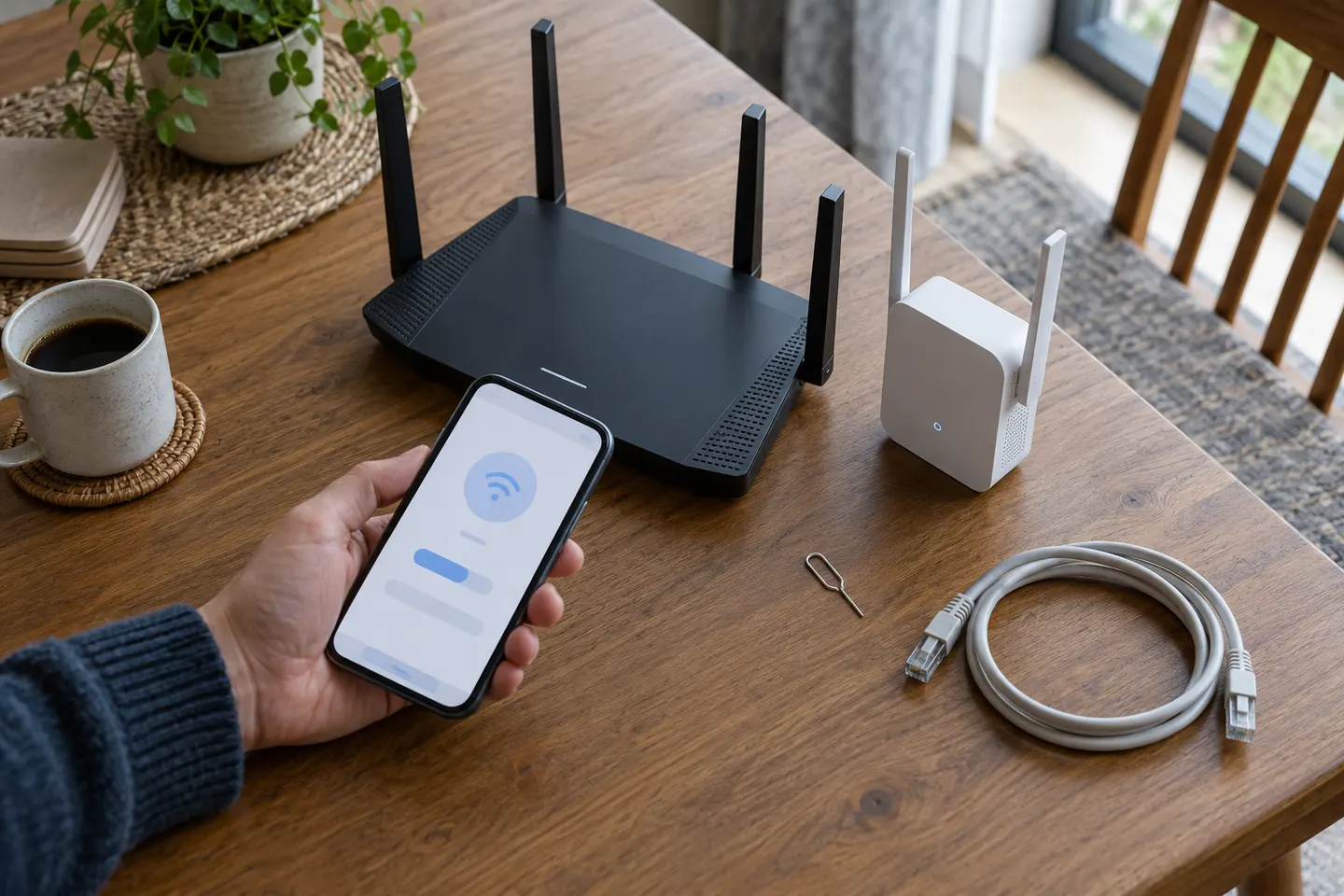
Look up the exact model's manual or app instructions. Many extenders let you replace saved router details without a factory reset; the button sequence and menus differ by manufacturer.
Note the new Wi-Fi name (SSID) and password, including capital letters. If the router combines both frequency bands under one name, follow the extender's instructions for selecting the network rather than guessing which band it uses.
Connect your phone or computer to the extender's setup network if prompted, then use the manufacturer's app or the address printed in the manual. Choose the new router network and enter its password. Keep the device close to the router during pairing.
If the router and extender both have WPS and the manuals allow it, start pairing from one device and press the other's WPS button within the stated interval. Do not assume a button labelled Wi-Fi or Sync is WPS; check the model guide.
A factory reset erases saved settings. Follow the model-specific reset instructions, wait for the status light to indicate readiness, then perform first-time setup with the new router. Avoid holding a reset pinhole unless the manual confirms the action.
Once the extender joins the new router, place it between the router and the area needing coverage, where it can still receive a strong signal. Reconnect devices to the extended network if the name changed, then check the connection from the room you care about.
Common questions
Not always. If its app or setup page lets you update the saved network and password, reconfigure it; reset it only when that route is unavailable or setup remains stuck.
If you use the same network name, security mode and password, some extenders and client devices may reconnect automatically. Compatibility is not guaranteed, so check the extender status and run setup again if it stays offline.
Common causes include a mistyped password, unsupported security settings, a weak signal during pairing or an extender still using old settings. Pair it close to the router and consult the exact model's troubleshooting guide.
Yes. Complete pairing near the router first, then relocate it to a position that receives a usable signal while reaching the dead zone. Placing it where the router signal is already absent will not help.
Keep exploring
TP-Link RE315 is a practical starting point for a standard indoor dead zone. Consider a Wi-Fi 6 device for newer kit, outdoor-rated hardware for a garden, or powerline where a wireless hop struggles.
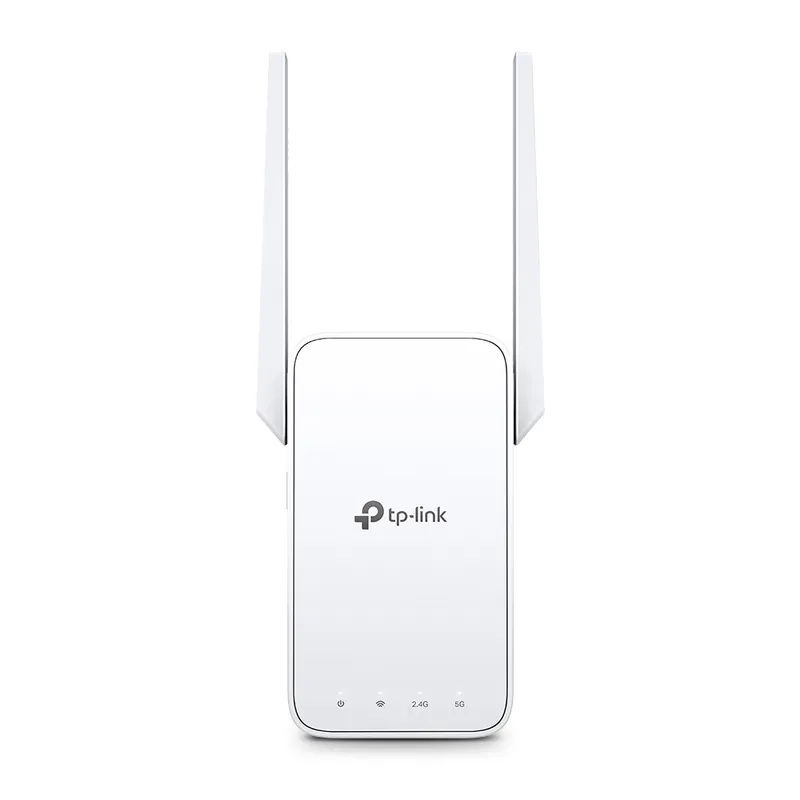
TP-Link sells plug-in repeaters and powerline kits. Check EasyMesh support, Ethernet needs and the exact UK hardware revision before buying.

Sky has different booster products for different broadband generations. Sky Max customers may use a Max Pod; check your account and hub-specific help before seeking a third-party extender.

A WiFi extender can carry your router signal further, but placement and backhaul matter. Choose a plug-in repeater for a nearby dead zone, powerline WiFi for difficult layouts, or an outdoor-rated unit for a garden.