Gearjury may earn a commission when you buy through retailer links.
Guide
How to Connect a Vodafone WiFi Booster to Your Hub
Vodafone’s setup steps differ by Hub. Pair the Booster near the router using the Broadband app or the model-specific WPS sequence, then relocate it midway towards the weak area.
GGearjury editorial team · Updated 18 October 2026· 5 min
01
Check which Vodafone Hub and Booster you have
Read the labels or use Vodafone’s device guidance to identify the Hub and Booster model. Vodafone publishes different pairing steps for Power Hub, WiFi Hub, Ultra Hub and other variants, so do not assume one LED sequence fits every device.
02
Start pairing beside the Hub
Plug the Booster into a socket near the Hub and wait for its setup light. Vodafone’s manual setup page says to keep it within two metres for initial pairing on the listed Hub flows. Make sure the Hub is on and connected to broadband.
03
Use the Vodafone Broadband app if offered
Open the app and choose Add under the extender option, then follow the prompts for the detected Booster. Vodafone’s device guide describes app-based addition; available controls can depend on your service and device.
04
Pair with WPS using your Hub’s sequence
For Power Hub and Ultra Hub, Vodafone instructs users to press the Hub WPS button and Booster WPS button for the stated duration, then wait for the Booster’s pairing light. WiFi Hub instructions use a different button sequence. Follow the current Vodafone page for your exact Hub.
05
Move the Booster towards the weak-signal area
After pairing, unplug the Booster and place it roughly halfway between the Hub and the point where WiFi begins to drop out. If its connection indicator does not settle as expected, move it closer to the Hub.
06
Reset only if setup still fails
Check power, Hub internet status and model-specific light meanings first. Vodafone’s support page gives a factory reset procedure for Super WiFi Booster models; a reset clears settings, so use that product’s instructions and pair it again afterwards.
Common questions
Questions before you buy
How do I connect a Vodafone WiFi booster to my router?
Pair it near the Vodafone Hub using the Broadband app or the Hub-specific WPS steps on Vodafone Help. Then move it to a midway position with a good link back to the Hub.
Where is the WPS button on a Vodafone Hub?
Its location varies by Hub. Vodafone’s instructions identify the button for each Hub family; check the guide matching your model rather than using a generic router sequence.
What do the lights mean while pairing?
The expected colours and states vary by Booster generation. Use Vodafone’s light guide for the exact model and wait for its documented connected state before relocating it.
What if my Vodafone Booster will not connect?
Check that the Hub is online, repeat the model-specific pairing process close to it and consult the light guide. Use a factory reset only as Vodafone’s model-specific support directs.
Sky has different booster products for different broadband generations. Sky Max customers may use a Max Pod; check your account and hub-specific help before seeking a third-party extender.
A WiFi extender can carry your router signal further, but placement and backhaul matter. Choose a plug-in repeater for a nearby dead zone, powerline WiFi for difficult layouts, or an outdoor-rated unit for a garden.
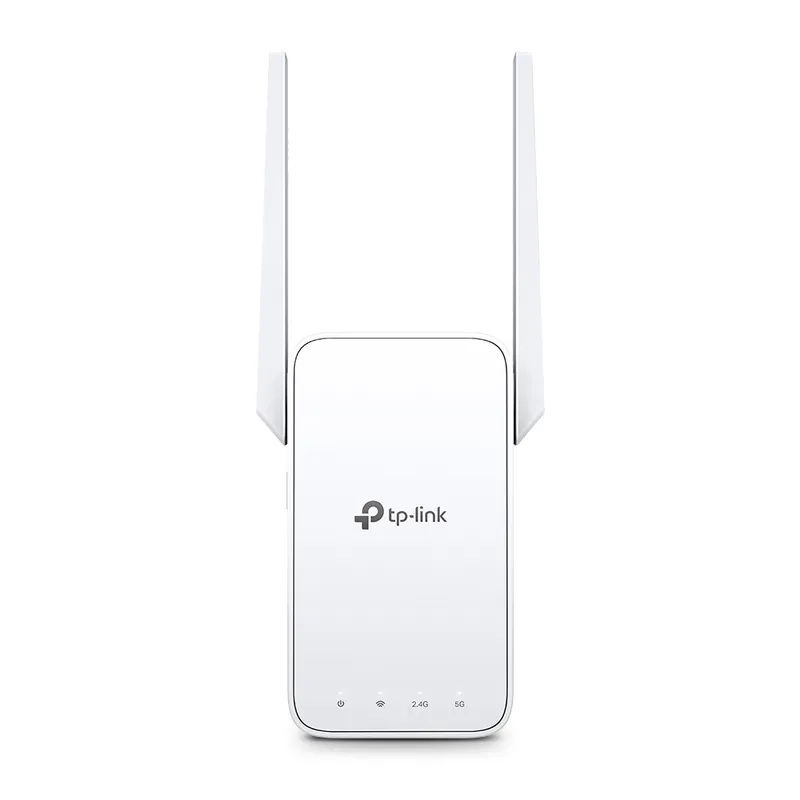
TP-Link RE315 is a practical starting point for a standard indoor dead zone. Consider a Wi-Fi 6 device for newer kit, outdoor-rated hardware for a garden, or powerline where a wireless hop struggles.
TP-Link sells plug-in repeaters and powerline kits. Check EasyMesh support, Ethernet needs and the exact UK hardware revision before buying.
Your privacy
We use cookies and similar technologies. Necessary ones keep the site working. With your permission we also use statistics cookies (Google Analytics and Microsoft Clarity) to understand which guides help readers. You can accept all, reject all or choose. You can change your choice at any time from "Cookie settings" at the bottom of every page. Cookie policy