Gearjury may earn a commission from retailer links. This guide is based on cited manufacturer instructions.
Guide
How to Set Up a Virgin WiFi Booster at Home
First identify whether you have a Virgin powerline Booster or a newer WiFi Pod: the setup differs. This guide covers pairing, placement and basic checks using Virgin Media’s instructions.
GGearjury editorial team · Updated 18 October 2026· 4 min
01
Check whether you have a Booster or a WiFi Pod
Virgin Media’s older WiFi Booster kit uses your home’s electrical wiring and has a main unit connected to the Hub. The newer white WiFi Pod is a mesh device paired with supported Virgin Hubs. Check the label and supplied instructions before following a setup method; do not assume the two devices pair in the same way.
02
Set up an older Virgin powerline Booster
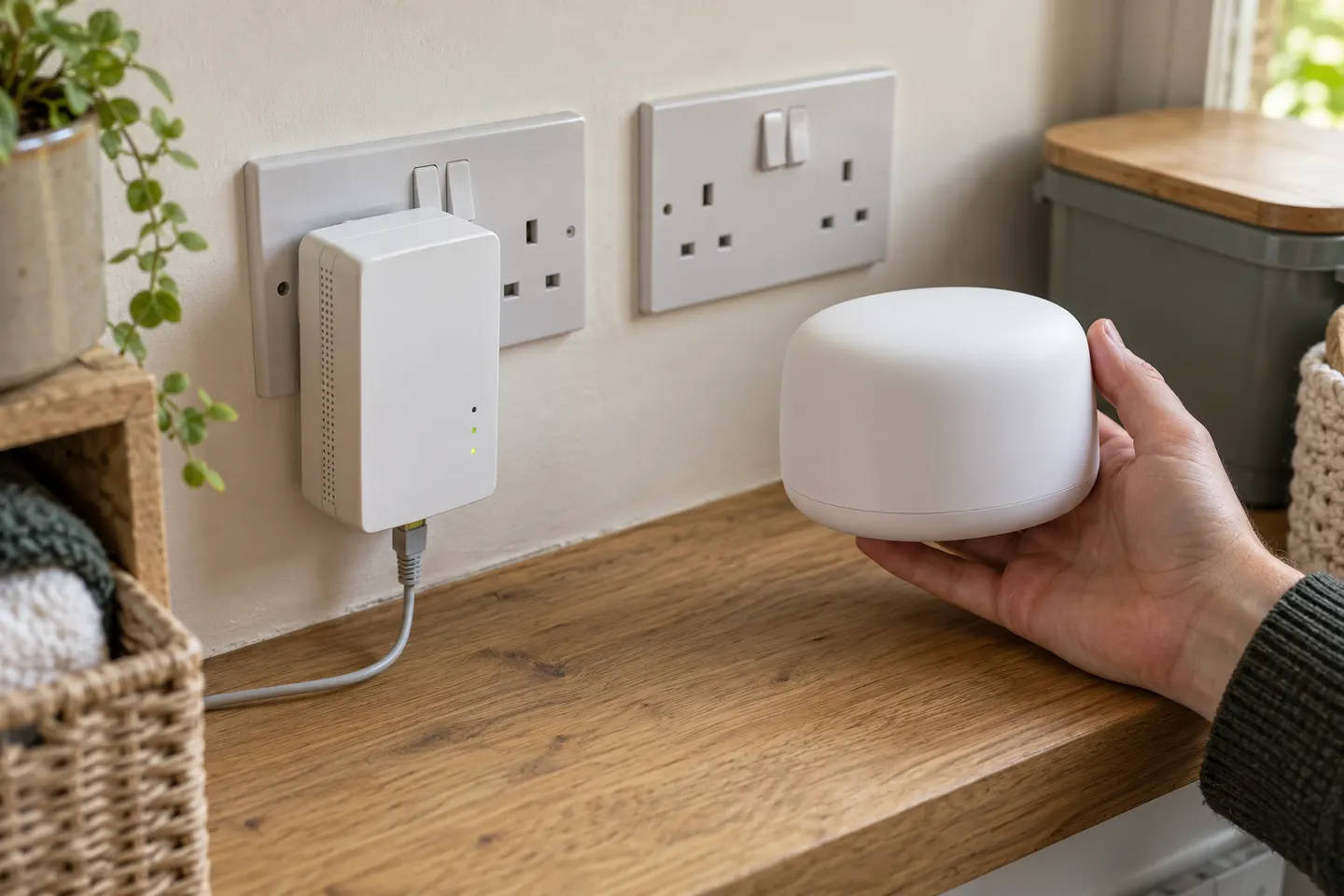
For the legacy kit, connect the main Booster to a wall socket near the Hub and use the supplied Ethernet cable to connect it to the Hub. Pair additional units using the buttons and sequence in the kit’s installation guide. Plug units directly into wall sockets and follow the lights shown in that guide.
03
Install a newer Virgin WiFi Pod
Virgin Media directs customers to its WiFi Pod installation flow and Virgin Media Connect app. Sign in to the app, follow its prompts to add the Pod, then check the Pod’s health and signal in the app. The Pod must be paired with a compatible Virgin Hub; if the app does not offer setup, check your account eligibility or contact Virgin Media.
04
Where should a Virgin booster go?
For a WiFi Pod, Virgin recommends a socket roughly halfway between the Hub and the weak-coverage area, upright and in the open. Avoid hiding it behind furniture or placing it in a bathroom. A powerline Booster needs a working wall socket; use the supplied guide to choose a location and avoid extension leads if the instructions call for direct wall connection.
05
If the connection is still weak
Check that the Hub has internet access and that the Booster or Pod is powered. Move a mesh Pod closer to the Hub if its signal is poor, then use the Connect app’s health and signal checks. For a powerline kit, reseat its connections and repeat the pairing sequence in its own manual. Persistent broadband faults should be checked with Virgin Media before changing extender settings.
06
When to reset or ask Virgin Media
Use the reset or re-pair process only for the device type you own and follow its current instructions; reset procedures can differ between Pods and older Booster kits. If the app cannot add a Pod or a powerline unit will not pair after a careful retry, contact Virgin Media support with the Hub and device model details.
Common questions
Questions before you buy
How do I set up a Virgin WiFi booster?
Identify whether it is a powerline Booster or a mesh WiFi Pod. Follow the matching Virgin Media guide: the former links through your home wiring, while the Pod is added through Virgin’s setup flow and Connect app.
Can I use a Virgin WiFi Pod with any router?
Virgin describes its Pods as pairing with supported Virgin Hubs. They are not a universal plug-in extender for any router, so check Virgin Media’s compatibility and account guidance.
Where should I plug in a Virgin WiFi Pod?
Virgin recommends an upright wall socket about halfway between the Hub and the poor-coverage area, away from furniture that could block it.
What if my Virgin booster will not pair?
Confirm the correct setup guide for the device, check that the Hub is online and repeat the documented pairing sequence. For Pods, use the Connect app; for an older kit, use its installation guide, then contact Virgin Media if pairing still fails.
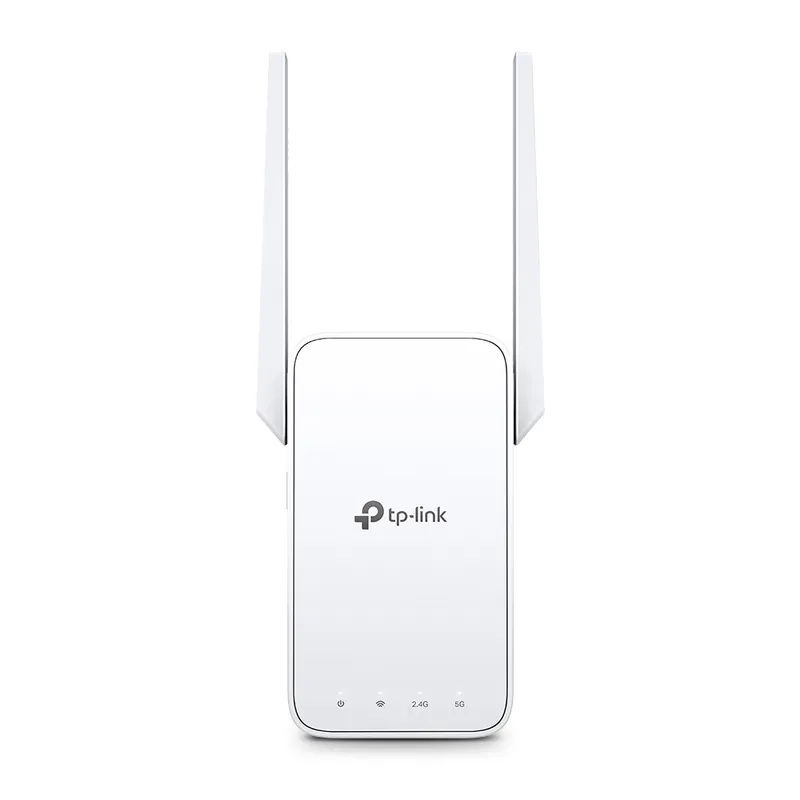
TP-Link RE315 is a practical starting point for a standard indoor dead zone. Consider a Wi-Fi 6 device for newer kit, outdoor-rated hardware for a garden, or powerline where a wireless hop struggles.
Sky has different booster products for different broadband generations. Sky Max customers may use a Max Pod; check your account and hub-specific help before seeking a third-party extender.
A WiFi extender can carry your router signal further, but placement and backhaul matter. Choose a plug-in repeater for a nearby dead zone, powerline WiFi for difficult layouts, or an outdoor-rated unit for a garden.
Your privacy
We use cookies and similar technologies. Necessary ones keep the site working. With your permission we also use statistics cookies (Google Analytics and Microsoft Clarity) to understand which guides help readers. You can accept all, reject all or choose. You can change your choice at any time from "Cookie settings" at the bottom of every page. Cookie policy