Gearjury may earn a commission from retailer links.
Guide
How to Set Up the Vodafone Super WiFi 6 Booster
Pair the Super WiFi 6 Booster with a compatible Vodafone Hub near the router, then move it towards the weak-signal area. Check the exact device light guide because colour meanings vary by model.
GGearjury editorial team · Updated 18 October 2026· 6 min
01
Check which Super WiFi equipment you have
Vodafone has supplied different booster generations and router combinations. Confirm the label and follow the setup page for your specific kit; Super WiFi 6 Booster instructions are not interchangeable with older Super WiFi Plus or newer WiFi 7 equipment.
02
Pair the Super WiFi 6 Booster with the Power Hub
Vodafone manual setup guidance for a Power Hub says to power the Hub and confirm internet access, then place the Booster nearby and switch it on. Wait for its indicator as described, press WPS on the Hub and Booster in the stated sequence, and allow pairing to finish before moving it.
03
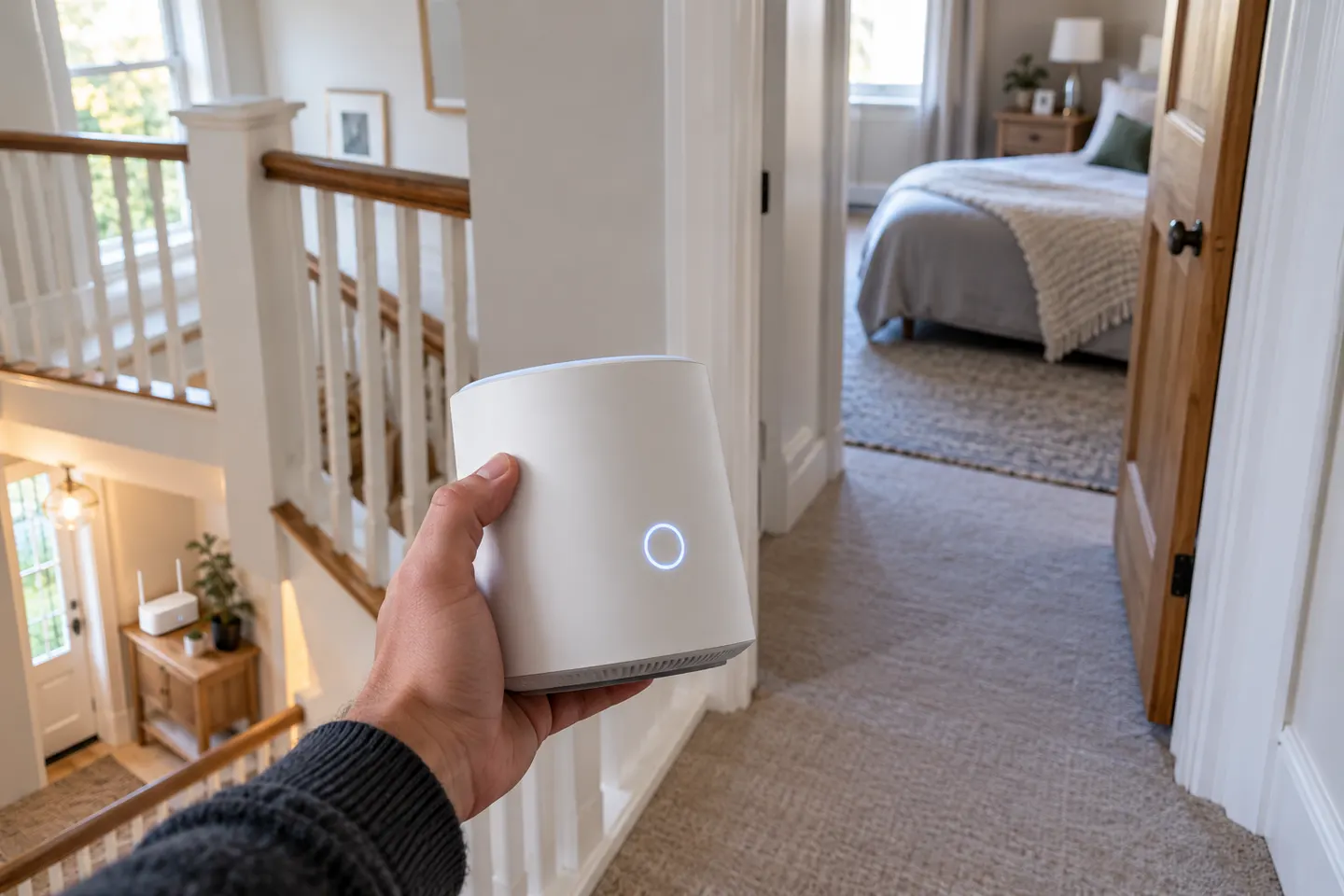
Choose the final position
Vodafone recommends moving the paired Booster to about halfway between the router and the place where the wireless signal starts to drop. Avoid a spot with no usable connection; test coverage after moving it.
04
What do the lights mean?
Light meanings vary by Vodafone booster and Hub. The current Vodafone help page lists states for devices used with the Power Hub, Ultra Hub 6e or Ultra Hub 7. Check the exact model-specific page before interpreting a flashing red, blue or purple light; colour charts differ by generation.
05
Is the Super WiFi Booster worth it?
It may suit a Vodafone broadband customer with a coverage problem when the supplied system is supported for the Hub. Compare package terms, placement needs and alternatives such as a third-party extender or wired access point; coverage depends on the home.
06
Does the booster work with Alexa?
Alexa is associated with Vodafone older Super WiFi Plus with Alexa Built-in offer, not a universal feature of every Super WiFi 6 Booster. Check the exact hardware and service terms before relying on voice-control functions.
Common questions
Questions before you buy
What is Vodafone Super WiFi Booster?
It is Vodafone equipment designed to extend Wi-Fi coverage in supported broadband setups. The name covers different generations, so check whether your device is Super WiFi 6, Super WiFi Plus or another version.
Is Vodafone Super WiFi Booster worth it?
It can be worthwhile when you need coverage in a weak area and your Vodafone plan and router support the supplied booster. Compare the terms and your home layout with a standalone extender or wired access point.
What does a flashing red light on a Vodafone Super WiFi Booster mean?
The meaning depends on the booster and Hub model. Use Vodafone light guide for the exact device and service combination; if the state persists, follow its connection troubleshooting steps.
Why is my Vodafone Super WiFi 6 Booster flashing blue or purple?
Vodafone setup guidance describes indicator states during pairing, but meanings differ across device generations. Keep the Booster near the Power Hub during setup and use model-specific instructions to decide whether to wait or retry.
Does Vodafone Super WiFi 6 Booster include Alexa?
Do not assume it does. Vodafone has described Alexa Built-in with the separate Super WiFi Plus offer; check exact product and plan details for Alexa support.
A WiFi extender can carry your router signal further, but placement and backhaul matter. Choose a plug-in repeater for a nearby dead zone, powerline WiFi for difficult layouts, or an outdoor-rated unit for a garden.
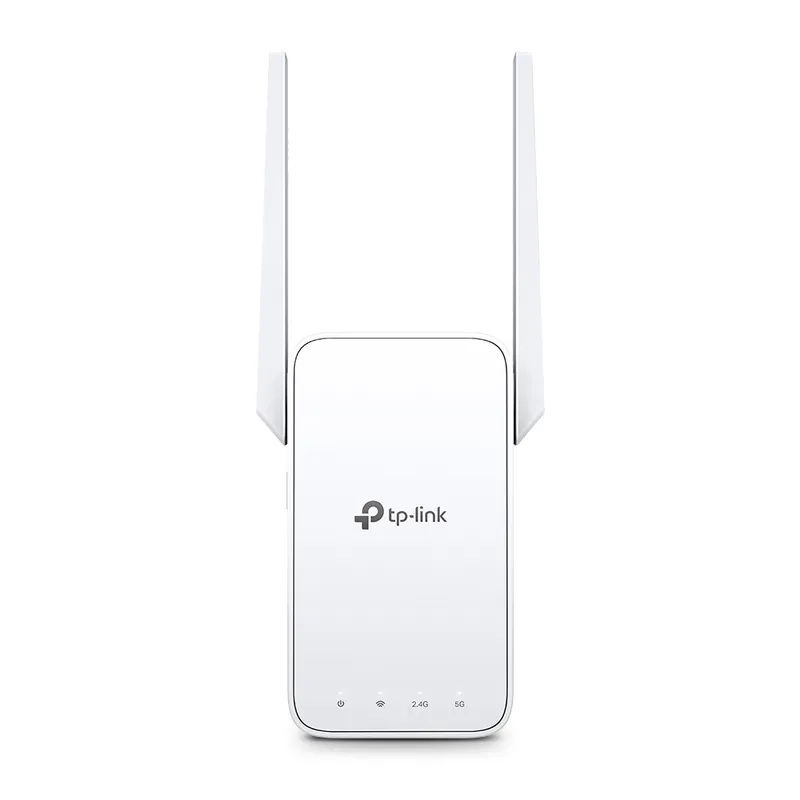
TP-Link RE315 is a practical starting point for a standard indoor dead zone. Consider a Wi-Fi 6 device for newer kit, outdoor-rated hardware for a garden, or powerline where a wireless hop struggles.
Sky has different booster products for different broadband generations. Sky Max customers may use a Max Pod; check your account and hub-specific help before seeking a third-party extender.
Your privacy
We use cookies and similar technologies. Necessary ones keep the site working. With your permission we also use statistics cookies (Google Analytics and Microsoft Clarity) to understand which guides help readers. You can accept all, reject all or choose. You can change your choice at any time from "Cookie settings" at the bottom of every page. Cookie policy