Find the extender model and its saved network
Read the label and open the matching TP-Link support guide. If only the router password changed, use the extender's management page or app to update the saved credentials; a full reset may not be needed.

 Best picksBest Dash Cam in Australia: Five Models Compared
 Best picksBest Wi-Fi Extenders in Australia for Different Homes
 Best picksThe Best Meat Thermometer for Every Kind of Cook
 Best picksBest Headlamp Torches for Different Uses in 2026
 Best picksBest Portable Air Coolers to Consider in Australia (2026)
 Best picksBest Winter Gloves for Everyday Wear and Outdoor Use
 Best picksBest Cordless String Trimmers for Australian Gardens (2026)
 Best picksBest air purifier for bedroom in Australia: five models compared
Gearjury may earn a commission from qualifying retailer links.
Guide
When your router name or password changes, update the extender's saved network details. The exact reset and configuration steps depend on its model.
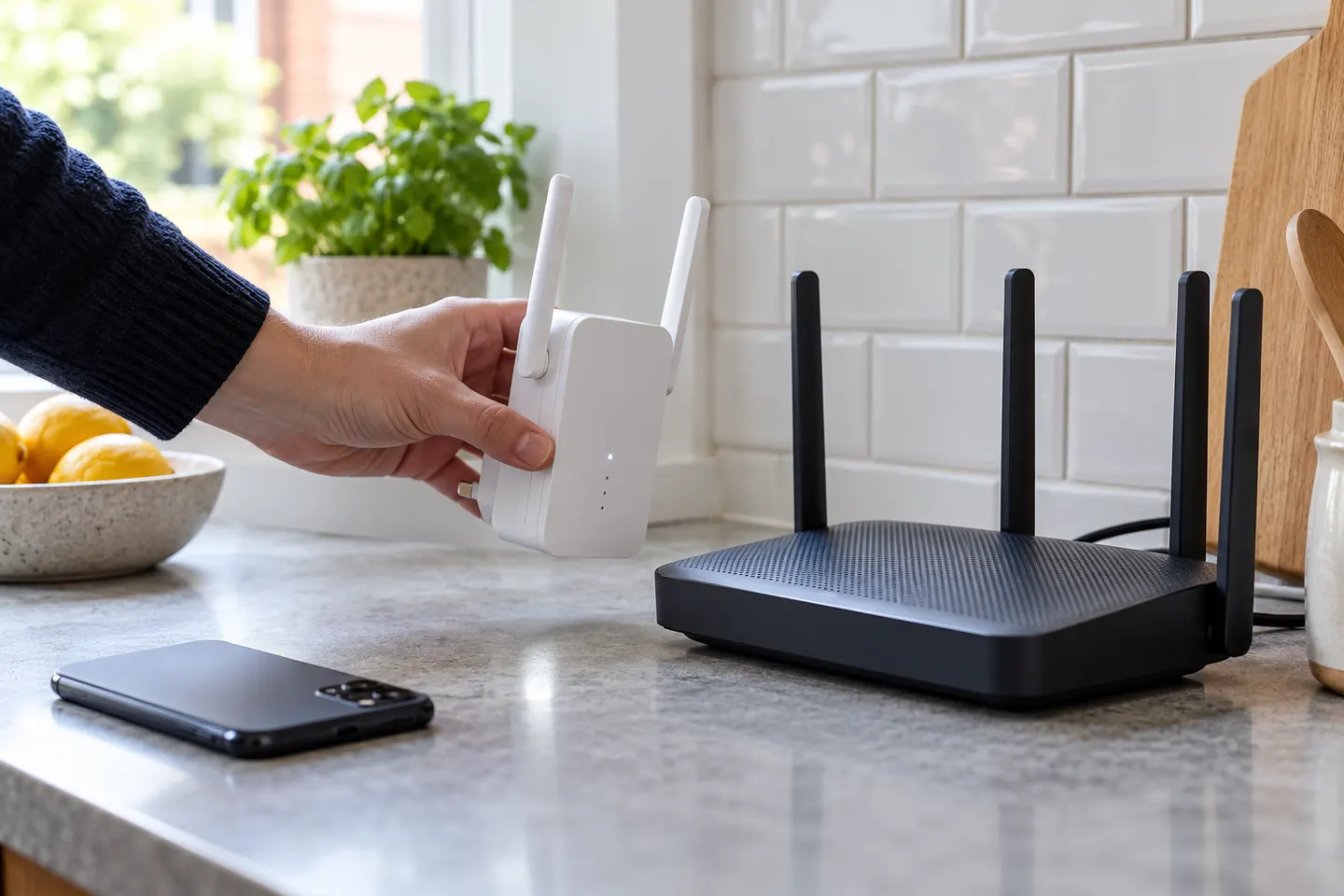
Read the label and open the matching TP-Link support guide. If only the router password changed, use the extender's management page or app to update the saved credentials; a full reset may not be needed.
Join the extender's WiFi from a phone or computer, then open the address in its manual or launch the supported TP-Link app. Choose the new router network and enter the current password carefully.
If the extender is inaccessible or still tied to the old router, use the reset control as described in its model manual, then run setup again. A reset clears saved settings, so have the new network details ready.
If your router shows separate network names for its bands, select the band the extender supports and that suits your coverage goal. Some models combine band selection under one network name.
Wait for the extender's connection indicator to confirm a link to the new router. Test a device on the extended network, then position the unit where it still receives a dependable signal.
A booster can address weak signal in part of a home when the router itself is functioning well. If the router is unreliable, outdated or unable to cover the home even nearby, replacing it or considering mesh may solve the underlying issue.
Common questions
Not always. If you can access its management interface, update the saved network details there; reset only when the model's instructions or your troubleshooting requires a fresh setup.
Open the extender's supported app or web interface, select the new router network and enter its current password. Menu names differ across models.
Check that the router is broadcasting a supported band and that the extender is close enough during setup. Consult the model guide for compatibility and reset instructions.
Choose a booster for a local coverage gap with a healthy router connection. Consider a replacement router if the existing router causes dropouts or poor performance throughout the home.
Keep exploring

RE705X and RE715X are Wi-Fi 6 options; RE315 is an AC1200 alternative. Choose by router compatibility and the connection you need.
The right Wi-Fi extender depends on the router signal at its location, your home layout and whether you need Ethernet, outdoor placement or powerline networking.

A Wi-Fi extender can help reach a weak-signal room when positioned within range of your router. Compare plug-in repeaters, mesh-compatible models, outdoor units and powerline kits by how they connect.
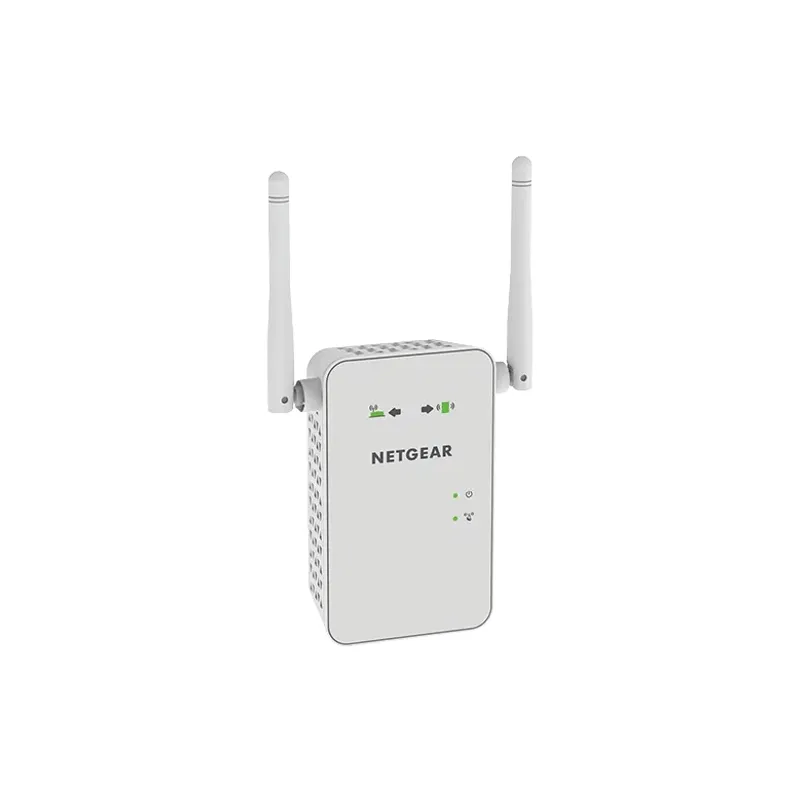
Start with the network standard and location of the dead spot. NETGEAR?s EX6120 is a dual-band AC model, while EAX15 adds WiFi 6; check exact router and firmware compatibility before buying.