Check the extender model and new router
Find the model number on the extender label and make sure the new router's WiFi is active. The steps below fit common TP-Link range extenders, but button labels and app screens can differ by hardware revision.

 Best picksBest WiFi Extenders in the UK: Compare Five Practical Options
 Best picksThe Best Dashcams in the UK for 2026
 Best picksBest Portable Air Coolers: Five Models to Compare for 2026
 Best picksBest Meat Thermometers in the UK for 2026
 Best picksBest Headlamp Torches in the UK: Five Choices for 2026
 Best picksBest Winter Gloves in the UK: Five Activity-Based Choices for 2026
 Best picksBest Radar Detectors in the UK: Models Compared for 2026
 Best picksBest Value Cordless Strimmers in the UK (2026)
 Best picksBest Air Purifiers in the UK for Different Rooms and Needs
Gearjury may earn a commission from qualifying retailer links.
Guide
When your router or WiFi name changes, reconfigure the extender to join the new network. Most current TP-Link models support WPS or the Tether app, though menu names vary by model.
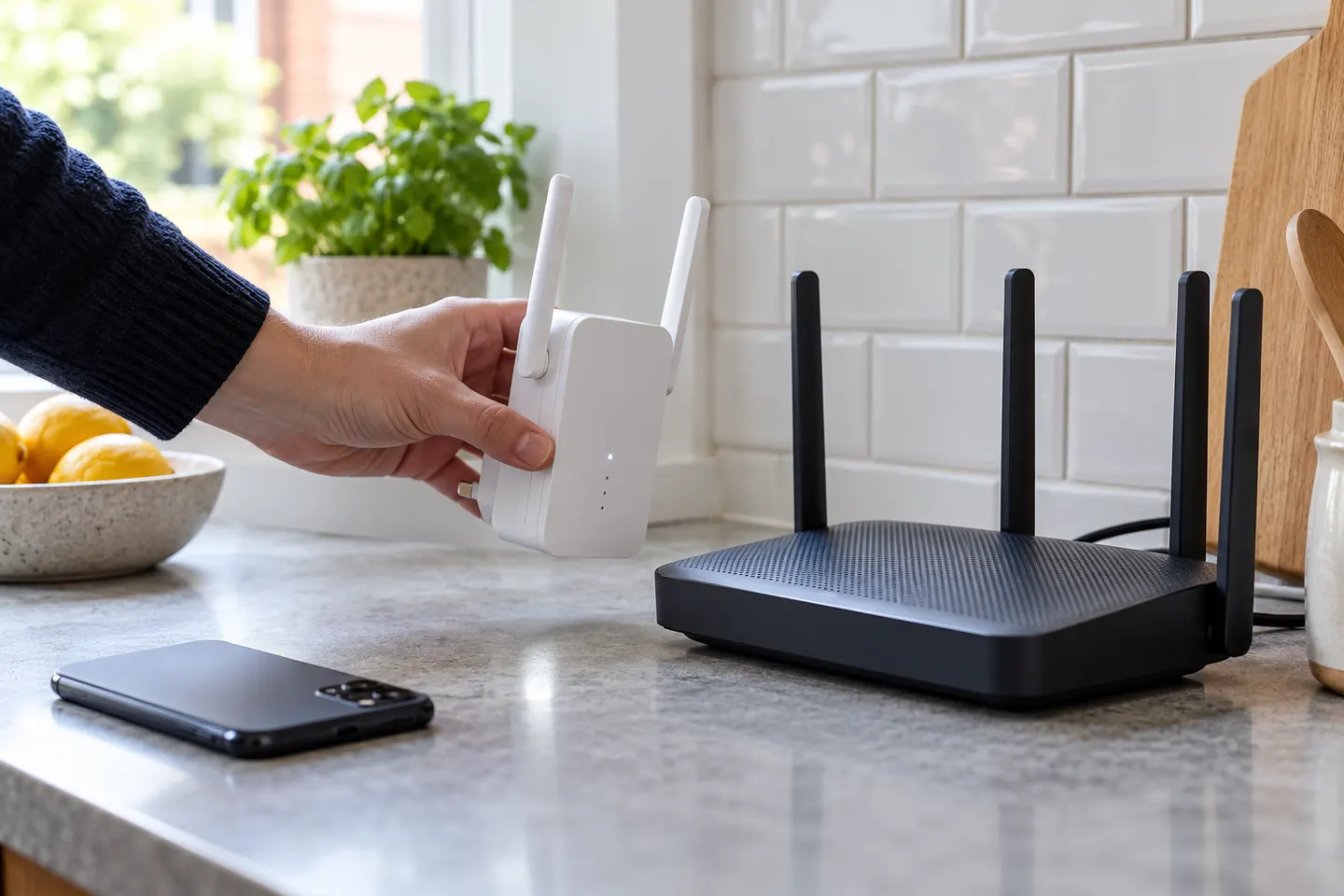
Find the model number on the extender label and make sure the new router's WiFi is active. The steps below fit common TP-Link range extenders, but button labels and app screens can differ by hardware revision.
Place the extender near the router. Press WPS on the router, then press the extender's WPS or RE button within the interval specified in its manual. Wait for the wireless indicator to show a successful link before unplugging it.
For an AC750 model such as the TP-Link RE220, use WPS if the router supports it, or set up through the TP-Link Tether app. Select the router's current network and enter its WiFi password; the AC750 label describes the extender class, not a guaranteed internet speed.
A 300Mbps-labelled TP-Link extender may be a single-band model with different controls from newer dual-band units. Use the exact model's quick installation guide, choose the new 2.4 GHz network when prompted, and enter its password carefully.
If WPS is unavailable or pairing fails, open Tether and add the extender, then follow the scan-and-select steps for the new router network. Some models also provide a browser setup page; the extender's manual gives the correct local address and default connection details.
After configuration, move the extender to a position between the router and the weak area. Confirm the signal indicator remains healthy and reconnect your phone or laptop to the extended network if its name or password changed.
Common questions
Use WPS on the router and extender, or configure it in TP-Link Tether by selecting the router's WiFi and entering its password. Follow the guide for the exact model, since AC750 devices do not all share identical controls.
Check its model label, then use that model's setup guide to join the new router network, usually on 2.4 GHz. Enter the new WiFi password and confirm the extender's wireless status light shows a link.
Not always. You can often reconfigure it through Tether or its web interface; a factory reset is useful if the previous network settings cannot be changed or setup will not complete.
Common causes include an incorrect password, WPS timing out, choosing an unsupported band, or trying setup too far from the router. Re-run setup close to the router and check the model-specific band and security requirements.
Keep exploring
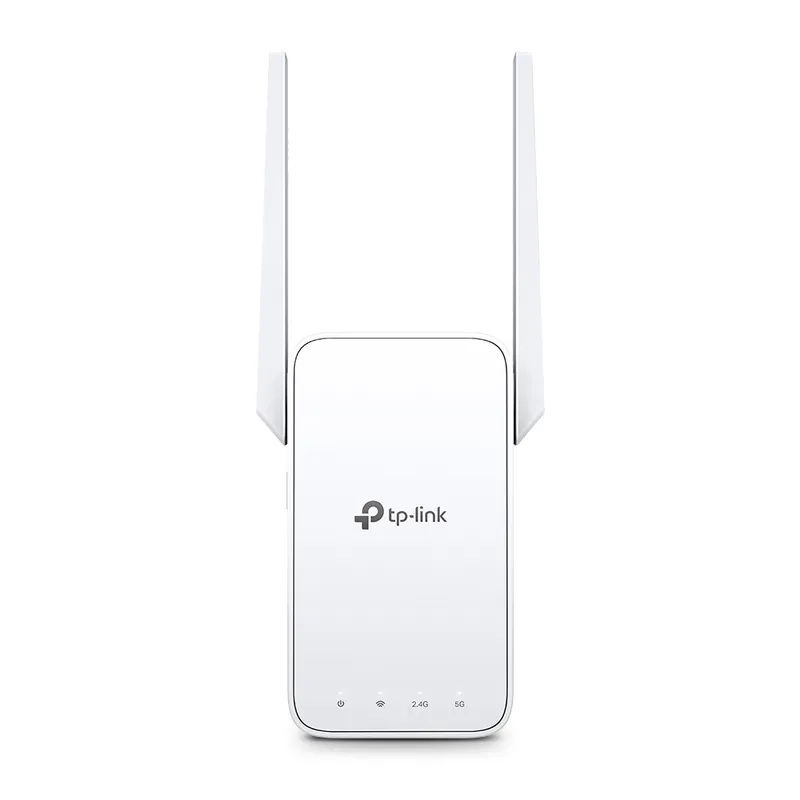
TP-Link sells plug-in repeaters and powerline kits. Check EasyMesh support, Ethernet needs and the exact UK hardware revision before buying.
TP-Link RE315 is a practical starting point for a standard indoor dead zone. Consider a Wi-Fi 6 device for newer kit, outdoor-rated hardware for a garden, or powerline where a wireless hop struggles.

A WiFi extender can carry your router signal further, but placement and backhaul matter. Choose a plug-in repeater for a nearby dead zone, powerline WiFi for difficult layouts, or an outdoor-rated unit for a garden.

Sky has different booster products for different broadband generations. Sky Max customers may use a Max Pod; check your account and hub-specific help before seeking a third-party extender.