Gearjury may earn a commission when you buy through a retailer link. Our editorial choices remain independent.
Guide
How to Connect a Nextbase Dash Cam to Your Phone
Install the app specified for your Nextbase model, enable Bluetooth and Wi-Fi, then begin pairing inside the app. Do not start by pairing only in the phone's settings.
GGearjury editorial team · Updated 15 October 2026· 5 min
01
Which Nextbase app should you use?
Check the support page or manual for your exact model before installing anything. Current and older Nextbase generations may use different app paths, so follow the model-specific instructions rather than a generic pairing video.
02
Prepare the camera and phone
Power the dash cam normally, update it only with the correct model firmware, and enable Bluetooth and Wi-Fi on the phone. Give the Nextbase app the requested nearby-device, local-network, location and photo permissions needed by your phone's operating system.
03
Pair inside the Nextbase app
Open the app, choose the option to connect a dash cam and select the exact model shown. Confirm that the serial number matches when prompted. Keep both devices close and leave the app open until both screens confirm the connection.
04
Why does the phone lose internet while connected?
A dash cam can create a direct Wi-Fi link for transferring clips; that local connection may not provide internet access. Stay connected long enough to finish the transfer, then let the phone return to its normal network.
05
What if the Nextbase dash cam will not connect?
Remove the old camera entry from the app and the phone's Bluetooth and Wi-Fi lists, restart both devices and try again from inside the app. Nextbase also advises checking firmware, permissions and, if needed, resetting the camera before reinstalling the app.
06
How do other dash cams connect to a phone?
Thinkware and other app-enabled cameras generally use their own manufacturer app and a direct Wi-Fi or Bluetooth-assisted connection. Do not use Nextbase instructions for another brand. Tesla's built-in Dashcam is part of the vehicle system, so access depends on Tesla's current app and vehicle features rather than a standalone camera pairing process.
Common questions
Questions before you buy
How to connect to Thinkware dashcam?
Install the app named for your exact Thinkware model, enable the camera's Wi-Fi or pairing mode, and add it from within that app. Follow Thinkware's model-specific support steps because connection methods differ.
How to access Tesla dashcam on phone?
Use the features currently supported by your Tesla model, software version and Tesla app. This is not the same process as pairing a standalone Nextbase camera.
Why is my Nextbase dash cam not showing in the app?
Check that the correct app is installed, Bluetooth and Wi-Fi are enabled, required permissions are granted and no old pairing remains. Then restart both devices and pair from inside the app.
Can more than one phone pair with a Nextbase dash cam?
For MyNextbase Connect, Nextbase states that only one mobile device can be paired at a time. Remove the existing pairing before adding another phone.
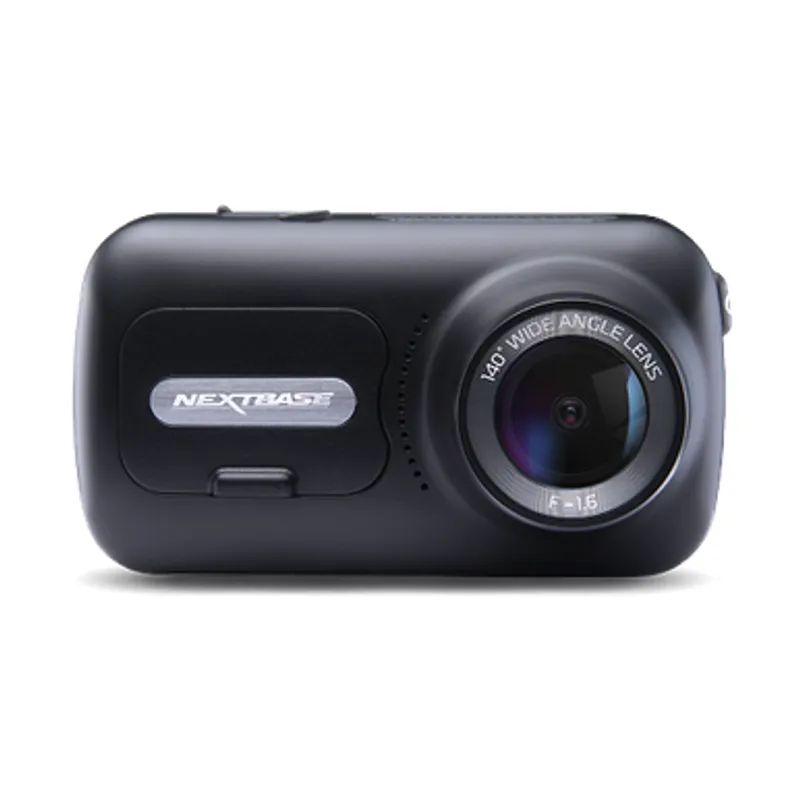
The 622GW has the strongest recording specification in this trio; the 522GW keeps the large touchscreen and polarising filter at 2K, while the 322GW covers the essentials.
The Nextbase 622GW is our balanced UK pick for its detailed recording, stabilisation and accessible touchscreen. Garmin Mini 3 suits a discreet fit, while VIOFO A329S covers the front and rear at high resolution.
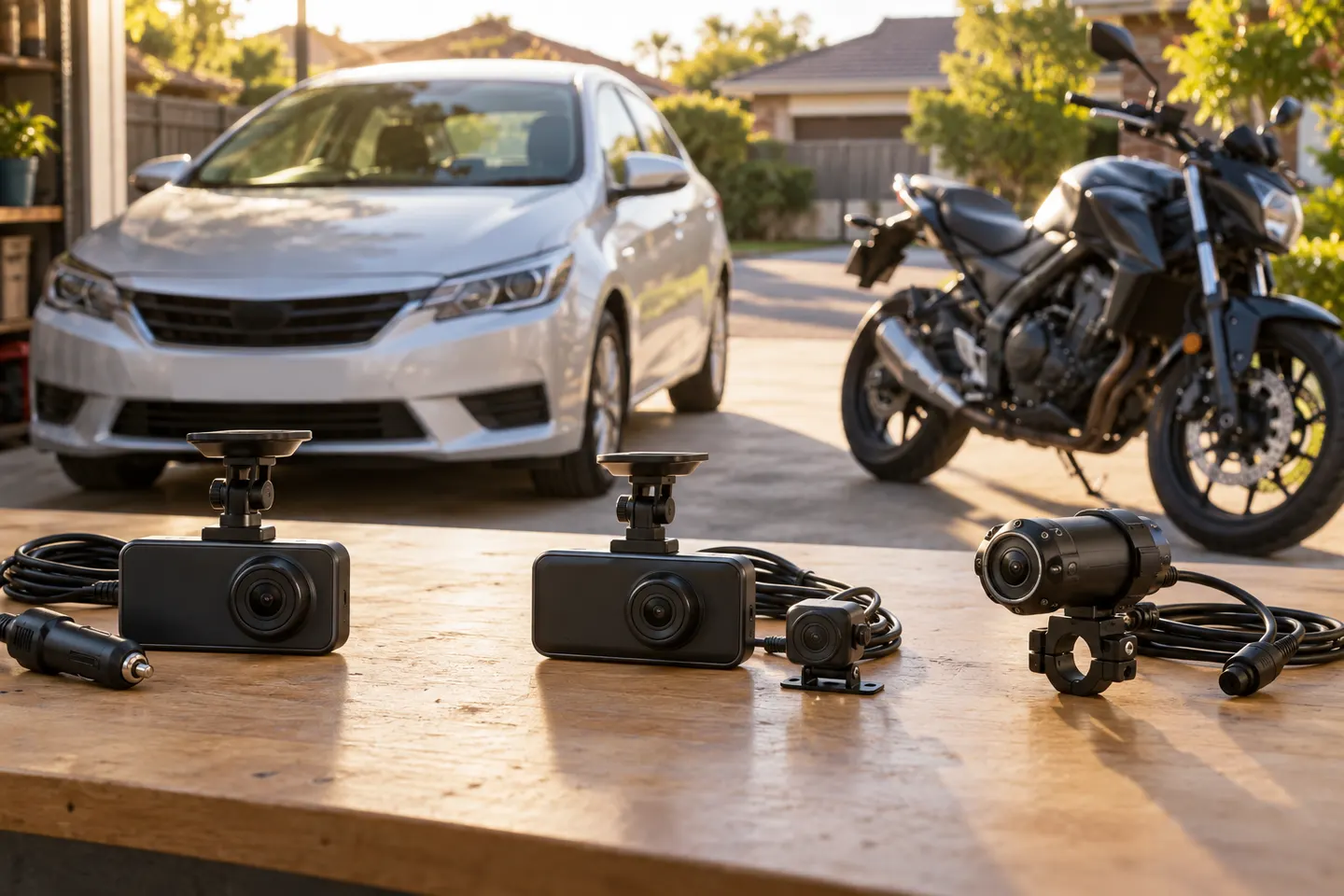
A dual-camera kit is the direct choice when you want the road ahead and traffic behind in the same recording system. Check rear resolution and cable length, not just the headline front-camera specification.
Start with the coverage you need: a discreet front camera for the road ahead, or a front-and-rear system for evidence from both directions. Our guides then narrow the choice by installation, connectivity and brand.
Your privacy
We use cookies and similar technologies. Necessary ones keep the site working. With your permission we also use statistics cookies (Google Analytics and Microsoft Clarity) to understand which guides help readers. You can accept all, reject all or choose. You can change your choice at any time from "Cookie settings" at the bottom of every page. Cookie policy