Decide whether a reset is needed
Restarting power can resolve a temporary connection issue without erasing configuration. A factory reset is more appropriate when setup is unrecoverable or you need to start again.

 Best picksBest WiFi Extenders in the UK: Compare Five Practical Options
 Best picksThe Best Dashcams in the UK for 2026
 Best picksBest Portable Air Coolers: Five Models to Compare for 2026
 Best picksBest Meat Thermometers in the UK for 2026
 Best picksBest Headlamp Torches in the UK: Five Choices for 2026
 Best picksBest Winter Gloves in the UK: Five Activity-Based Choices for 2026
 Best picksBest Radar Detectors in the UK: Models Compared for 2026
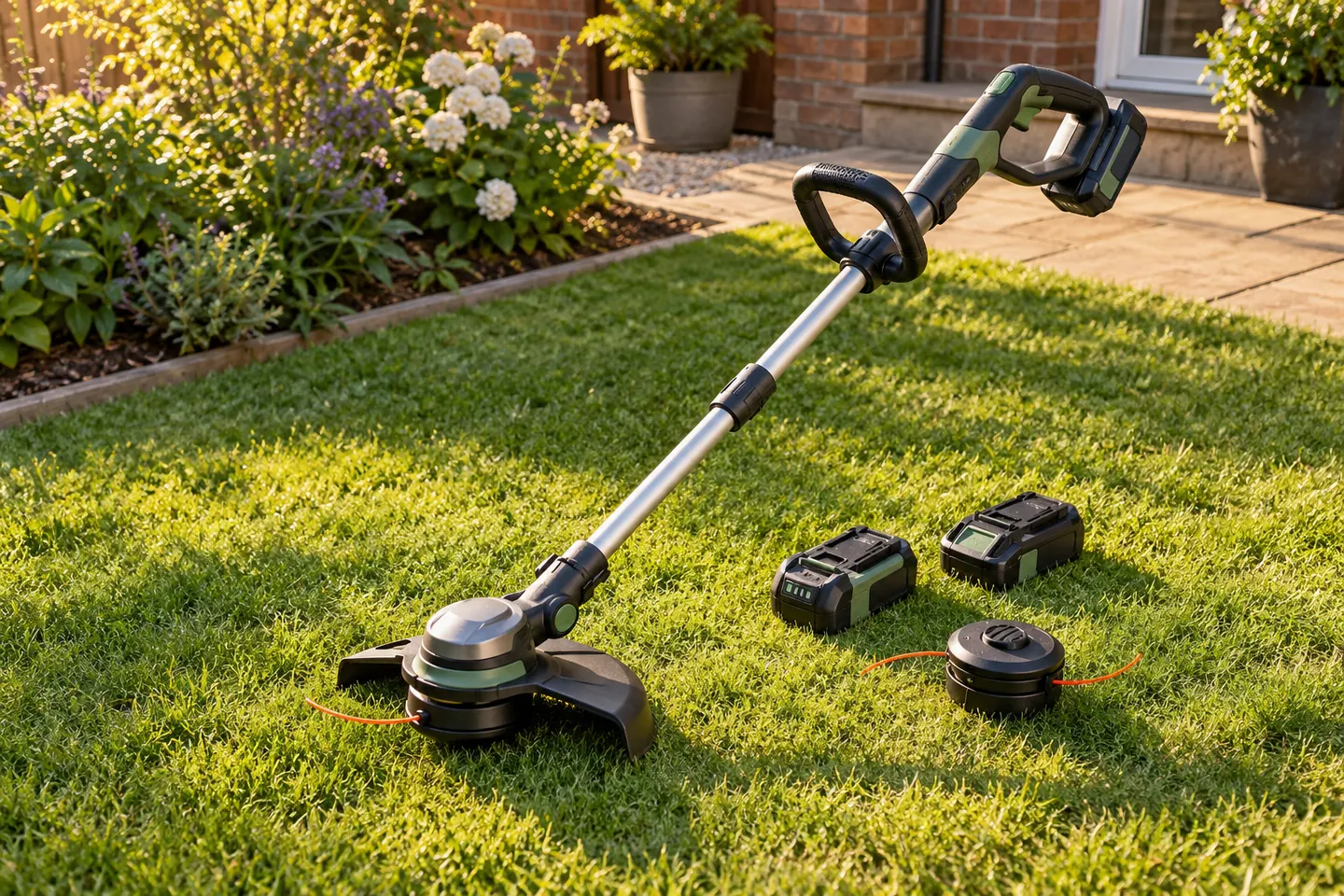 Best picksBest Value Cordless Strimmers in the UK (2026)
 Best picksBest Air Purifiers in the UK for Different Rooms and Needs
Gearjury may earn a commission from qualifying retailer links. This does not affect our editorial guidance.
Guide
A factory reset clears personalised extender settings, so try a restart first if you only need to refresh the connection. Use the reset procedure for your exact model.
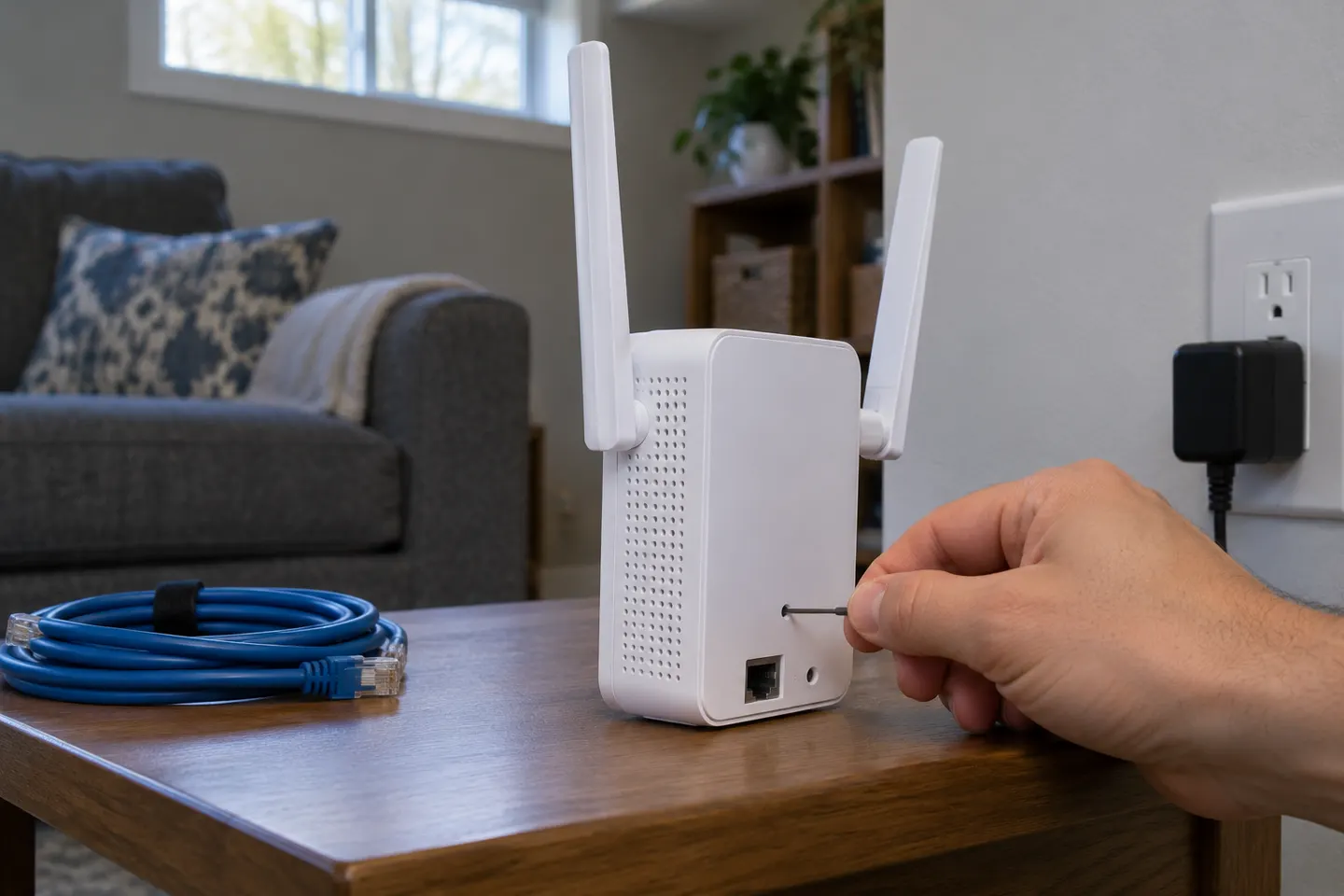
Restarting power can resolve a temporary connection issue without erasing configuration. A factory reset is more appropriate when setup is unrecoverable or you need to start again.
NETGEAR reset buttons and timings vary. Check the product label and the support page or manual for your exact extender before beginning.
NETGEAR’s general guidance says to wait until the power LED is steady, then locate the Reset or Factory Reset control, often in a small recessed opening.
Follow the model instructions. NETGEAR’s general steps use a straightened paper clip and hold the button until the power LED blinks; timing can vary by product.
Wait for the extender to restart. A factory reset removes personal network settings, so run setup again using the app, browser or WPS method supported by the model.
Common questions
Check the manual for the exact AC1200 model. NETGEAR’s general procedure is to power the extender, press and hold its Reset control until the power light blinks, then let it reboot.
Yes. NETGEAR says a factory reset deletes personalised settings such as the network name, password and security settings.
Try a restart for a temporary fault. Factory reset erases configuration and means you will need to set the extender up again.
Confirm you have the correct reset control and follow the model-specific timing. If the extender remains unresponsive, use NETGEAR support for that model.
Keep exploring
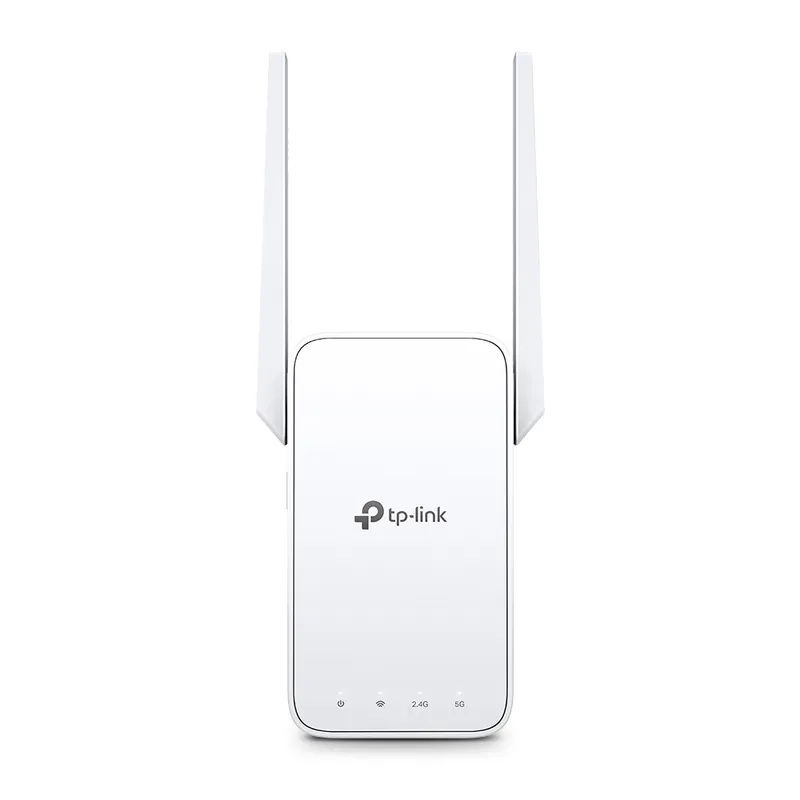
TP-Link sells plug-in repeaters and powerline kits. Check EasyMesh support, Ethernet needs and the exact UK hardware revision before buying.
TP-Link RE315 is a practical starting point for a standard indoor dead zone. Consider a Wi-Fi 6 device for newer kit, outdoor-rated hardware for a garden, or powerline where a wireless hop struggles.

Sky has different booster products for different broadband generations. Sky Max customers may use a Max Pod; check your account and hub-specific help before seeking a third-party extender.

A WiFi extender can carry your router signal further, but placement and backhaul matter. Choose a plug-in repeater for a nearby dead zone, powerline WiFi for difficult layouts, or an outdoor-rated unit for a garden.