Gearjury may earn a commission from retailer links. This does not change our guidance.
Guide
How to Connect a Nextbase Dash Cam to Your Phone and Car
Power the camera correctly, install the app specified for your model and start pairing from inside that app. Do not begin by joining the dash cam in the phone's normal Wi-Fi menu unless the model instructions say to.
GGearjury editorial team · Updated 15 October 2026· 6 min
01
Identify the camera and the correct Nextbase app
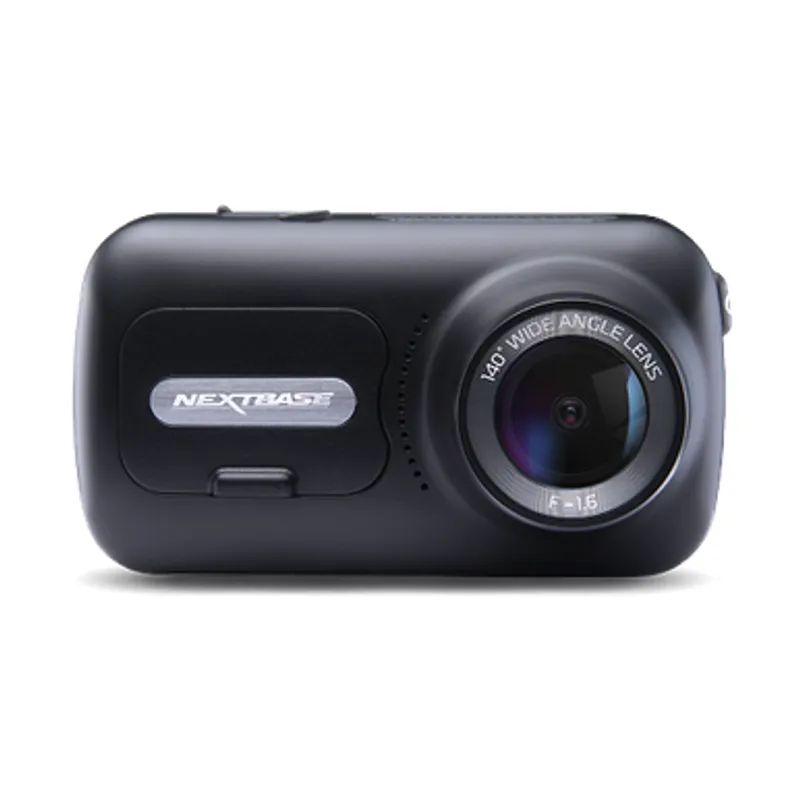
Read the model name from the camera or its settings, then use Nextbase support to confirm the compatible app. MyNextbase Connect and the newer Nextbase app serve different product generations, so the wrong app can make a working camera appear unresponsive.
02
Connect the dash cam to vehicle power
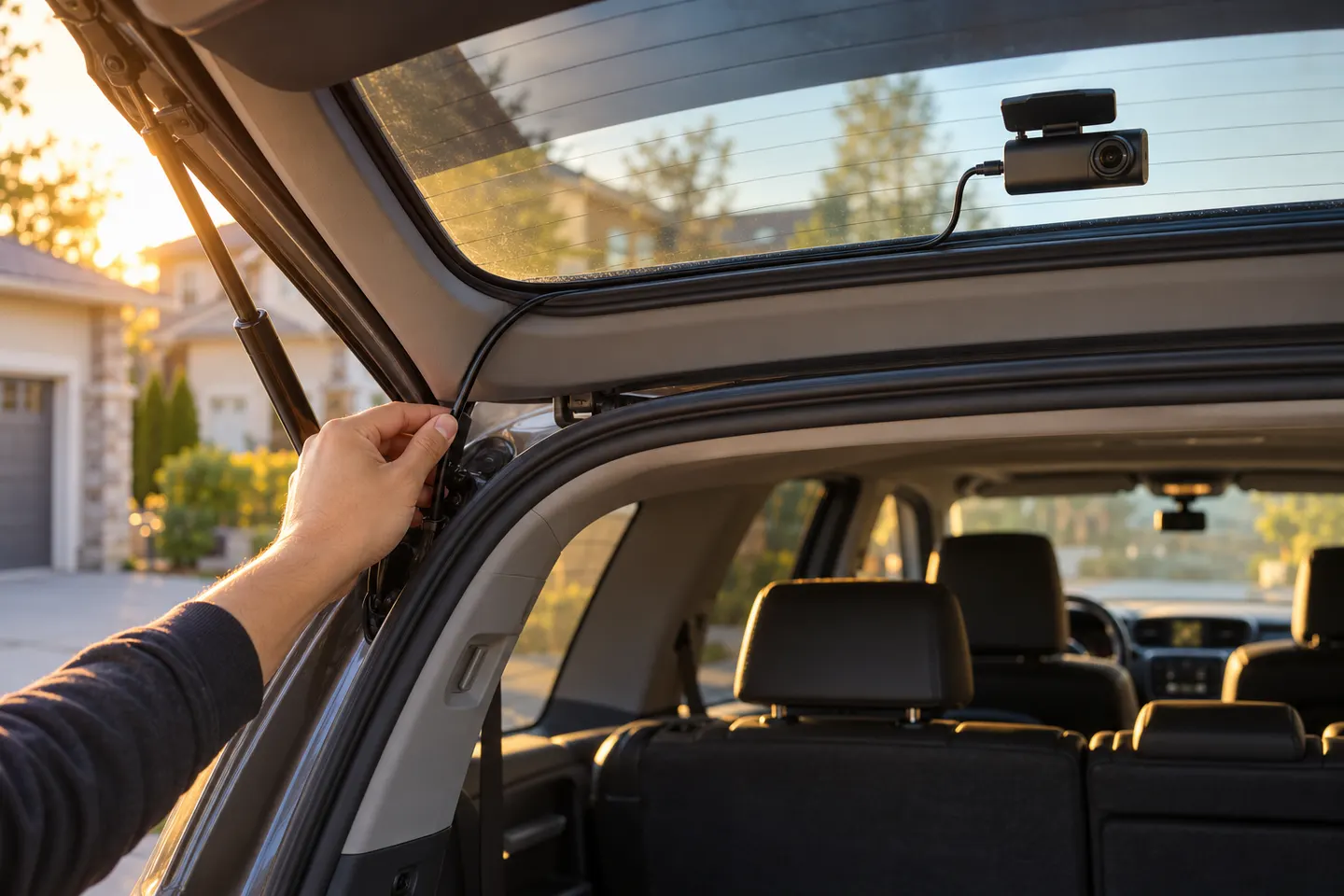
Fit the supplied power cable into the camera or powered mount and the vehicle socket, then start the ignition. Route the lead without obstructing the driver's view or crossing an airbag deployment path.
03
Enable phone permissions before pairing
Turn on Bluetooth and Wi-Fi, open the chosen app and grant the local-network, Bluetooth and location permissions it requests. Power-saving or VPN settings can interrupt the temporary local connection used to transfer footage.
04
Start pairing from the app and camera
Choose the add-camera or connect option in the app, then put the dash cam into its pairing mode. Keep the phone close, accept the prompts on both devices and let the app manage the Wi-Fi handover.
05
Attach a compatible rear camera
Switch the main unit off before connecting a wired rear module. Use the port and cable specified for that Nextbase series, mount the rear lens upright and check the live view before hiding the cable.
06
Fix a Nextbase connection that keeps failing
Restart both devices, remove the previous camera entry from the app and forget its Wi-Fi network on the phone. Update the app and camera firmware, disable competing in-car wireless connections temporarily, then repeat pairing from the beginning.
Common questions
Questions before you buy
Why will my Nextbase dash cam not connect to my phone?
The usual causes are the wrong app, missing phone permissions, an old saved pairing or another network taking control. Remove the previous connection, restart both devices and pair inside the correct Nextbase app.
Do I connect a Nextbase dash cam through Bluetooth or Wi-Fi?
Compatible models can use Bluetooth for discovery and Wi-Fi for higher-bandwidth viewing or transfers. Follow the app workflow because the camera manages when each connection is used.
Can two phones connect to one Nextbase dash cam?
Saved pairing behaviour varies by model and app. If a second phone cannot connect, remove or disable the active pairing first and consult the support page for that camera.
How do I connect a Nextbase rear camera?
Use only a rear module listed as compatible with the main camera series. Power down, connect it to the designated port, then confirm its image and orientation on screen or in the app.
The 622GW has the strongest recording specification in this trio; the 522GW keeps the large touchscreen and polarising filter at 2K, while the 322GW covers the essentials.
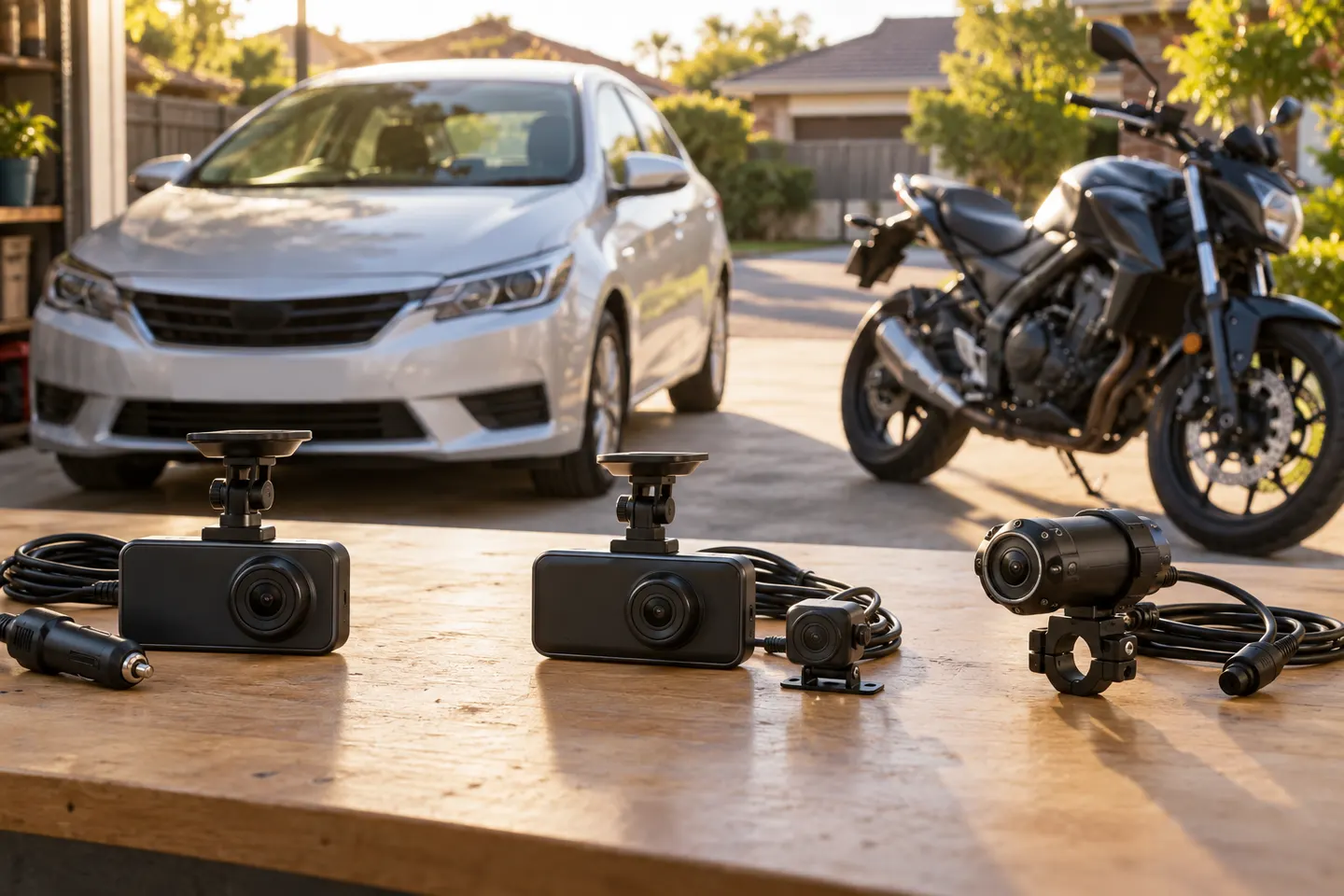
A dual-camera kit is the direct choice when you want the road ahead and traffic behind in the same recording system. Check rear resolution and cable length, not just the headline front-camera specification.
The Nextbase 622GW is our balanced UK pick for its detailed recording, stabilisation and accessible touchscreen. Garmin Mini 3 suits a discreet fit, while VIOFO A329S covers the front and rear at high resolution.
Start with the coverage you need: a discreet front camera for the road ahead, or a front-and-rear system for evidence from both directions. Our guides then narrow the choice by installation, connectivity and brand.
Your privacy
We use cookies and similar technologies. Necessary ones keep the site working. With your permission we also use statistics cookies (Google Analytics and Microsoft Clarity) to understand which guides help readers. You can accept all, reject all or choose. You can change your choice at any time from "Cookie settings" at the bottom of every page. Cookie policy