Before you install a TP-Link WiFi extender
Check the model label and quick installation guide so you know which buttons and indicator lights apply. Have the router's WiFi name and password ready if you plan to use app or browser setup.

 Best picksBest WiFi Extenders in the UK: Compare Five Practical Options
 Best picksThe Best Dashcams in the UK for 2026
 Best picksBest Portable Air Coolers: Five Models to Compare for 2026
 Best picksBest Meat Thermometers in the UK for 2026
 Best picksBest Headlamp Torches in the UK: Five Choices for 2026
 Best picksBest Winter Gloves in the UK: Five Activity-Based Choices for 2026
 Best picksBest Radar Detectors in the UK: Models Compared for 2026
 Best picksBest Value Cordless Strimmers in the UK (2026)
 Best picksBest Air Purifiers in the UK for Different Rooms and Needs
Gearjury may earn a commission from qualifying retailer links. This does not affect our editorial guidance.
Guide
For a quick start, pair the extender beside the router using WPS, then relocate it to a halfway point with a good signal. If WPS is unavailable, use the model's Tether app or web setup.
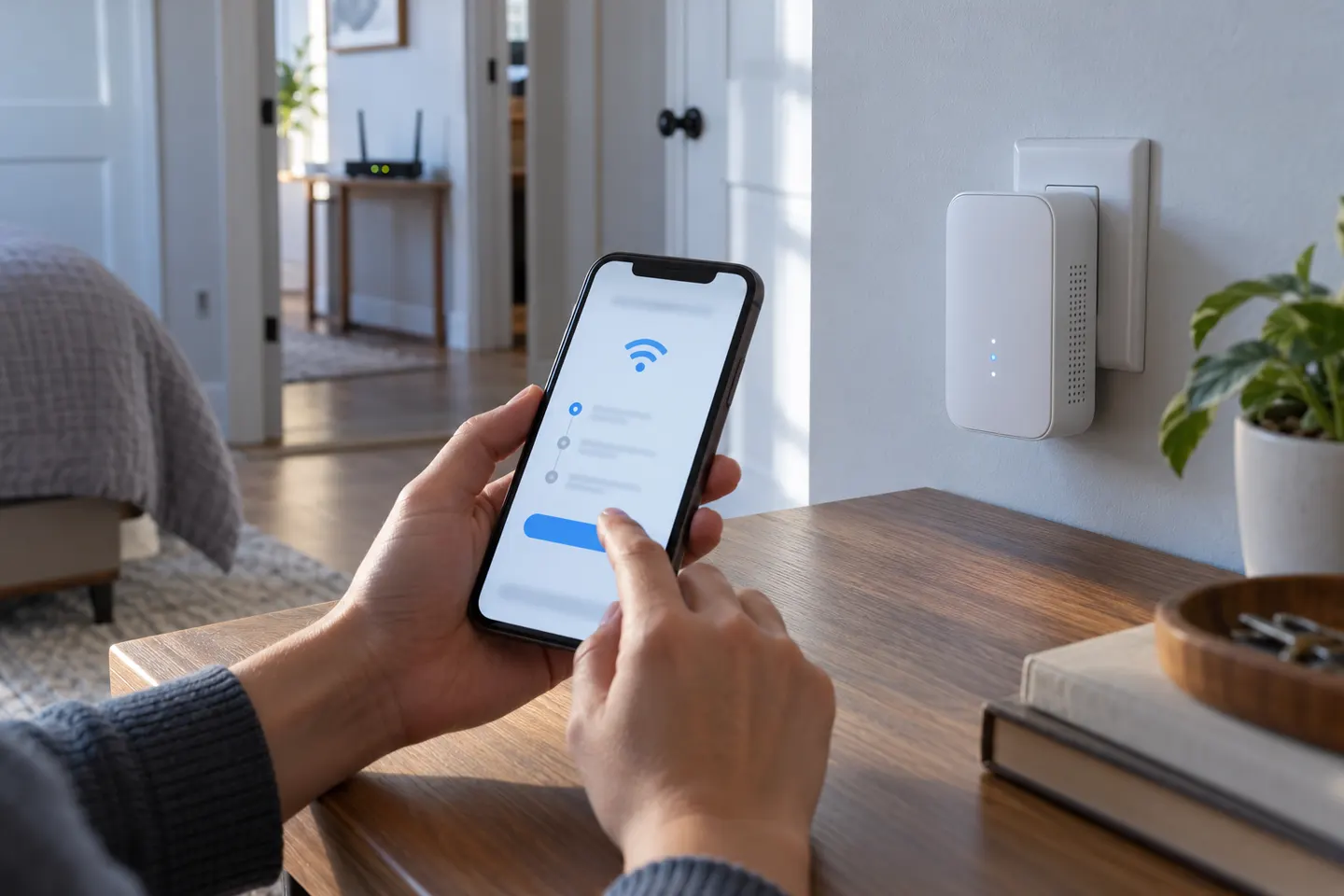
Check the model label and quick installation guide so you know which buttons and indicator lights apply. Have the router's WiFi name and password ready if you plan to use app or browser setup.
Plug the extender into a socket near the router and wait for it to start. Press WPS on the router, then press WPS on the extender within the time window stated by TP-Link. On supported models, a steady signal light indicates pairing has completed.
Connect your phone or computer to the extender and follow the Tether app or model-specific web setup. Choose your existing WiFi network, enter its password and save the settings. Some ISP gateways disable WPS, so the alternative route can be useful.
After pairing, unplug the extender and move it between the router and the room with weak coverage. Keep it where the router's signal remains strong; avoid hiding it behind large objects or placing it beside interference sources.
Use the extender's signal indicator or app to confirm its link to the router, then connect a phone or laptop in the target room. If performance is still poor, try a different socket nearer the router and check the device's band and network name.
Confirm the router is broadcasting WiFi and that you selected the correct network and password. Restart both devices, retry setup, and consult the manual for your hardware revision before using the reset button, which clears saved settings.
Common questions
Press WPS on the router, then press WPS on the extender within the stated pairing period. Wait for the model's signal indicator to show a successful connection; consult its guide if the light pattern differs.
Yes. Use the Tether app or the extender's web management page if your model supports it. You will generally select the router's WiFi network and provide its password.
WPS may be disabled on the router, the devices may be out of range during pairing, or the chosen network details may be wrong. Try app or browser setup and follow the troubleshooting section for your exact model.
Usually no. Pair it nearby first, then relocate it towards the coverage gap while keeping a strong connection back to the router.
Keep exploring

A WiFi extender can carry your router signal further, but placement and backhaul matter. Choose a plug-in repeater for a nearby dead zone, powerline WiFi for difficult layouts, or an outdoor-rated unit for a garden.
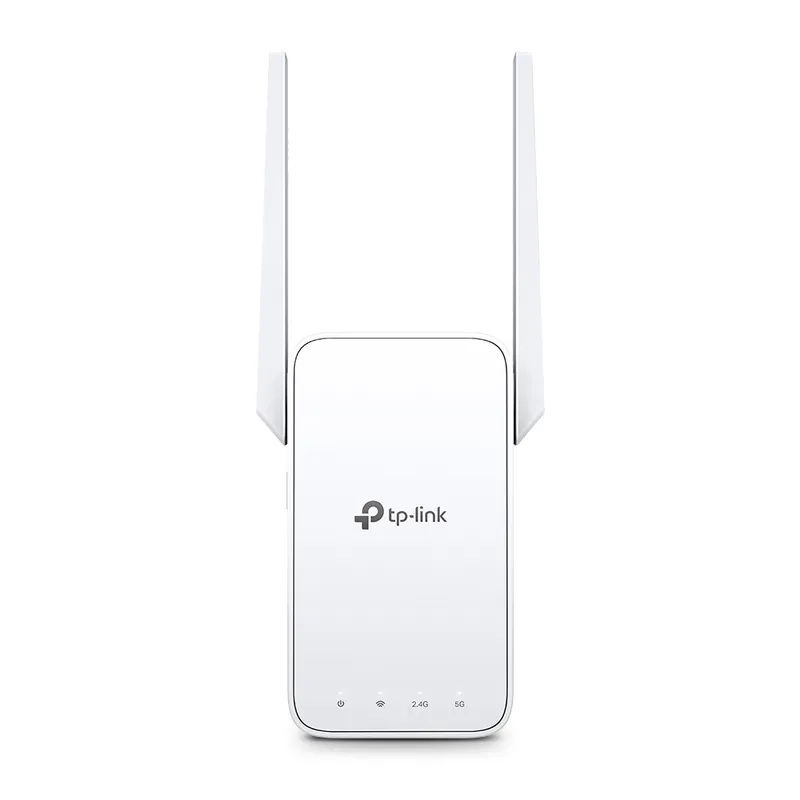
TP-Link sells plug-in repeaters and powerline kits. Check EasyMesh support, Ethernet needs and the exact UK hardware revision before buying.
TP-Link RE315 is a practical starting point for a standard indoor dead zone. Consider a Wi-Fi 6 device for newer kit, outdoor-rated hardware for a garden, or powerline where a wireless hop struggles.