Gearjury may earn a commission when you buy through retailer links. Our editorial conclusions follow the cited evidence.
Guide
How to Connect a TP-Link WiFi Extender to Your Router
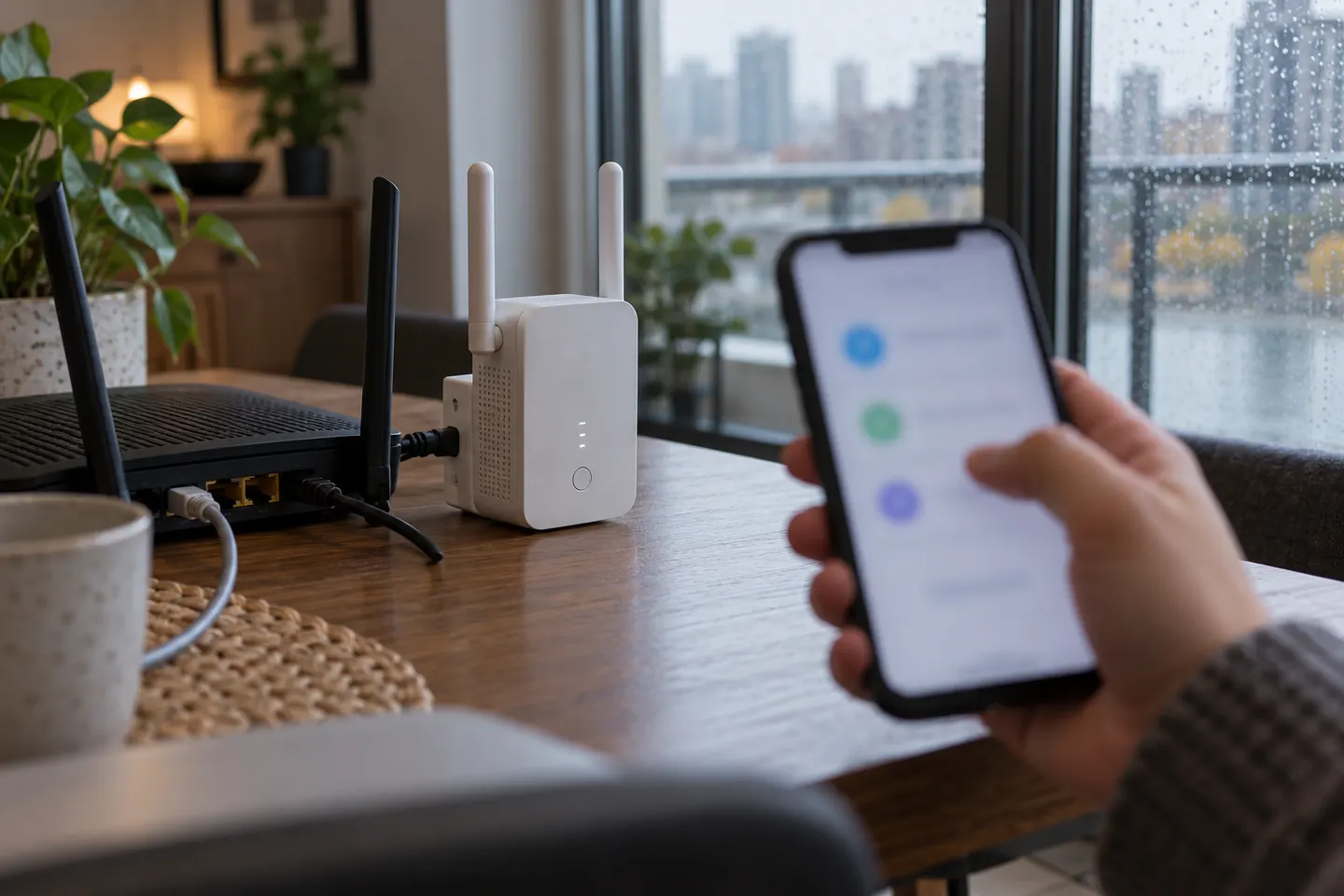
Use WPS for a quick pairing when both devices support it, or configure the extender through TP-Link Tether. Exact menus vary by model and hardware version.
GGearjury editorial team · Updated 15 October 2026· 5 min
01
Check the model and prepare
Read the model and hardware version from the extender label. Place the unit near the router for initial pairing, power it on, and check the Australian support page for the matching manual. Confirm the router broadcasts the band your model supports.
02
Connect with WPS
Press the router’s WPS button, then press the extender’s WPS or RE button according to its manual. Wait for the wireless indicator to confirm pairing. If WPS is disabled or the router has no WPS button, use the Tether app or the model’s web setup instead.
03
Set up through TP-Link Tether
Install the official TP-Link Tether app, connect your phone to the extender’s temporary Wi-Fi when prompted, and follow the in-app steps to choose the home network and enter its password. The available menus depend on model, firmware and hardware revision.
04
How to connect a TP-Link AC750 Wi-Fi range extender
AC750 describes a product class, not one exact device. For example, the RE200 is a dual-band AC750 model; select its own setup guide and verify its hardware version before following WPS or app instructions. Do not assume the menus match another AC750 model.
05
How to connect a TP-Link 300 Mbps Wi-Fi range extender
The TL-WA850RE is a 2.4 GHz 300 Mbps model with a Range Extender button and Tether support listed by TP-Link Australia. Pair it using its RE button or the model-specific app guide, then wait for its signal indicators before relocating it.
06
How to connect a TP-Link AC1200 Wi-Fi range extender
AC1200 models such as RE315 and RE305 are dual-band, but their Ethernet and mesh features differ. Use the exact product support page and follow its WPS or Tether instructions rather than treating the AC1200 label as a model number.
07
Move it to a useful position
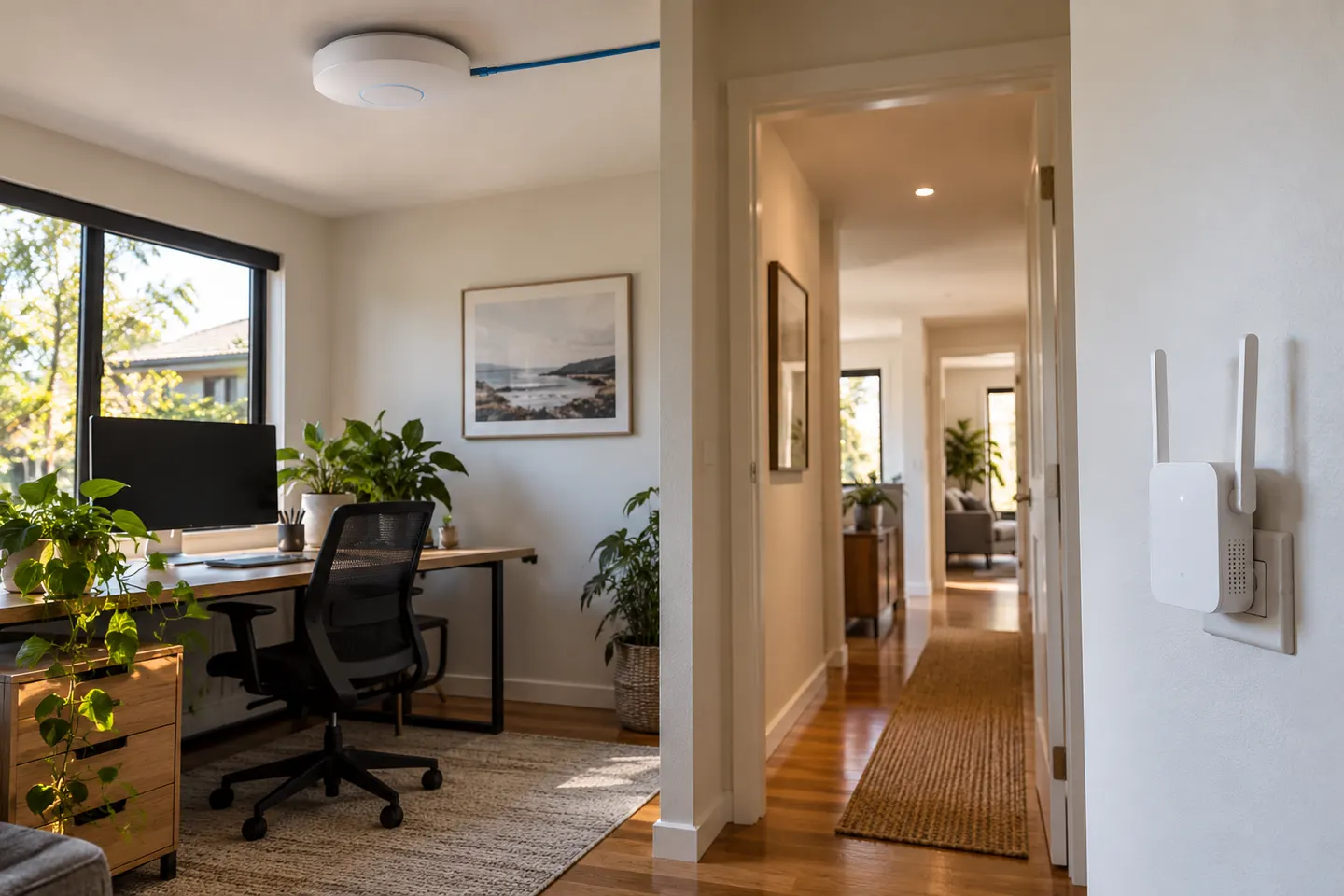
After pairing, move the extender between the router and weak-signal area while keeping a reliable connection to the router. Use its indicator or app signal reading, then test the devices in the target room. If setup fails, move closer and repeat pairing.
Common questions
Questions before you buy
How do I connect a TP-Link extender without WPS?
Use TP-Link Tether or the extender’s web setup page. Connect your phone or computer to the extender’s temporary network and follow the model-specific instructions to select the router’s Wi-Fi.
How do I connect an AC750 TP-Link extender?
Find its exact model number first, such as RE200, then use the matching manual. AC750 is a speed class shared by different products, not a universal setup sequence.
How do I connect a TP-Link 300 Mbps extender?
For the TL-WA850RE, TP-Link lists a Range Extender button and Tether app management. Check the label and manual for your hardware revision, pair it near the router, and relocate only after the indicators show a stable link.
Why will my TP-Link extender not connect to the router?
Check the Wi-Fi password, supported bands, router security settings and distance during setup. Restart both devices, update firmware if appropriate, and use the exact model’s troubleshooting guide.
The right Wi-Fi extender depends on the router signal at its location, your home layout and whether you need Ethernet, outdoor placement or powerline networking.
Choose an access point when you can run Ethernet to the coverage area. Choose a wireless extender when cabling is impractical and the router signal still reaches the installation spot.
A Wi-Fi extender can help reach a weak-signal room when positioned within range of your router. Compare plug-in repeaters, mesh-compatible models, outdoor units and powerline kits by how they connect.
Your privacy
We use cookies and similar technologies. Necessary ones keep the site working. With your permission we also use statistics cookies (Google Analytics and Microsoft Clarity) to understand which guides help readers. You can accept all, reject all or choose. You can change your choice at any time from "Cookie settings" at the bottom of every page. Cookie policy