








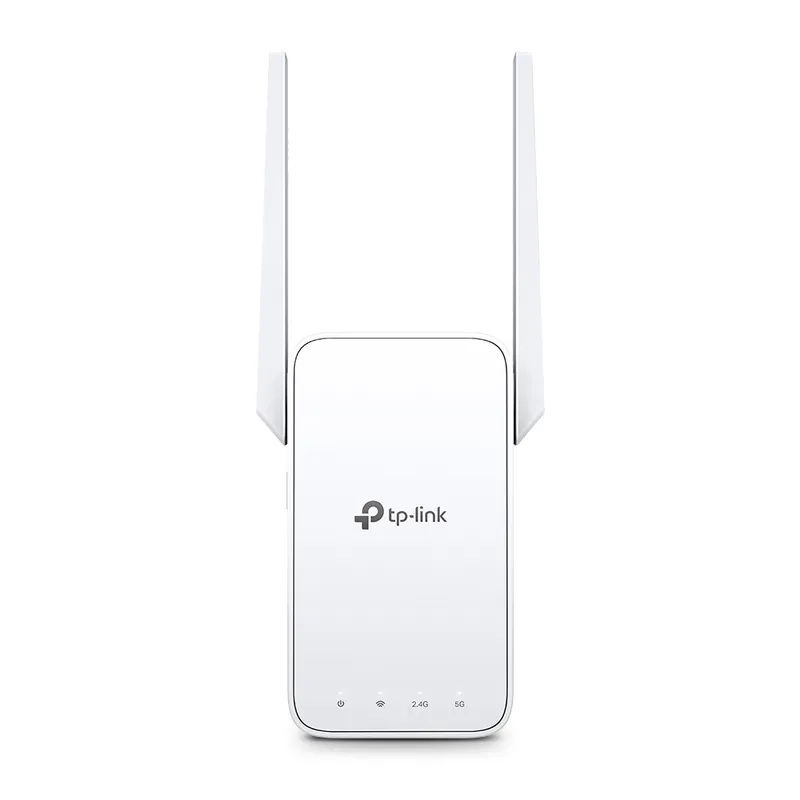
 Official manufacturer image
Our picks
Top picks
Official manufacturer image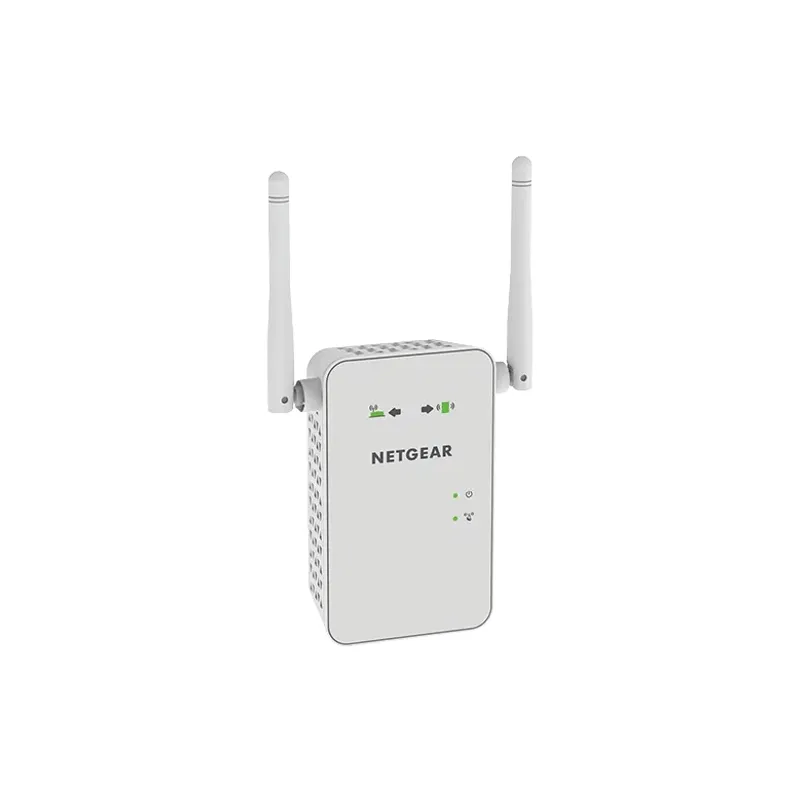 Official manufacturer image
NETGEAR EX6120
Check price on Amazon UK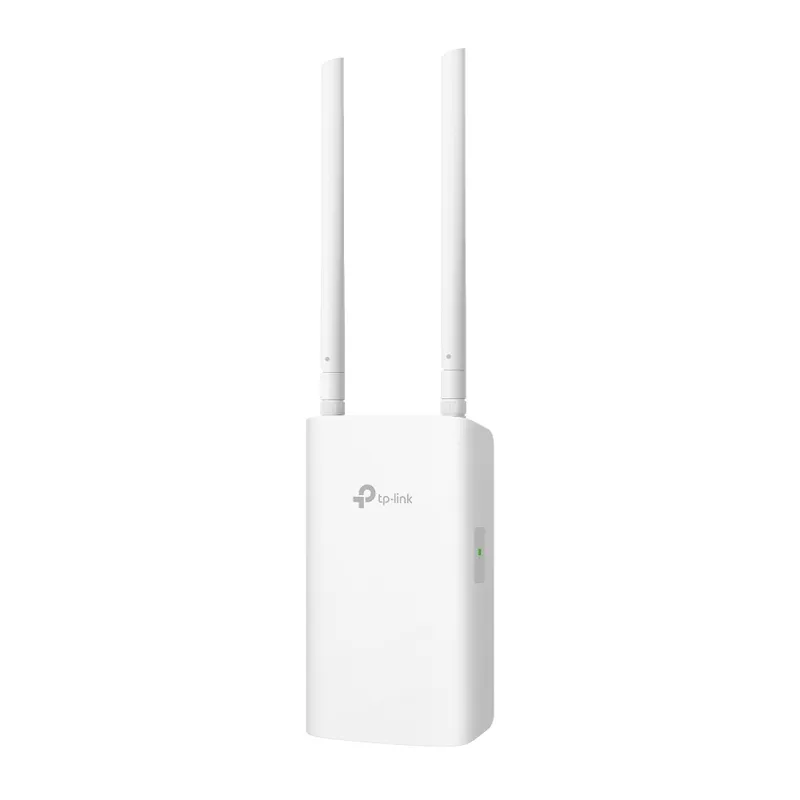 Official manufacturer image
TP-Link RE705X-Outdoor
Check price on Amazon UKSetup and help
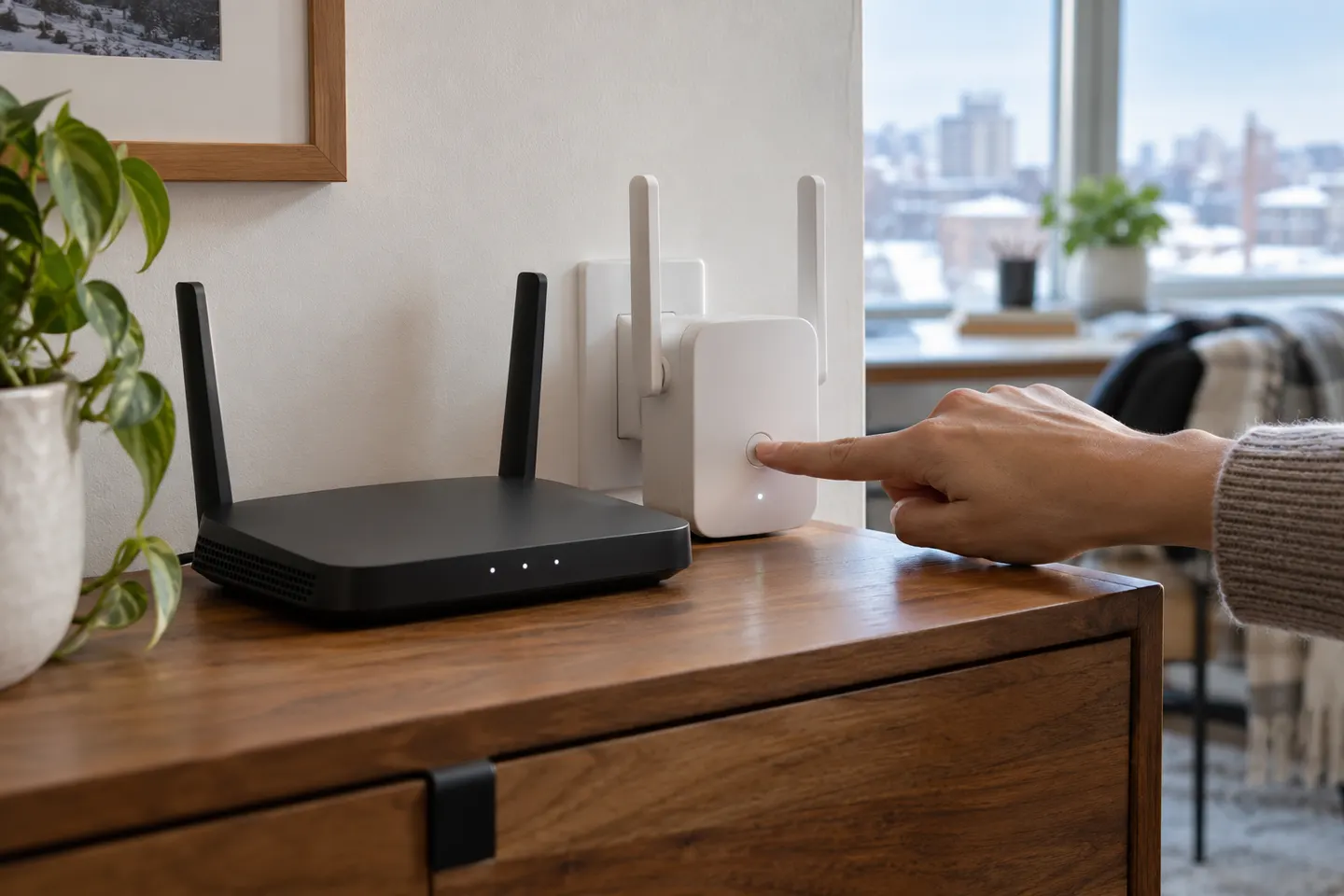 Setup
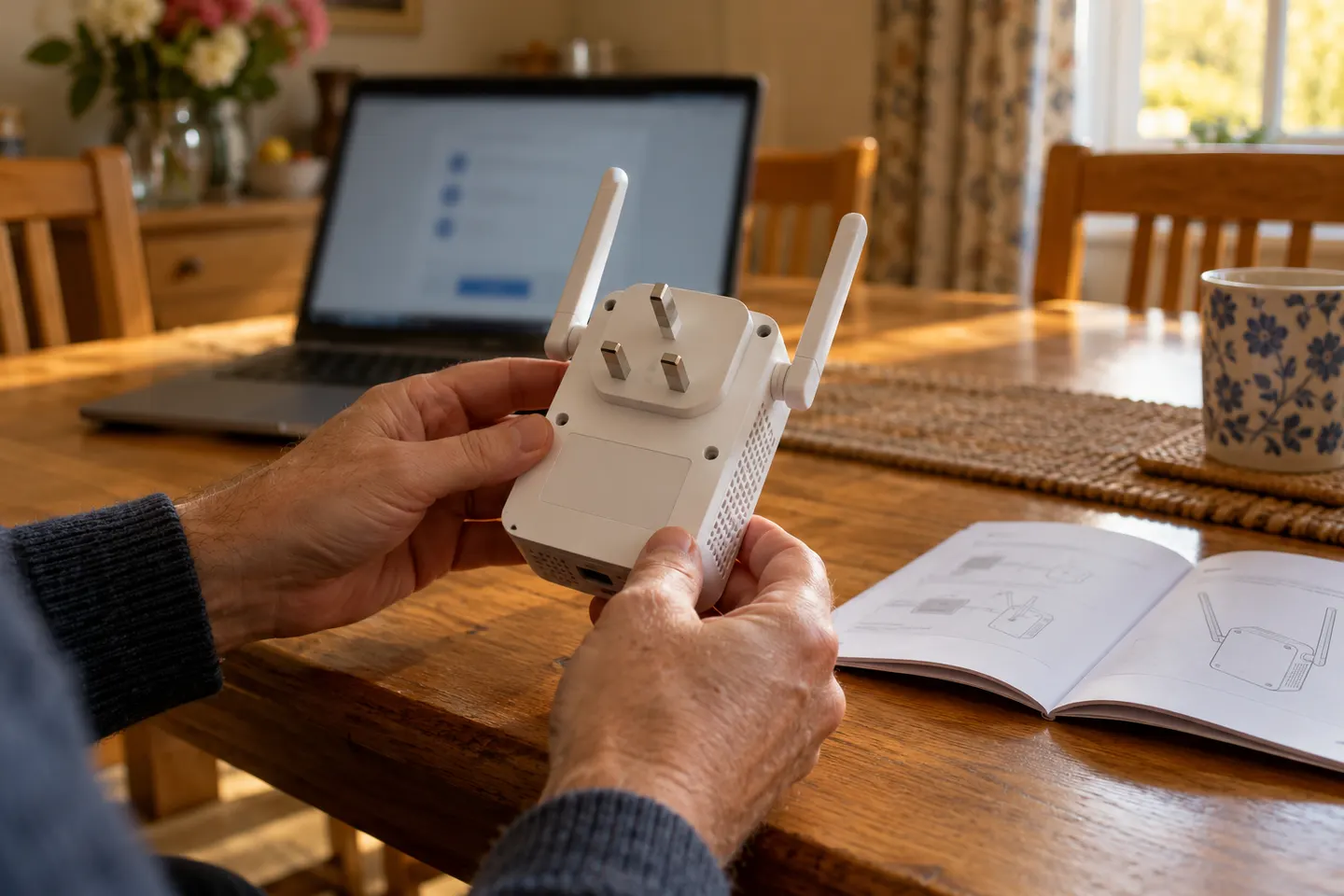 Qlocom setup
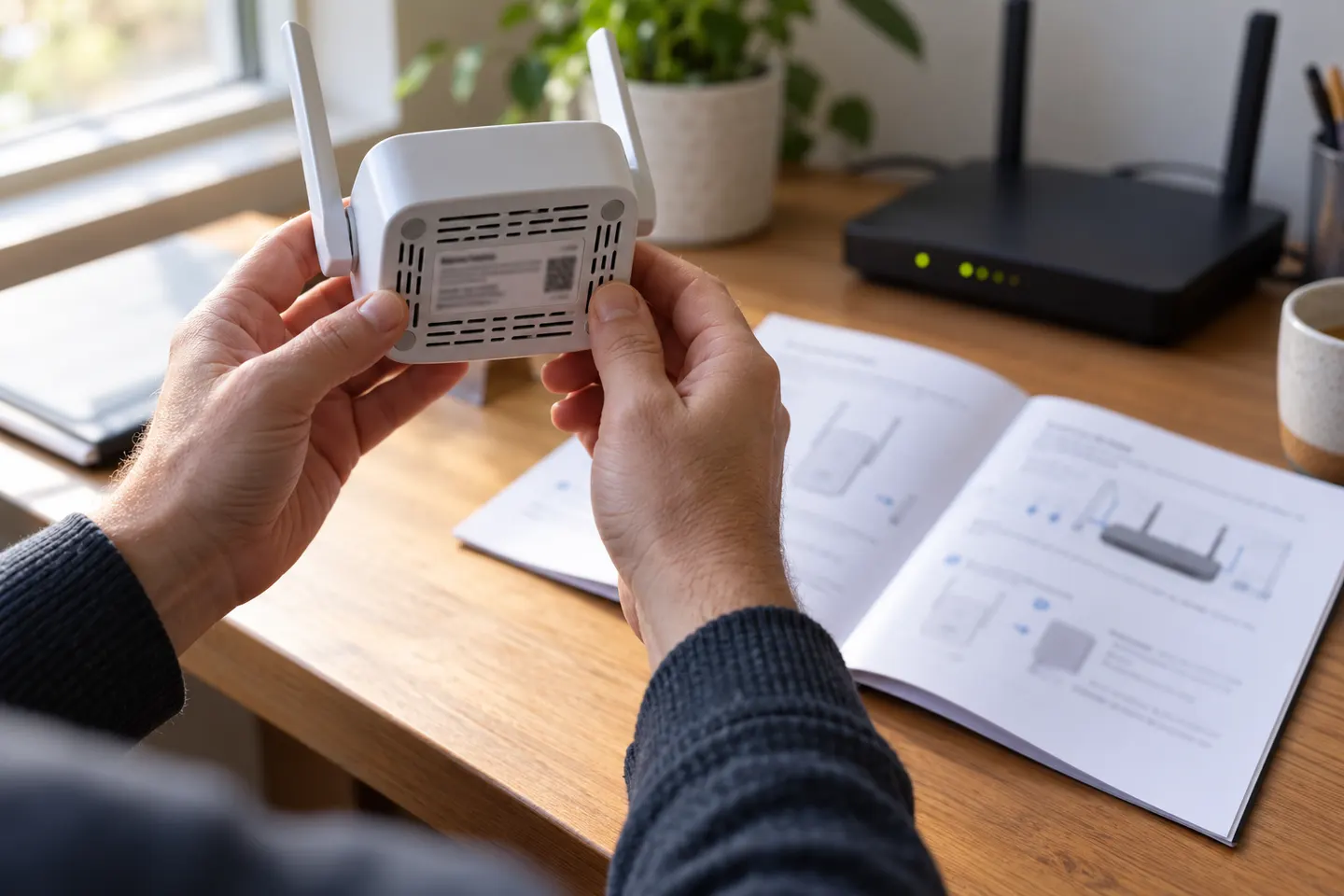 Brostrend setup
How-to guides
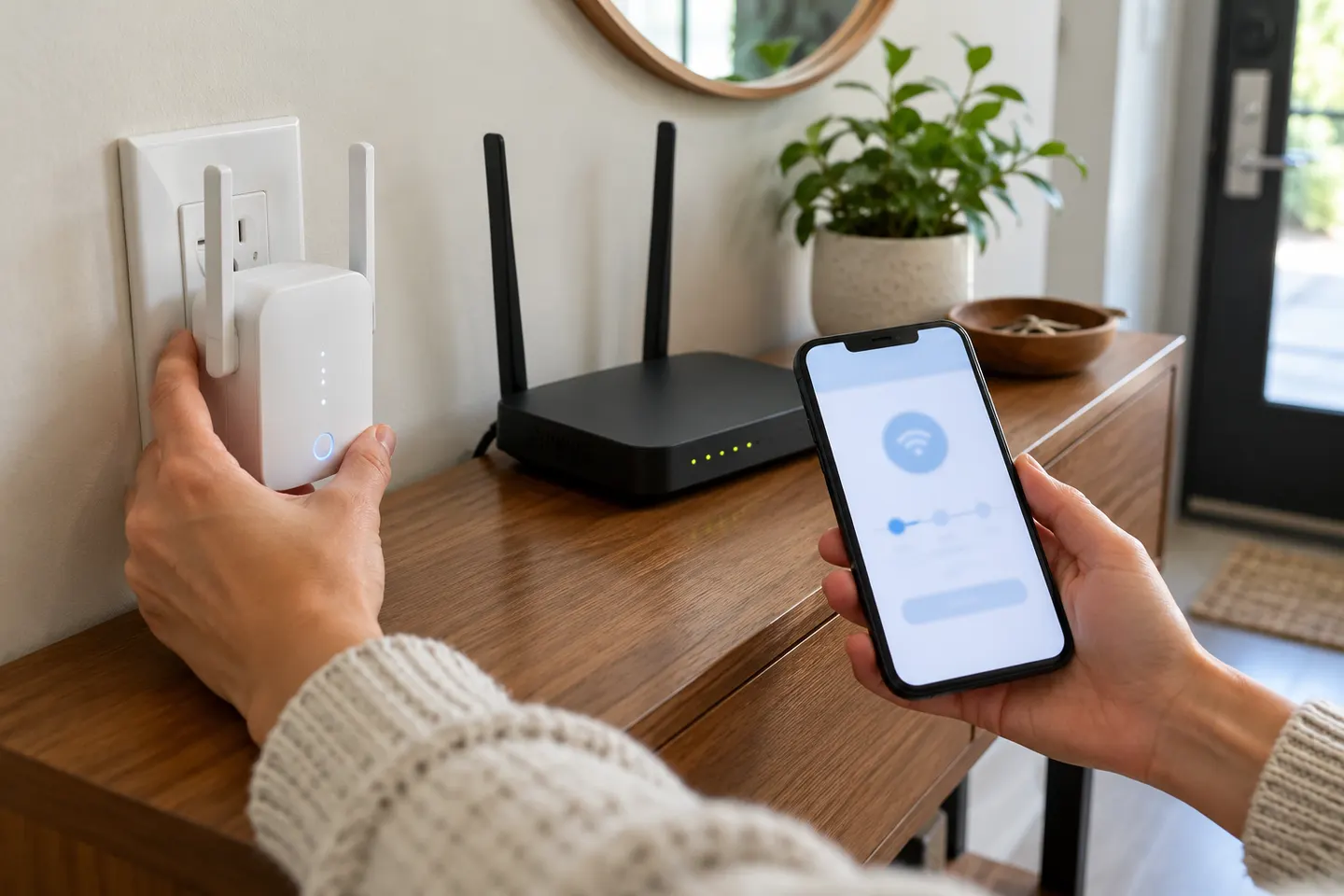 How to Set Up a TP-Link WiFi Extender
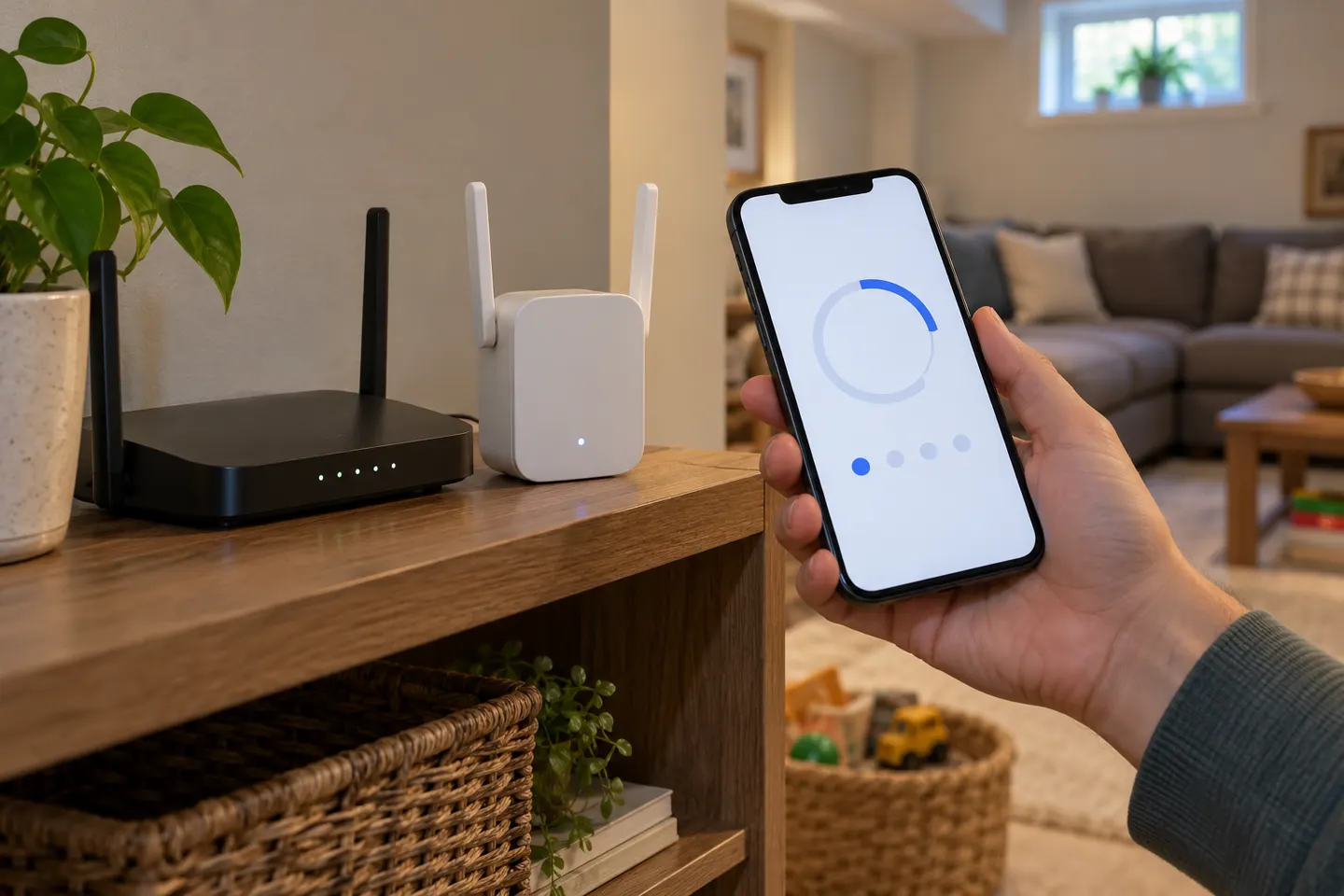 How to Set Up a NETGEAR WiFi Extender at Home
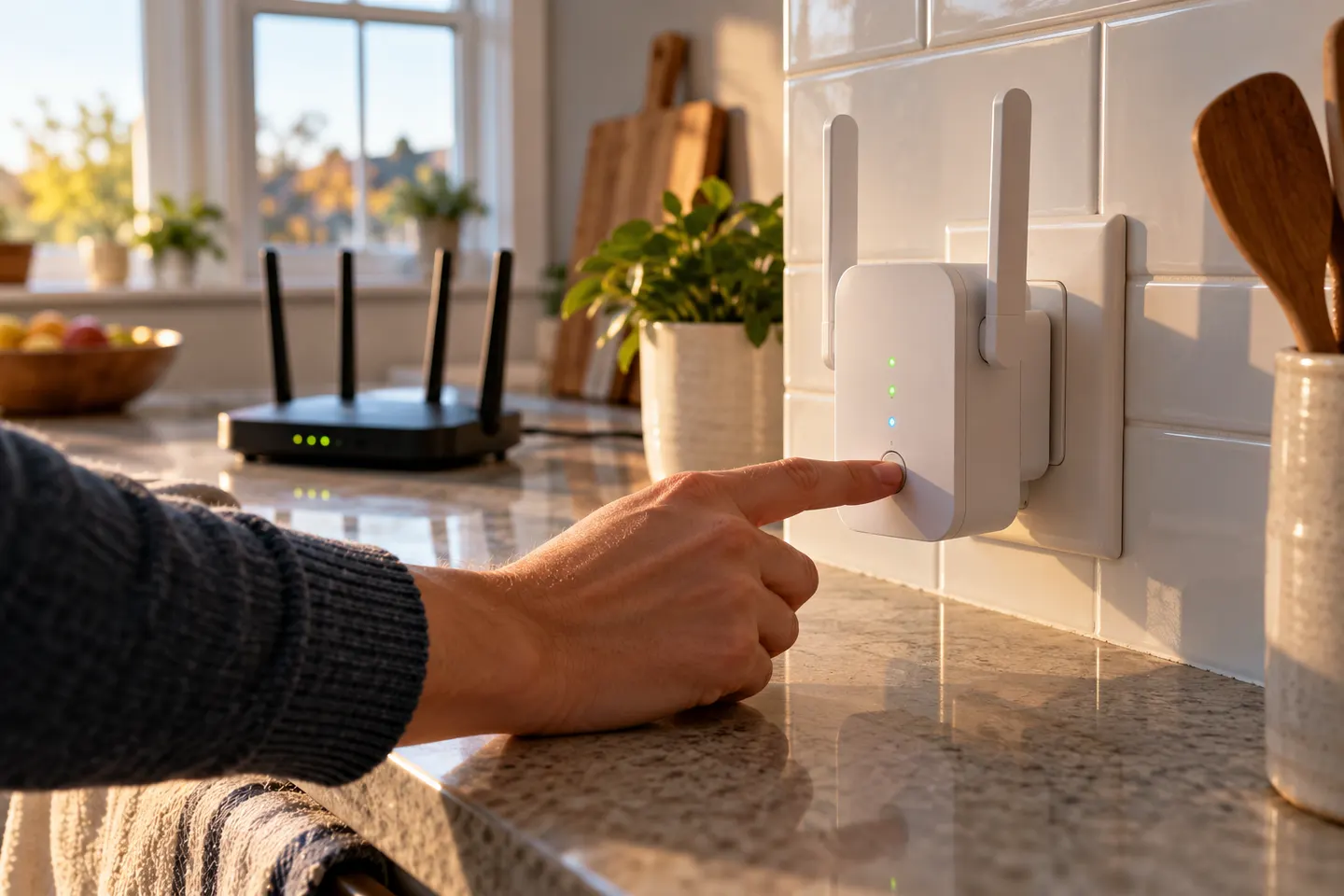 How to Set Up a WiFi Extender in Your Home
More topics
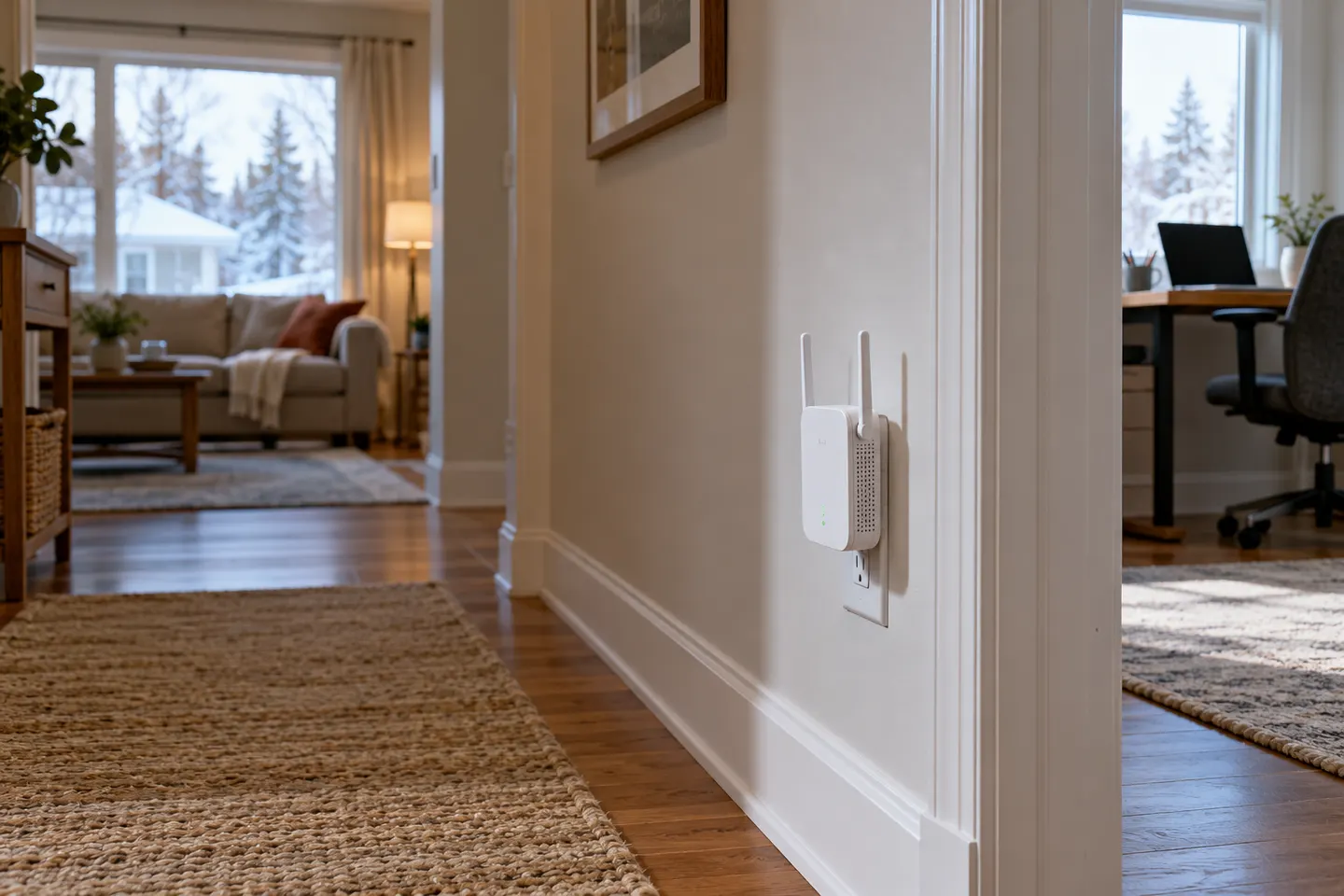 Choosing a WiFi Extender for the 2.4 GHz Band
Common questions
Questions before you buy
How do I set up a wireless range extender?
Use the model WPS or app/browser instructions. Pair it near the router first, then relocate it where signal remains usable.
What if my router has no WPS button?
Use browser or app setup if the model provides it. Consult its manual for the default network and configuration address.
Where should I place the extender after setup?
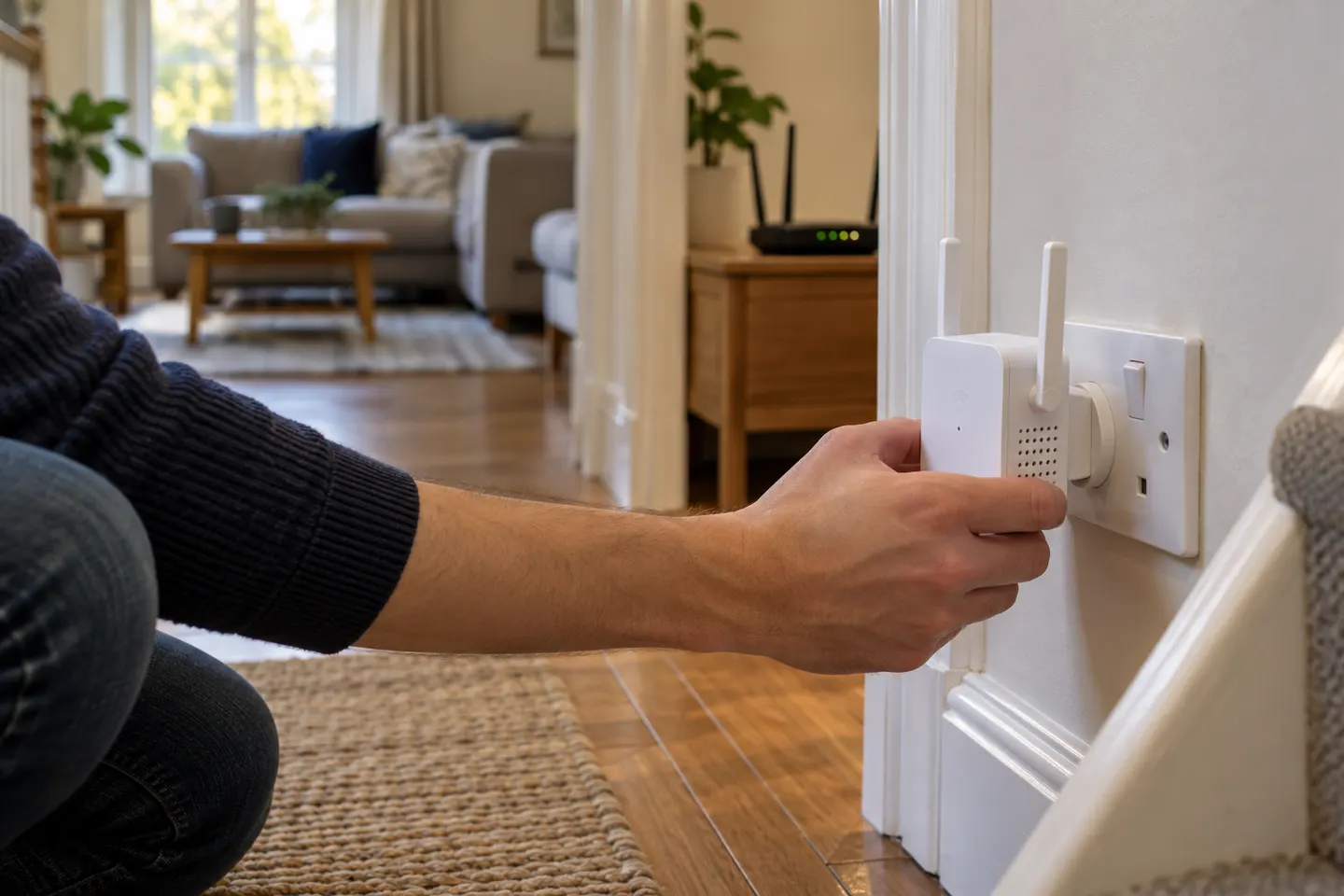
Choose a spot between the router and weak area, not where the router signal has already disappeared.
Can a Wi-Fi 4 extender connect to a newer router?
Many older Wi-Fi devices connect to newer routers using compatible settings, but security and band support vary. Check the model manual.