








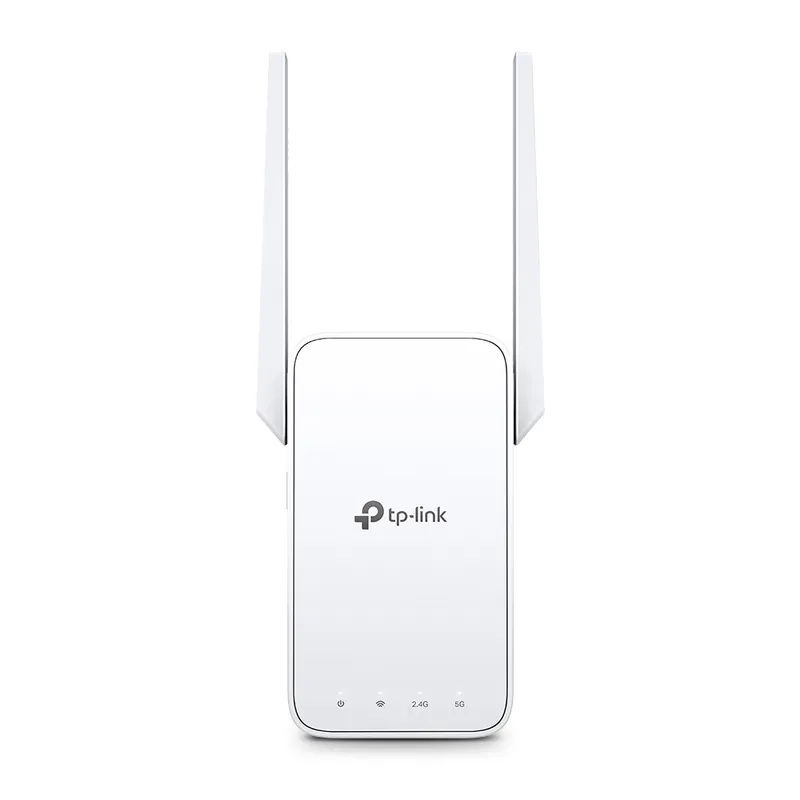
 Official manufacturer image
Our picks
Top picks
Official manufacturer image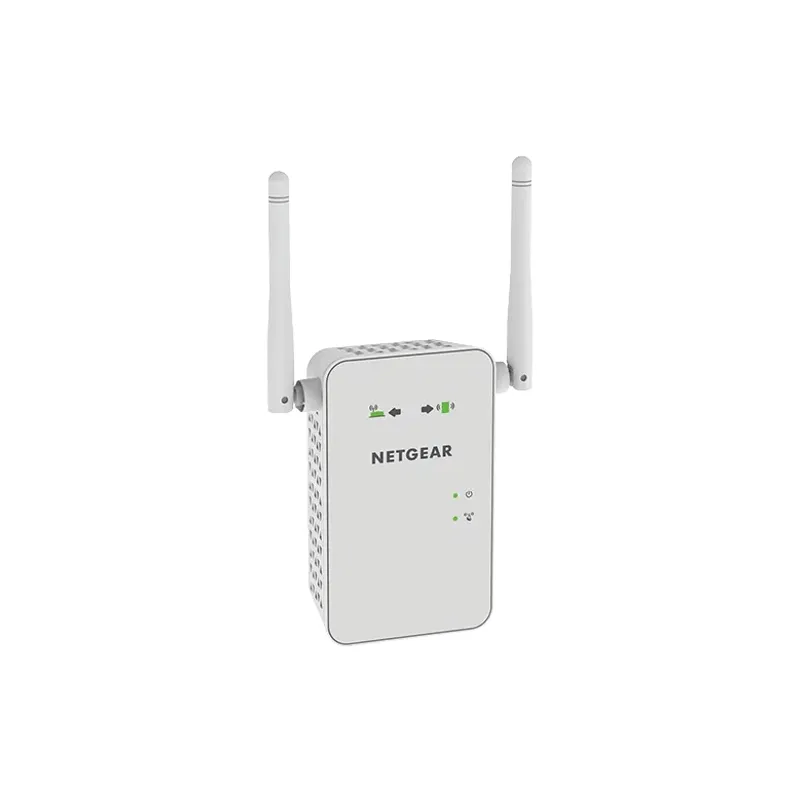 Official manufacturer image
NETGEAR EX6120
Check price on Amazon UK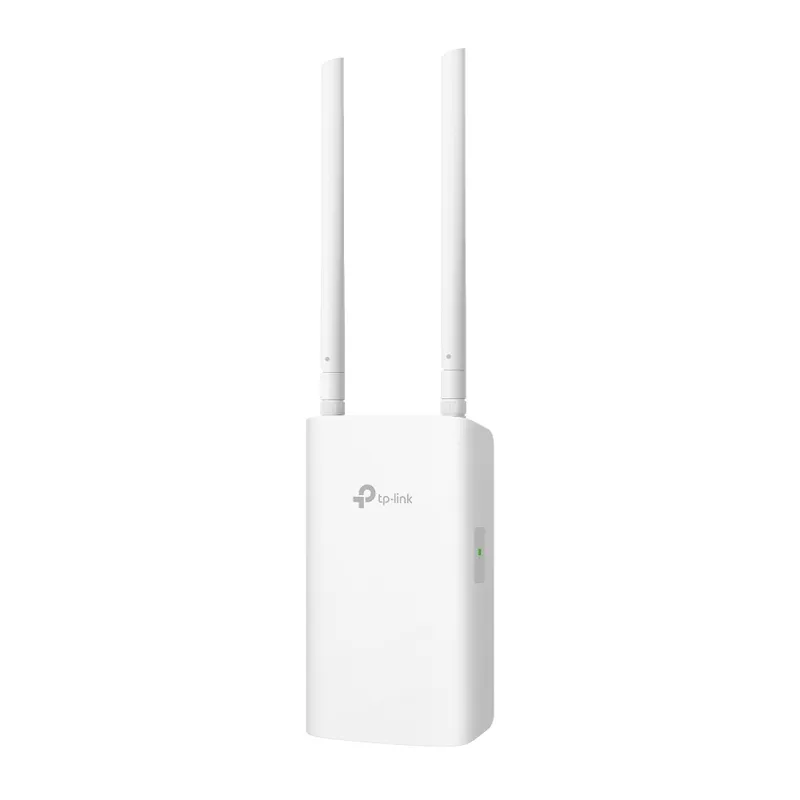 Official manufacturer image
TP-Link RE705X-Outdoor
Check price on Amazon UKSetup and help
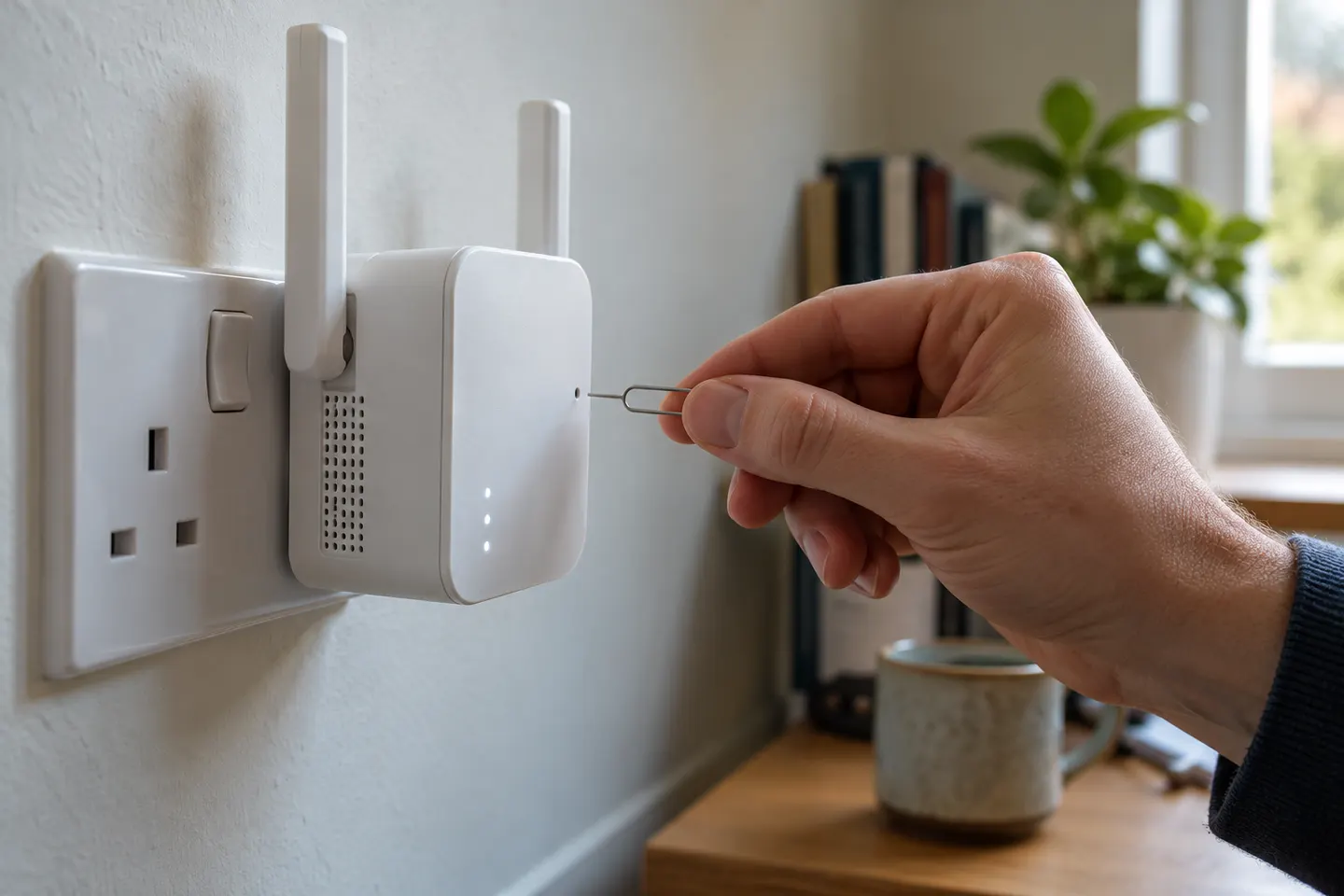 Qlocom reset
How-to guides
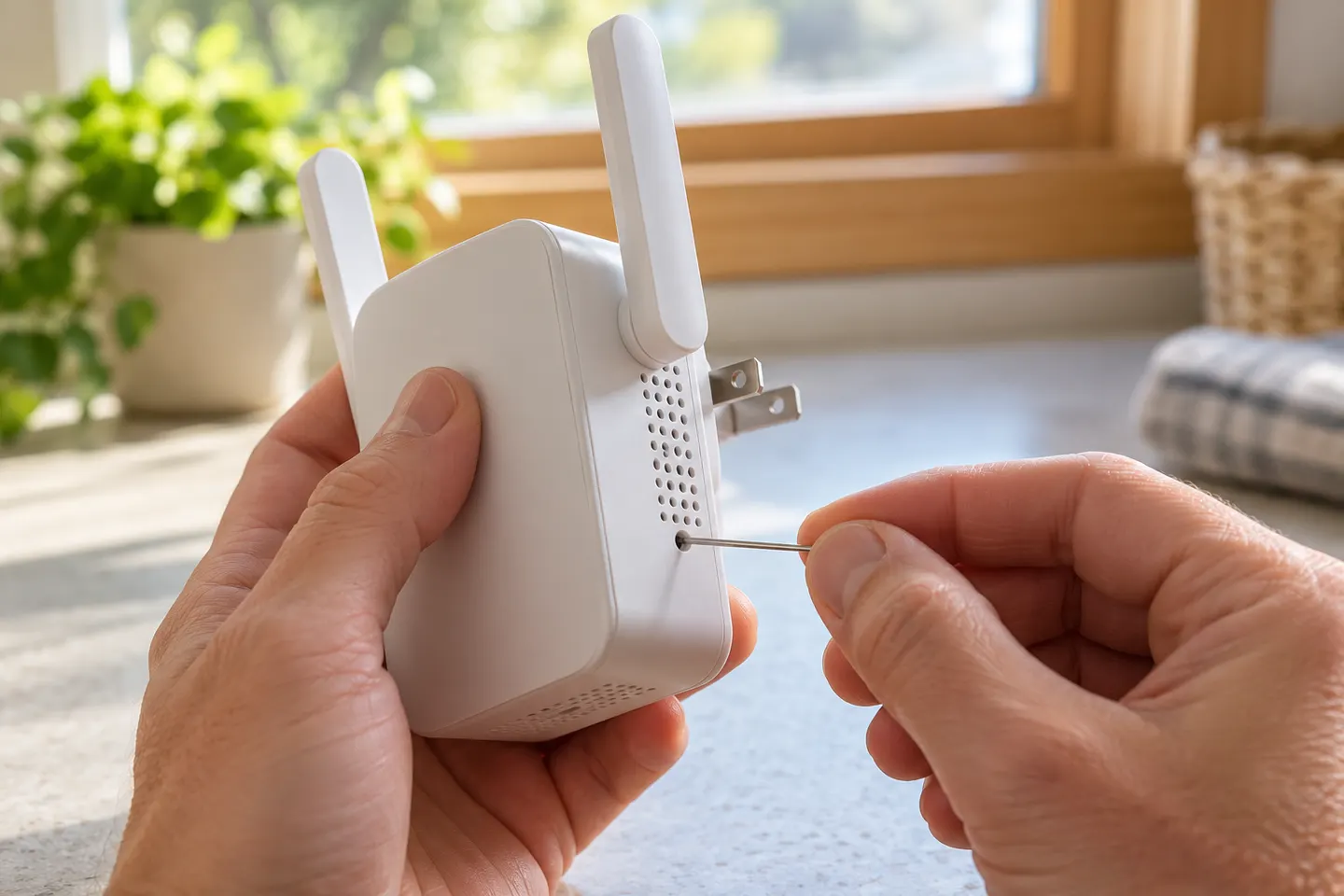 How to Reset a TP-Link WiFi Extender to Factory…
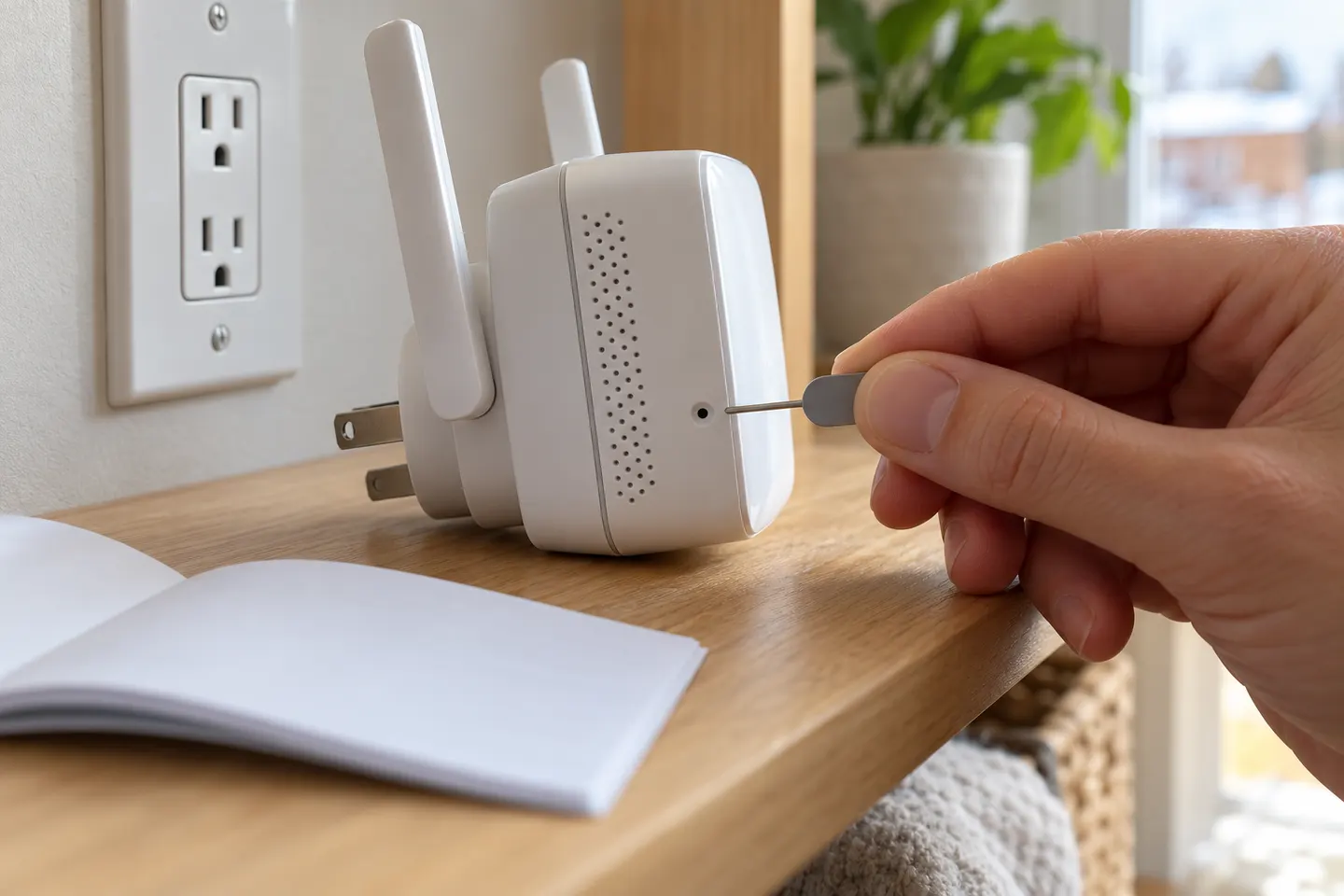 How to Reset a WiFi Extender or Range Booster
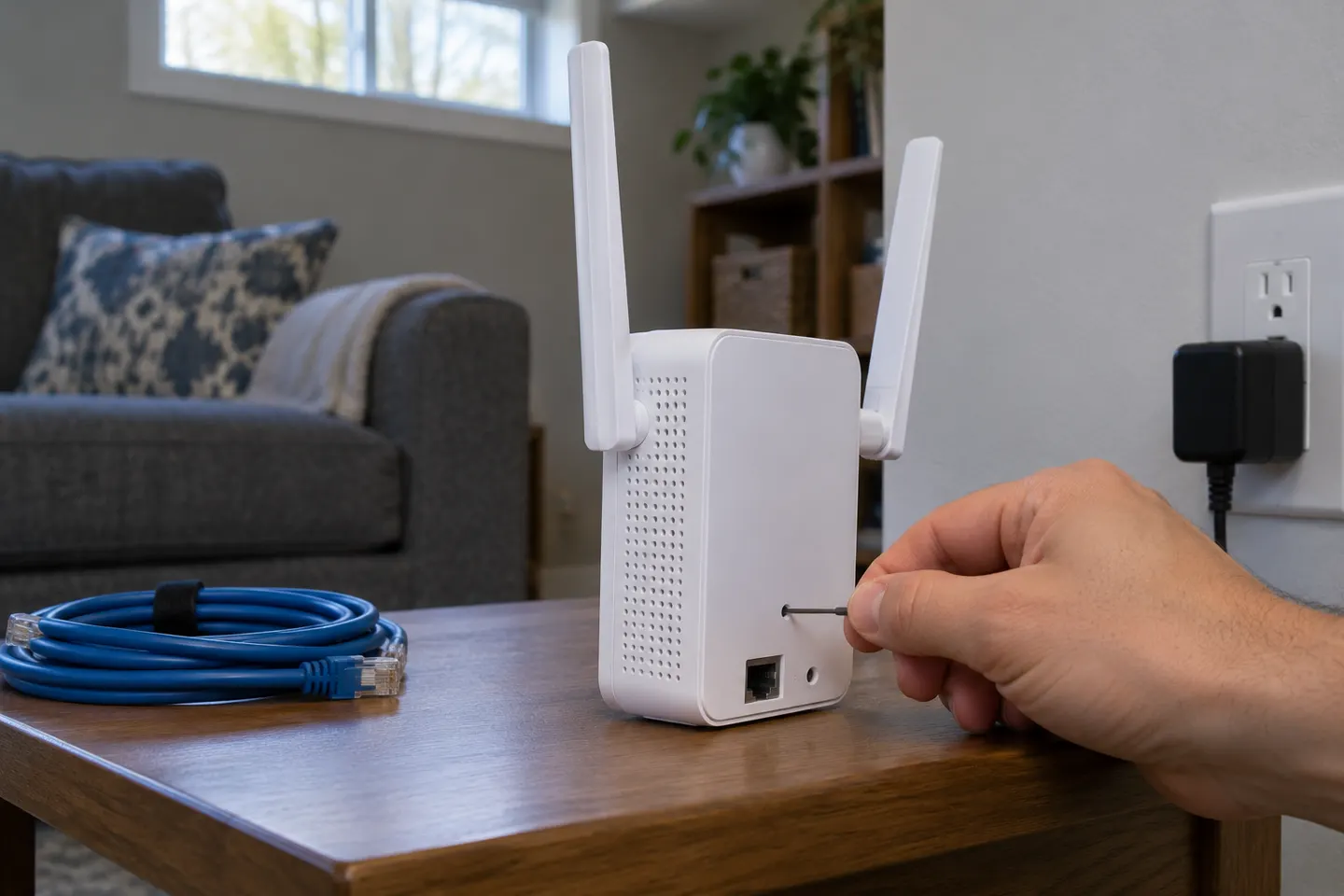 How to Reset a NETGEAR WiFi Extender Safely
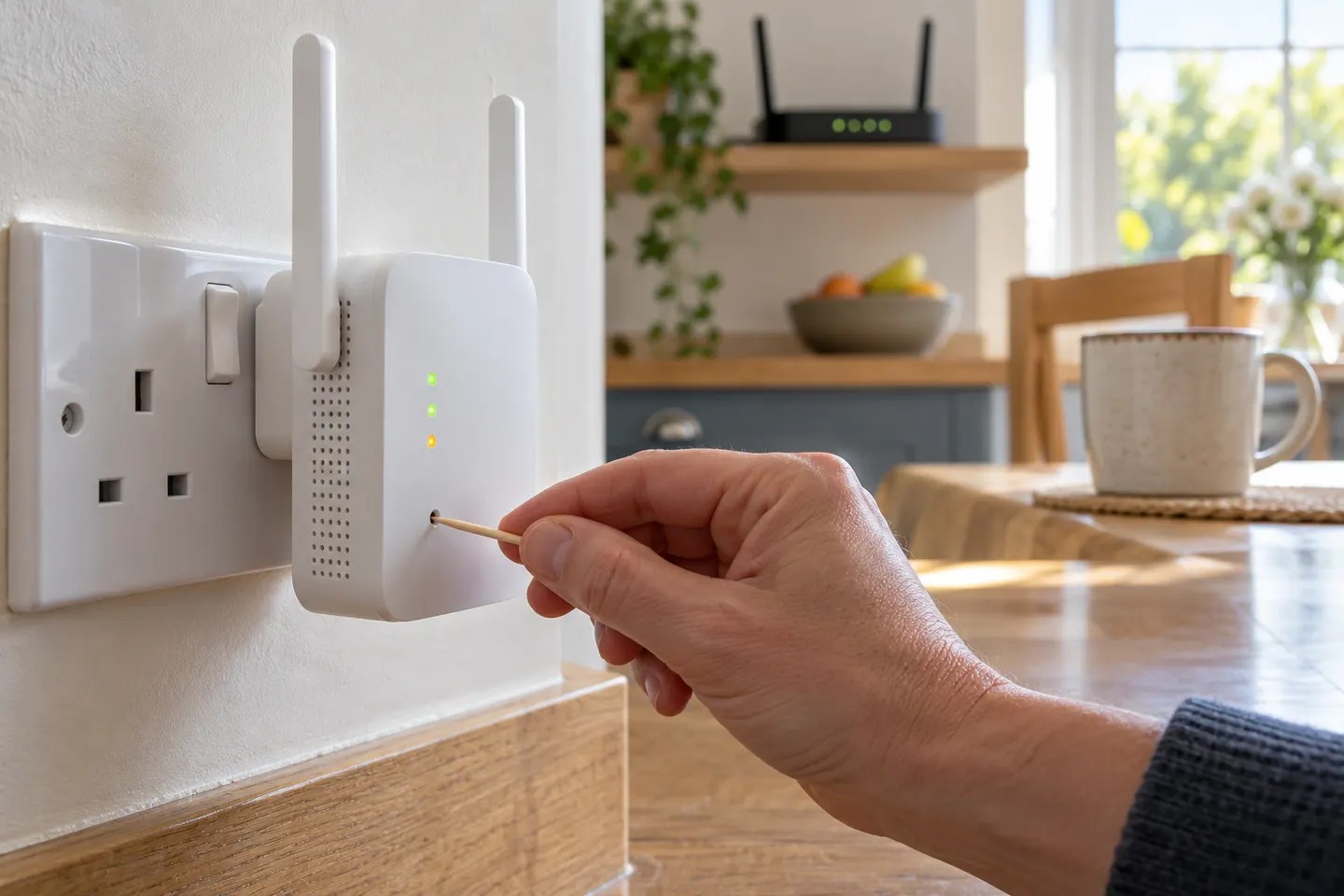 How to Reset a TP-Link Extender to a New WiFi…
Common questions
Questions before you buy
How do I reset a WiFi extender?
With the unit powered, use its reset button or pinhole for the time stated in the model manual. Wait for restart, then configure it again.
Will resetting my WiFi extender delete its settings?
A factory reset normally clears saved network and configuration settings. A simple power restart generally does not; check manufacturer instructions.
How do I reset a WiFi booster without a reset button?
Check the model guide for a recessed pinhole, app-based reset or web administration option. Avoid guessing undocumented button combinations.
Why is my extender still not working after a reset?
Check that the router is online, repeat setup with the correct password, and test closer to the router. Persistent faults may need manufacturer support.