







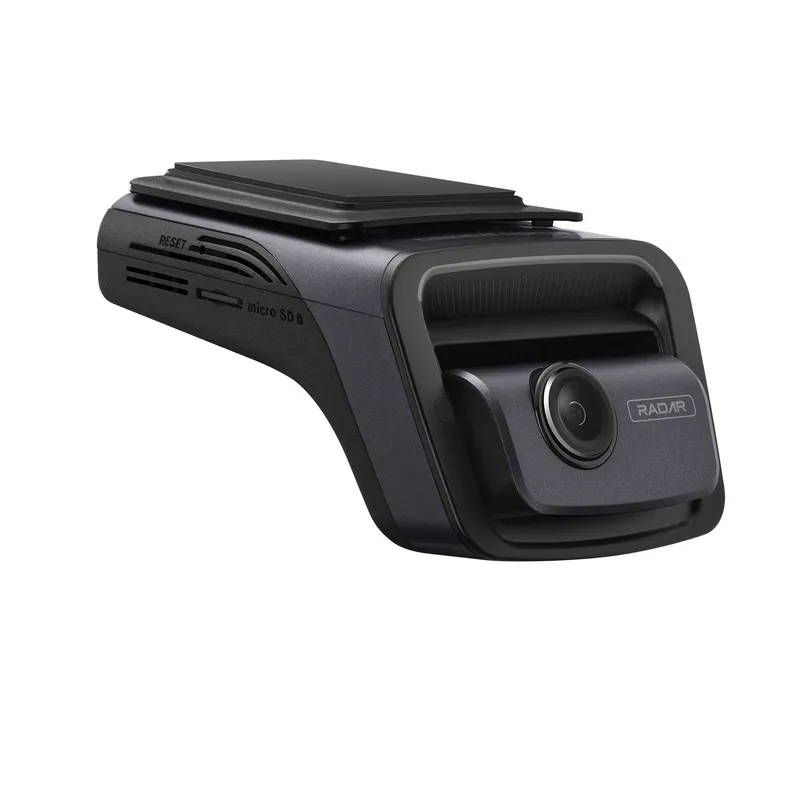
 Official manufacturer image
Our picks
Top picks
Official manufacturer image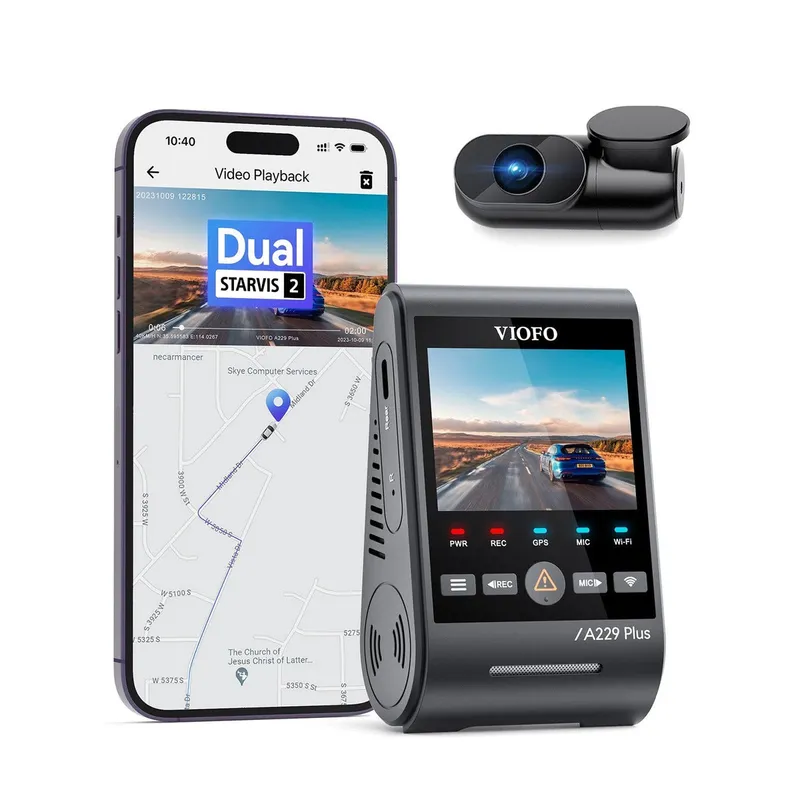 Official manufacturer image
VIOFO A229 Plus 2CH
Check price on Amazon AU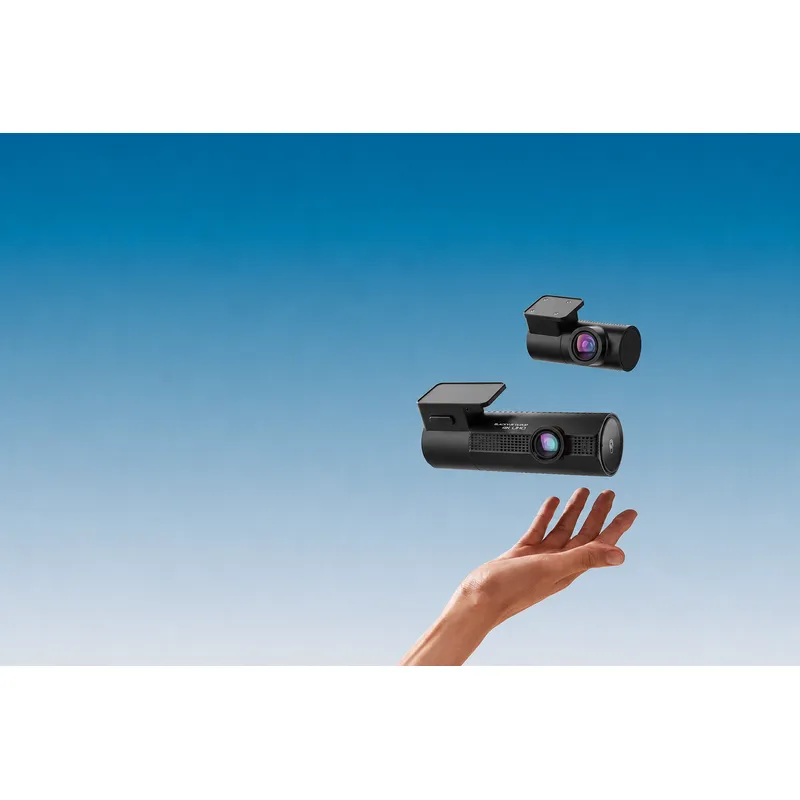 Official manufacturer image
BlackVue DR970X-2CH Plus
Check price on Amazon AUMore topics
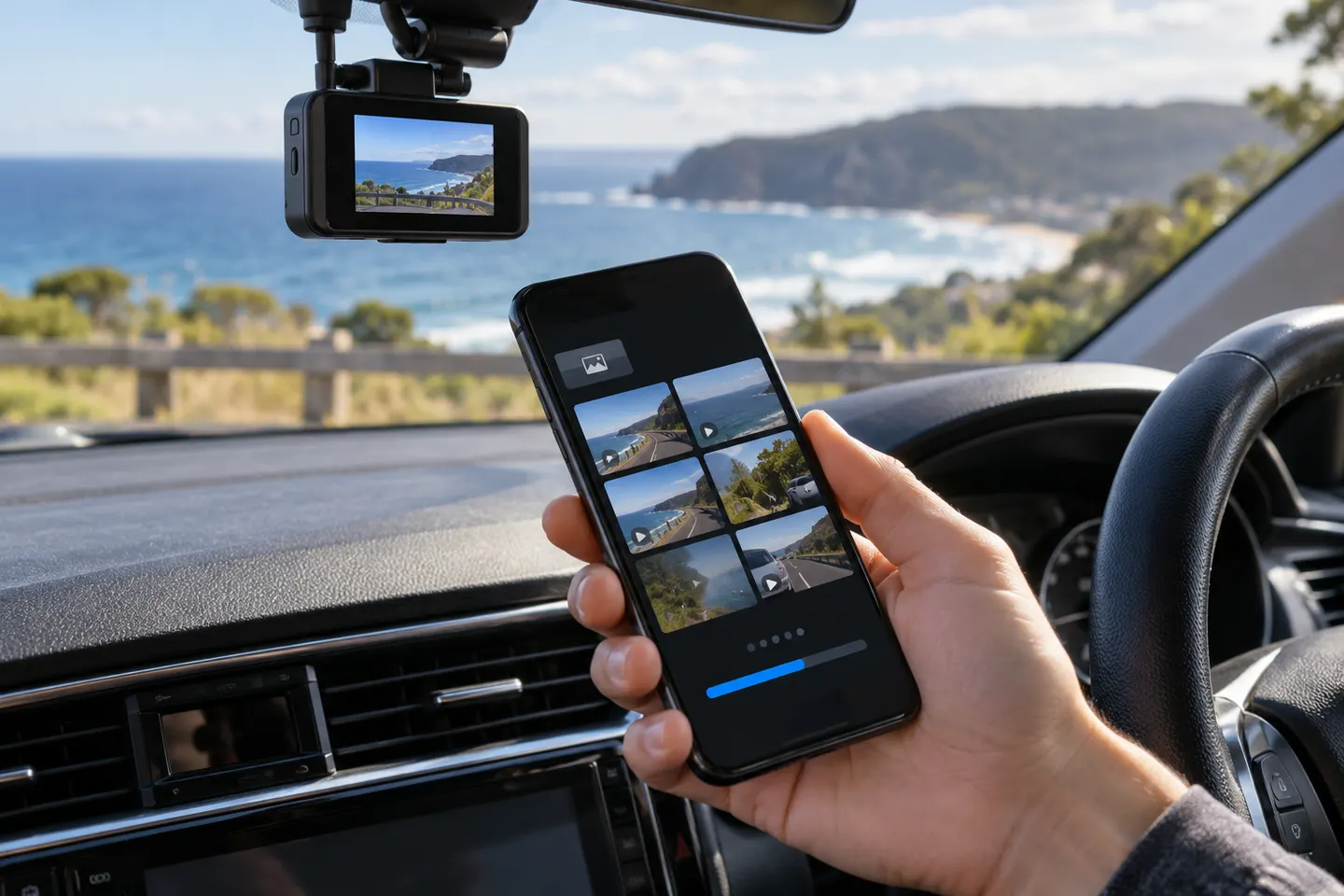 Dashcam Apps
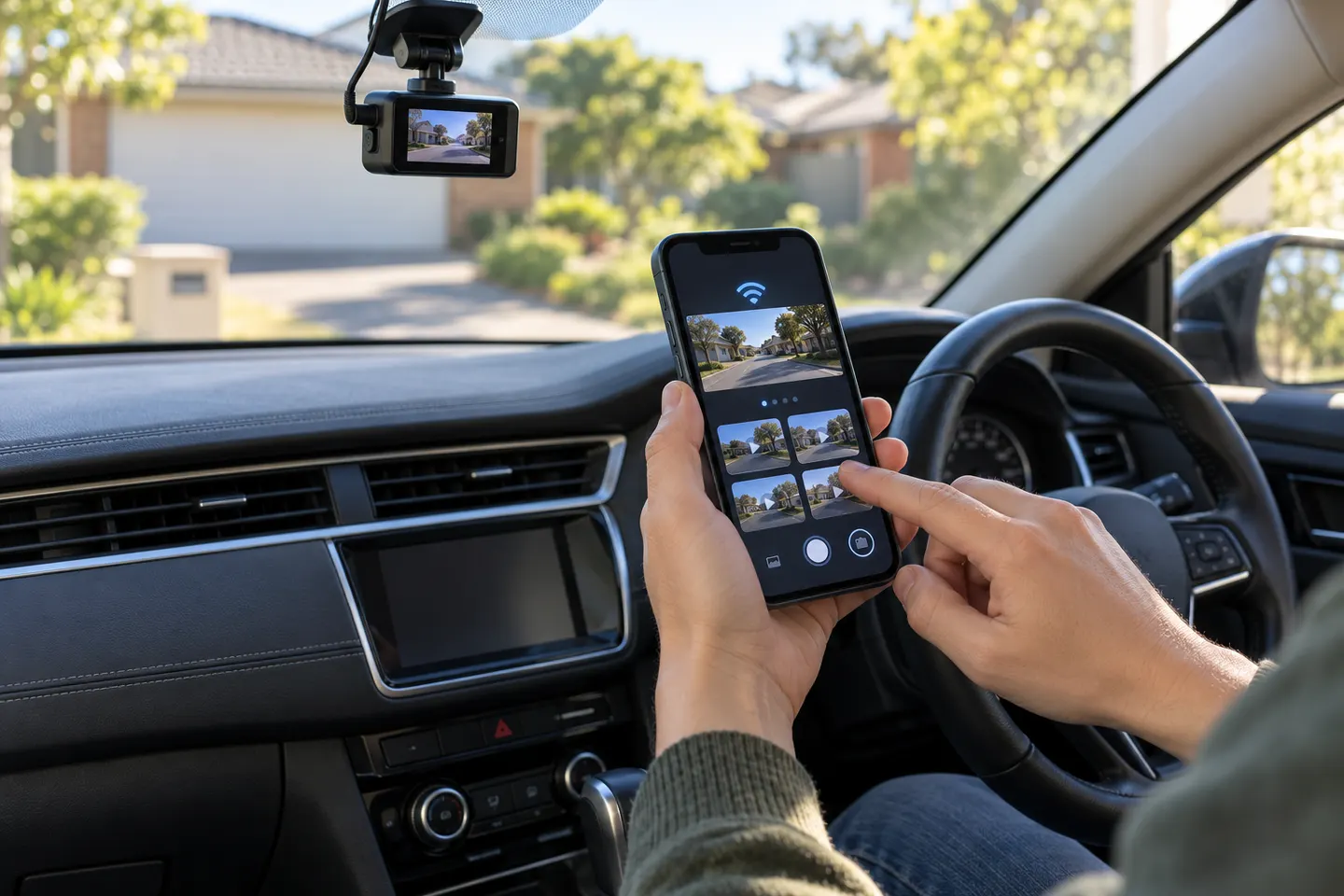 Dashcam Apps for iPhone
Common questions
Questions before you buy
Which app works with my Kapture dash cam?
Use the app specified in the manual for the exact model number. Do not assume every Kapture camera uses the same app.
Why will my phone not connect to the Kapture dash cam?
Confirm the camera's Wi-Fi is enabled, forget and rejoin its network, disable automatic network switching temporarily and check the required app permissions.
Why does the dash cam Wi-Fi say no internet?
The camera creates a local network for settings and files, not general internet access, so the warning can be expected.
Can I download Kapture dash cam videos to my phone?
Compatible app-connected models can transfer clips, but large files may be faster to copy from the memory card using a suitable reader.