








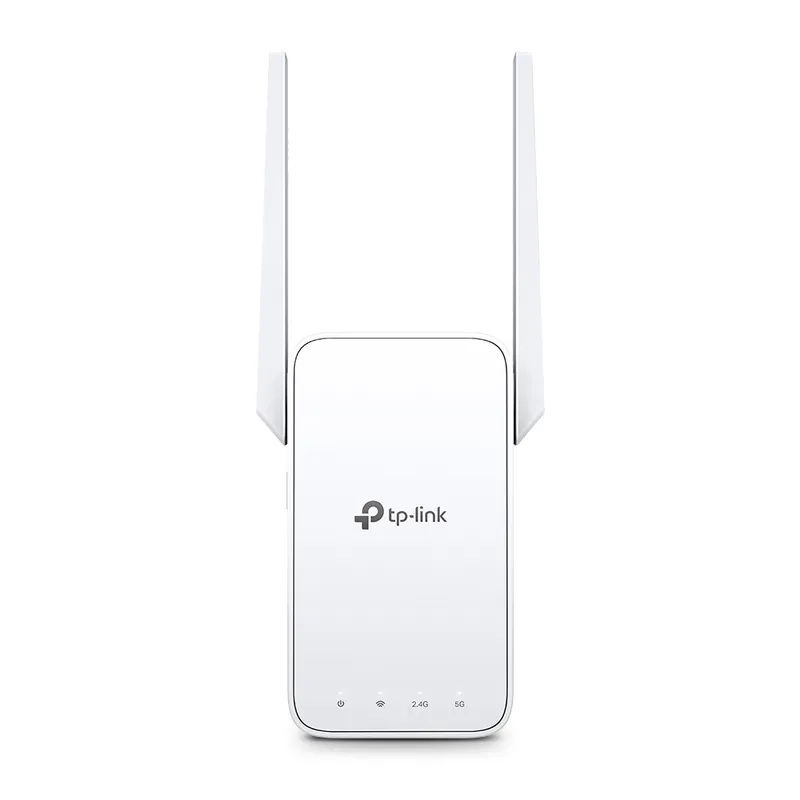
 Official manufacturer image
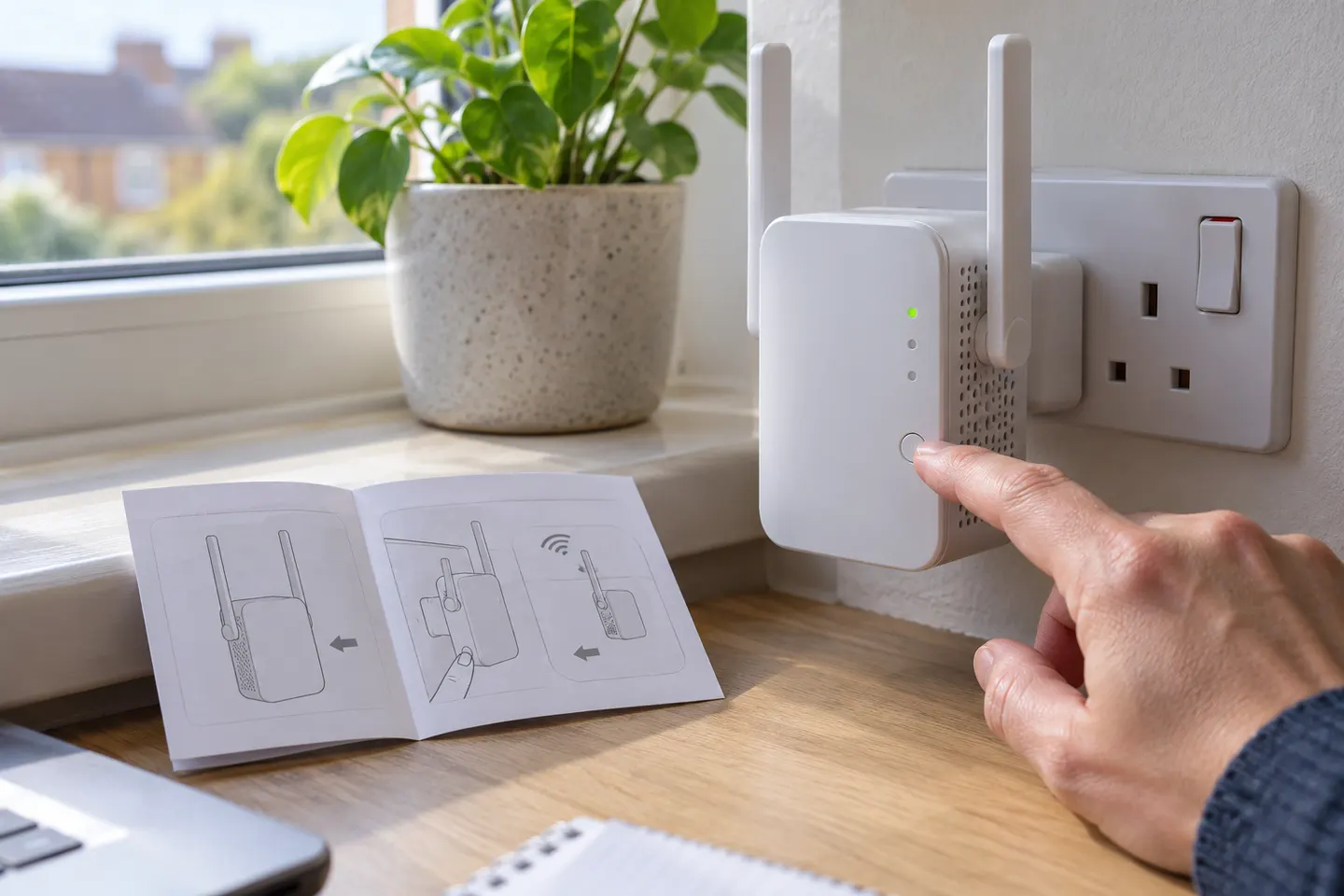
Our picks
Top picks
Official manufacturer image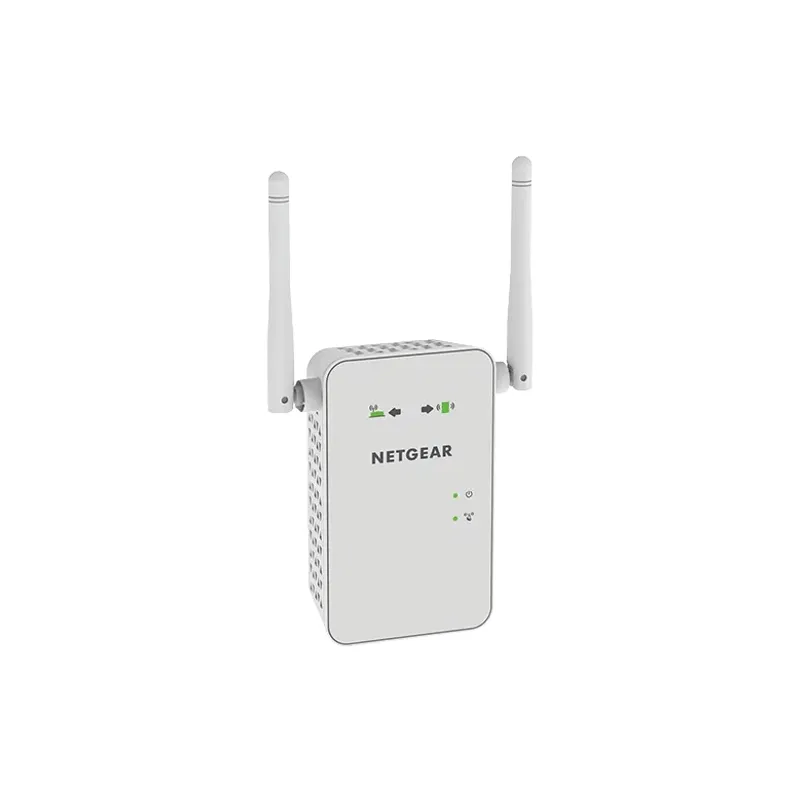 Official manufacturer image
NETGEAR EX6120
Check price on Amazon UK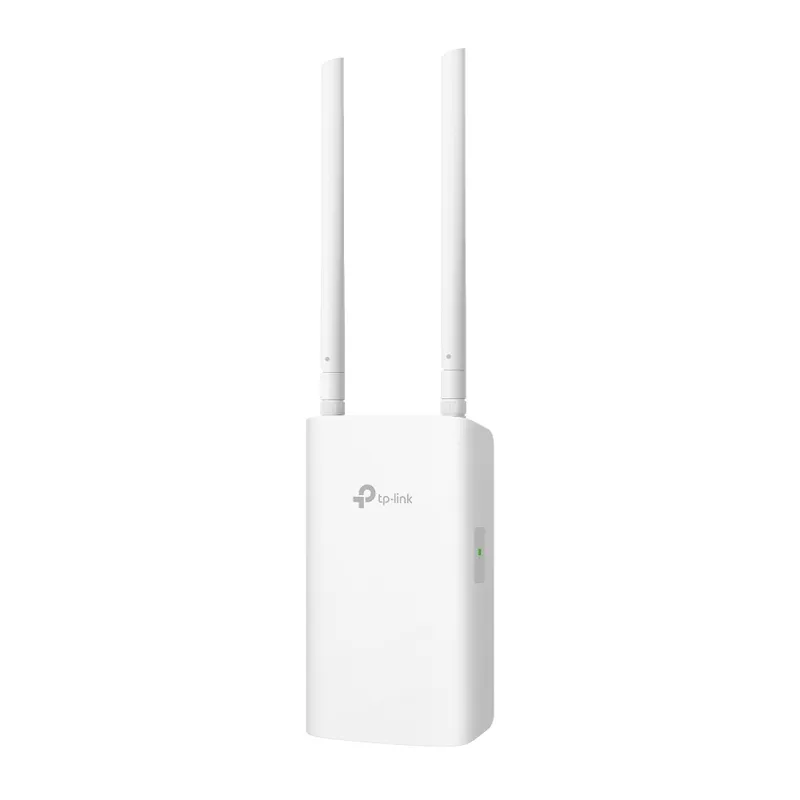 Official manufacturer image
TP-Link RE705X-Outdoor
Check price on Amazon UKSetup and help
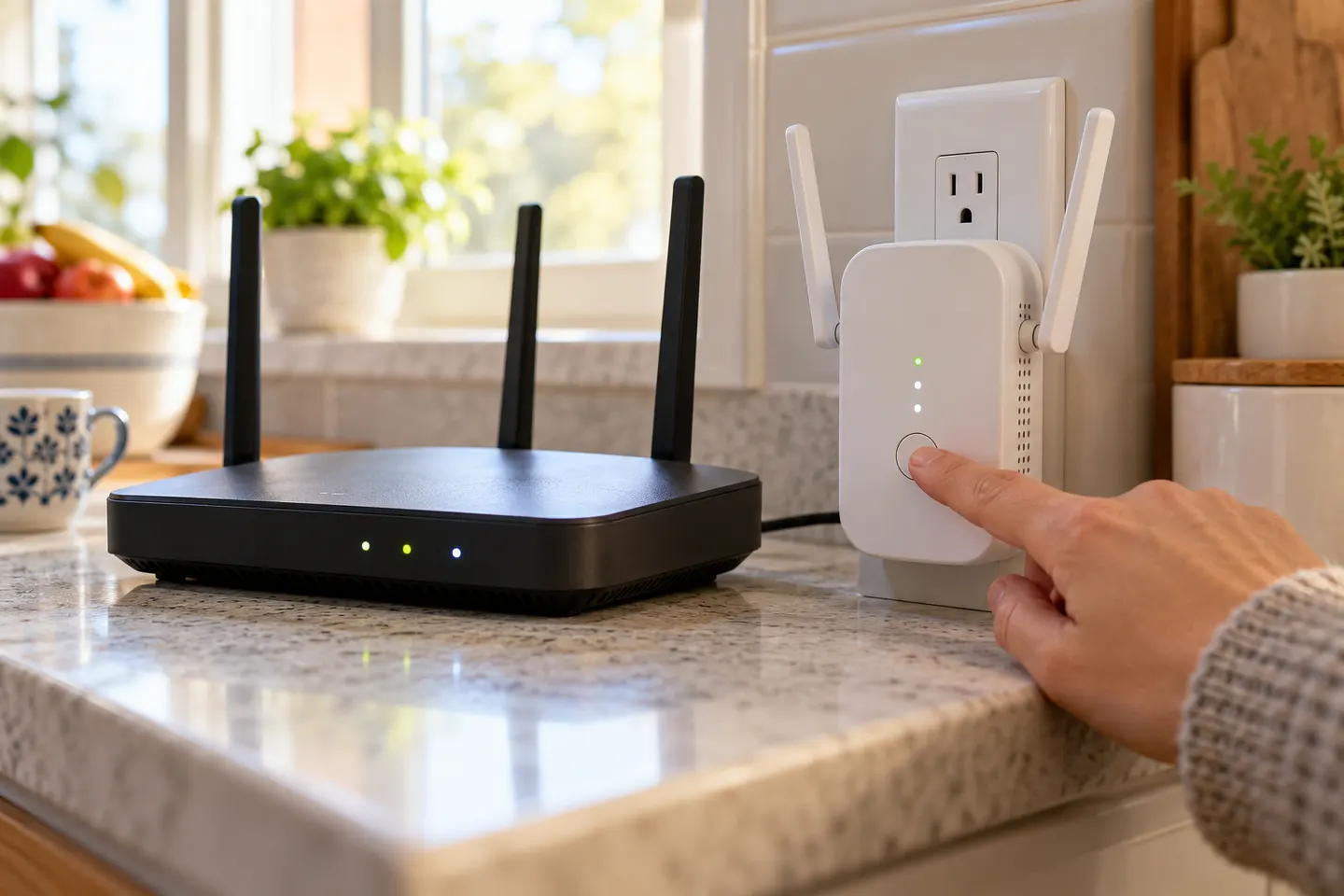 Set up
How-to guides
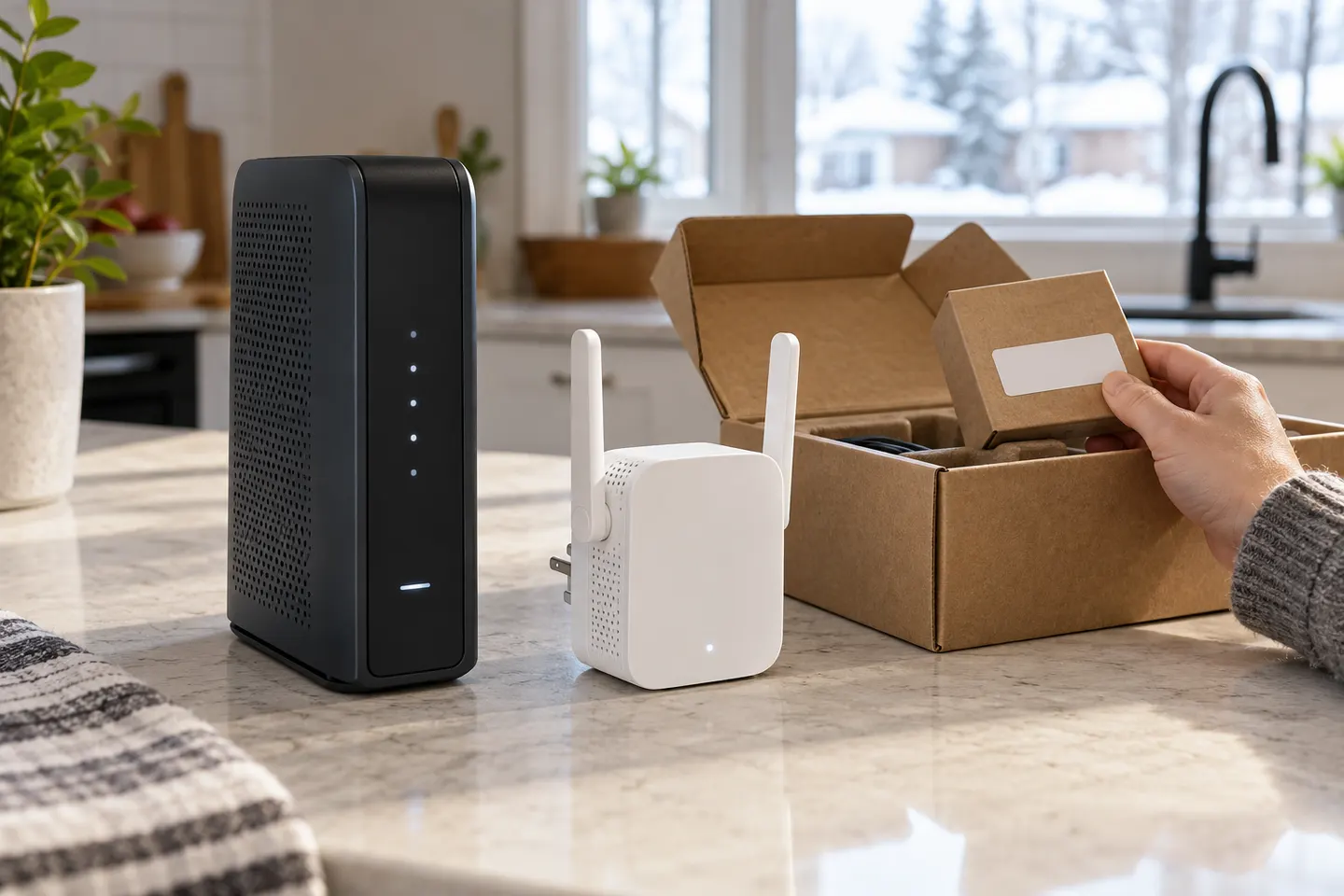 How to Set Up a TP-Link WiFi Extender for Better…
 How to Set Up a NETGEAR WiFi Extender
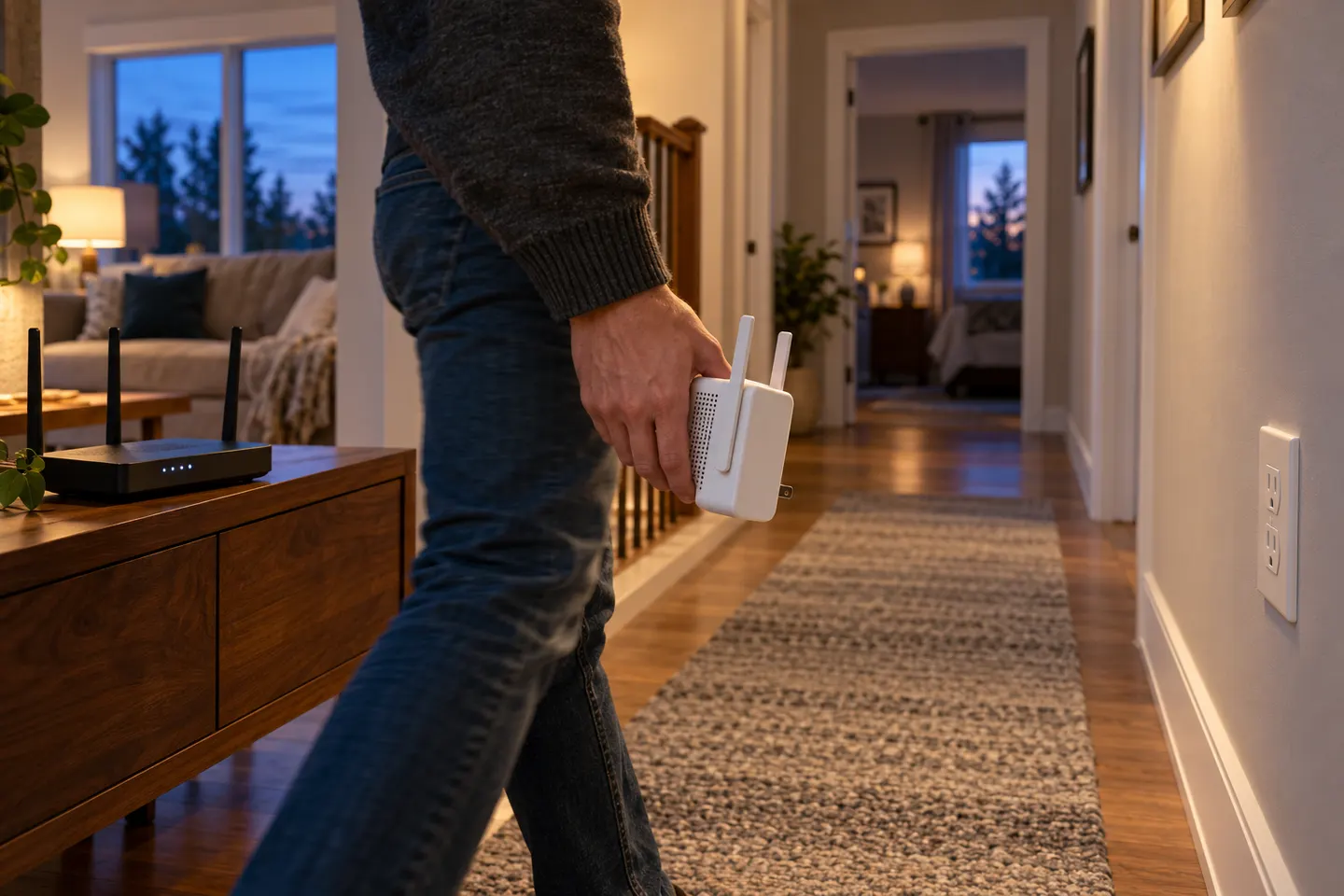 How to Set Up a WiFi Extender with Your Home Router
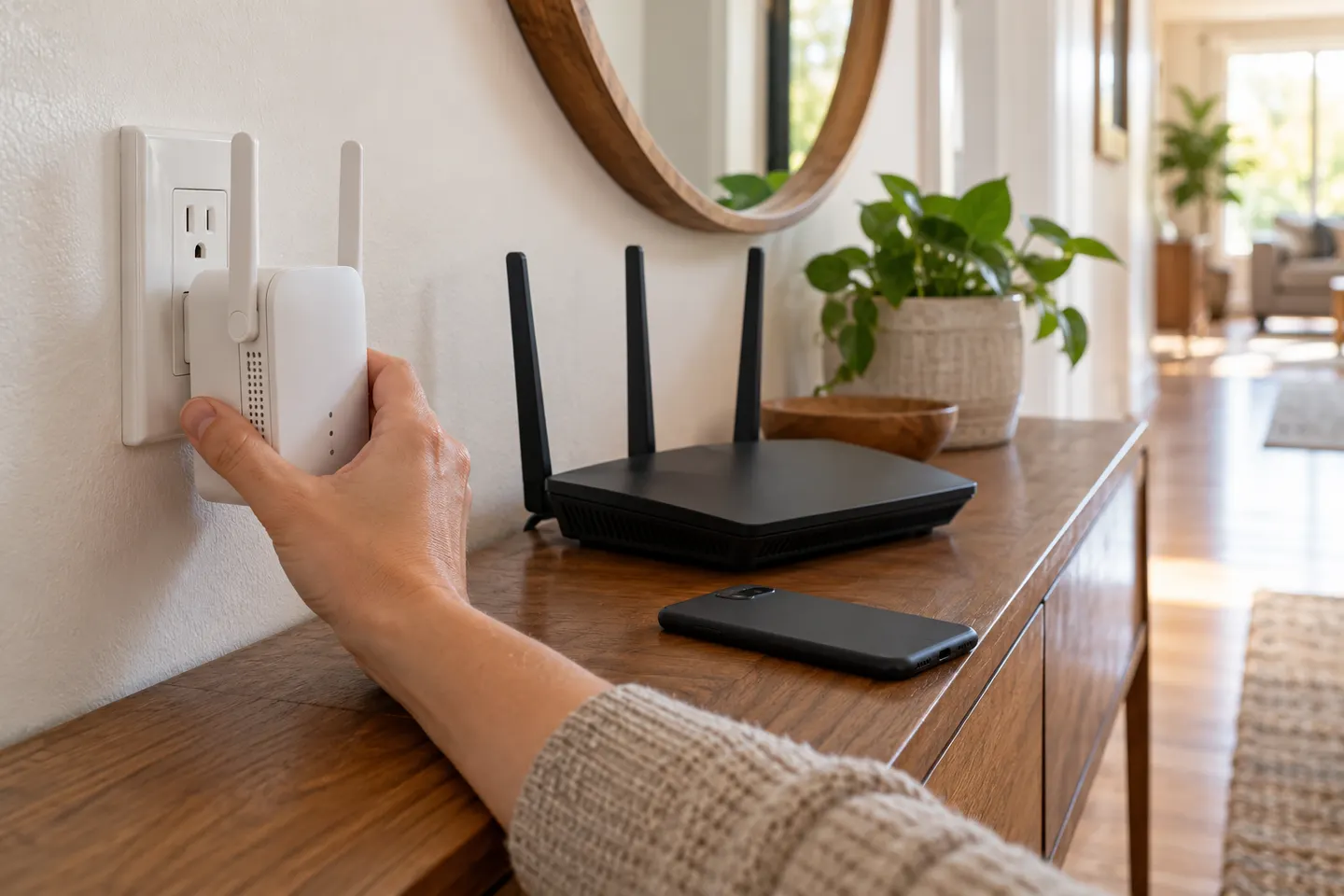 How Do I Hook Up a WiFi Extender to My Router?
More topics
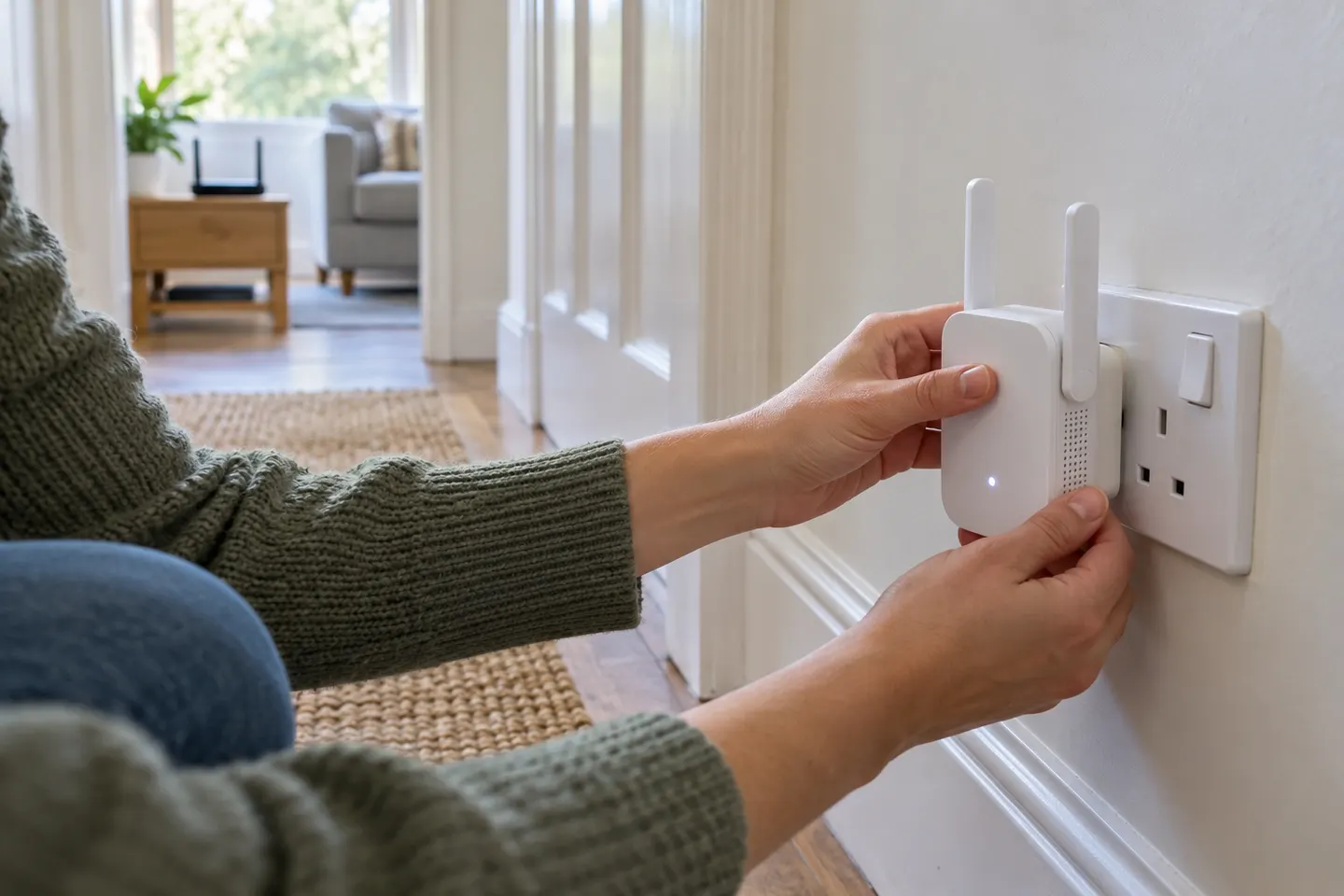 Setting Up a Wi-Fi Extender
Common questions
Questions before you buy
How do I set up a COMFAST Wi-Fi extender?
Use the exact model guide. Pair by WPS or the listed browser setup page, then test coverage before moving the unit.
Should I use WPS or browser setup?
Use WPS when both devices support it; browser setup is a useful alternative.
Why cannot I open its setup page?
Connect to the extender temporary network and use the address in the manual. Disable mobile data if it redirects you.
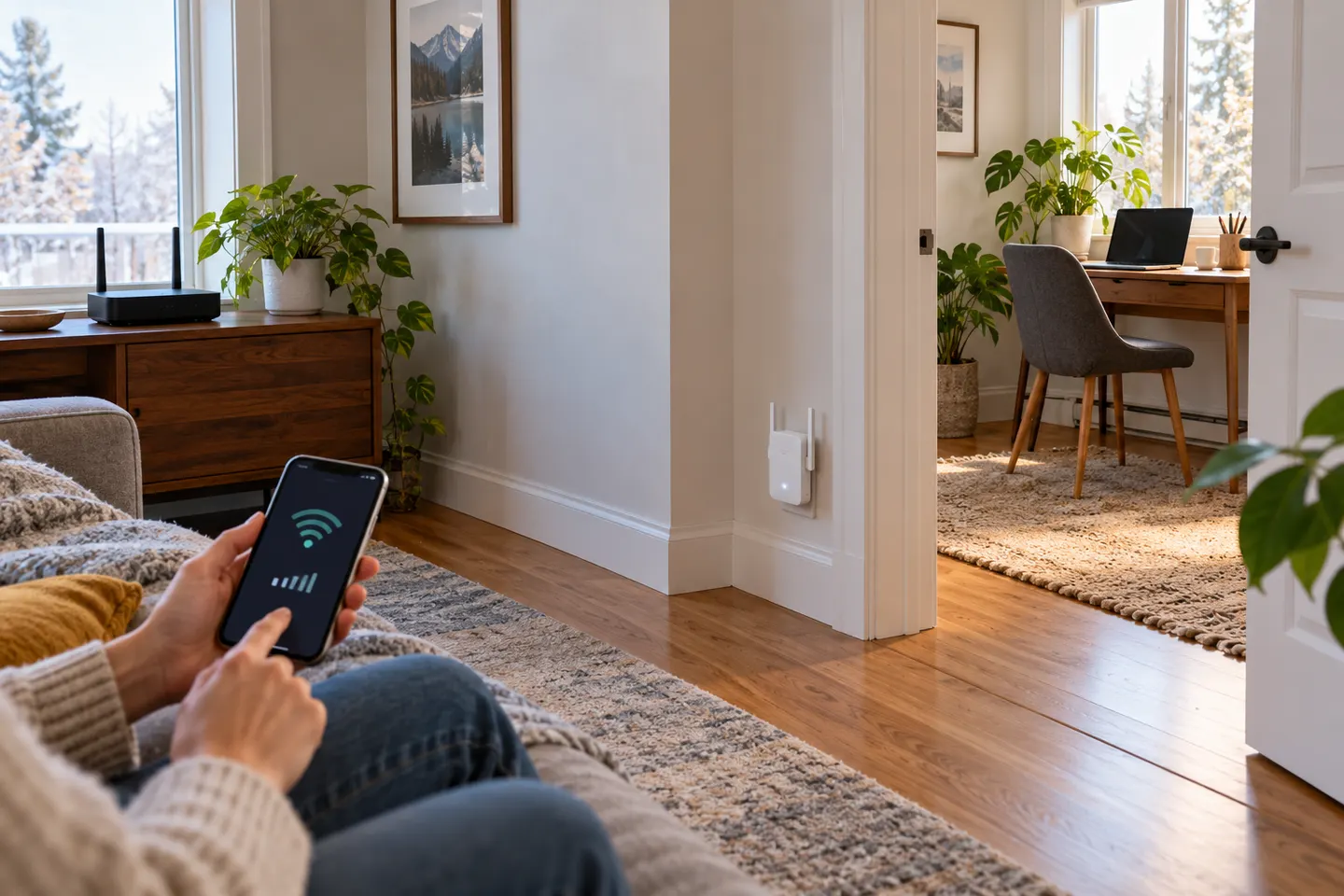
Where should I put the extender?
Choose a point between router and weak room where the router signal is still usable.